Case 3: Make the Robot "Obey Commands"
Case Introduction
Master the basics of MakeCode graphical programming, understand the correspondence between "commands and actions". By dragging and dropping programming blocks and conducting practical debugging, students' basic programming logic and hands-on operation abilities will be cultivated, and they will experience the fun and practicality of programming.
Teaching Preparation
| Name | Diagram |
|---|---|
| PU Robot Kit | 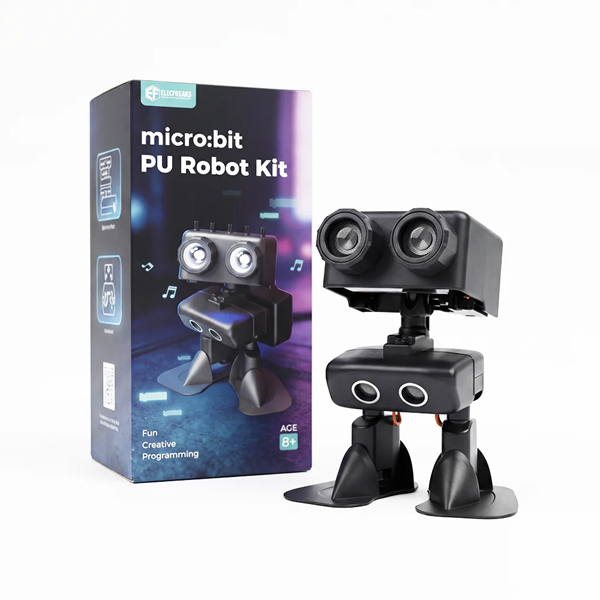 |
| Programming Device (Computer) | |
| Flat Ground |
Course Objectives
- Master the basics of MakeCode graphical programming
- Learn to add software libraries and download programs
- Control the robot's walking through programming
Course Introduction
In the last class, we made the robot obey commands with a remote control. Today, we will learn a more amazing method - programming. By dragging blocks and setting commands, we can make the robot complete actions according to our ideas, just like setting a exclusive password for it. Next, let's step into the world of MakeCode programming and unlock the programming skills of the robot!
Learning Exploration
Tool Cognition: Guide students to open the MakeCode programming page on the computer, introduce the basic interface of the tool (block drawer, programming area), and focus on explaining the position and function of the "action blocks" and "control blocks", helping students establish an initial understanding of graphical programming tools.
Block Learning: The teacher focuses on core needs, explains the usage of basic action blocks such as "walk", "stop" and "kick", demonstrates the operation of "dragging blocks and combining commands", guides students to understand that "each block corresponds to a specific action", and clarifies the core logic that "programming is to combine multiple action blocks to issue continuous commands to the robot".
Practical Exploration: The teacher gives an example task (move forward for 3 seconds → stop → kick once), guides students to try dragging the corresponding action blocks in groups, set the action duration, adjust the block order, and calculate the rationality of the action duration combined with mathematical knowledge. Let students perceive the correspondence between "commands and actions" in practice and understand the core principles of programming.
Makecode Programming
Programming Platform
Go to "makecode.microbit.org" and click New Project.
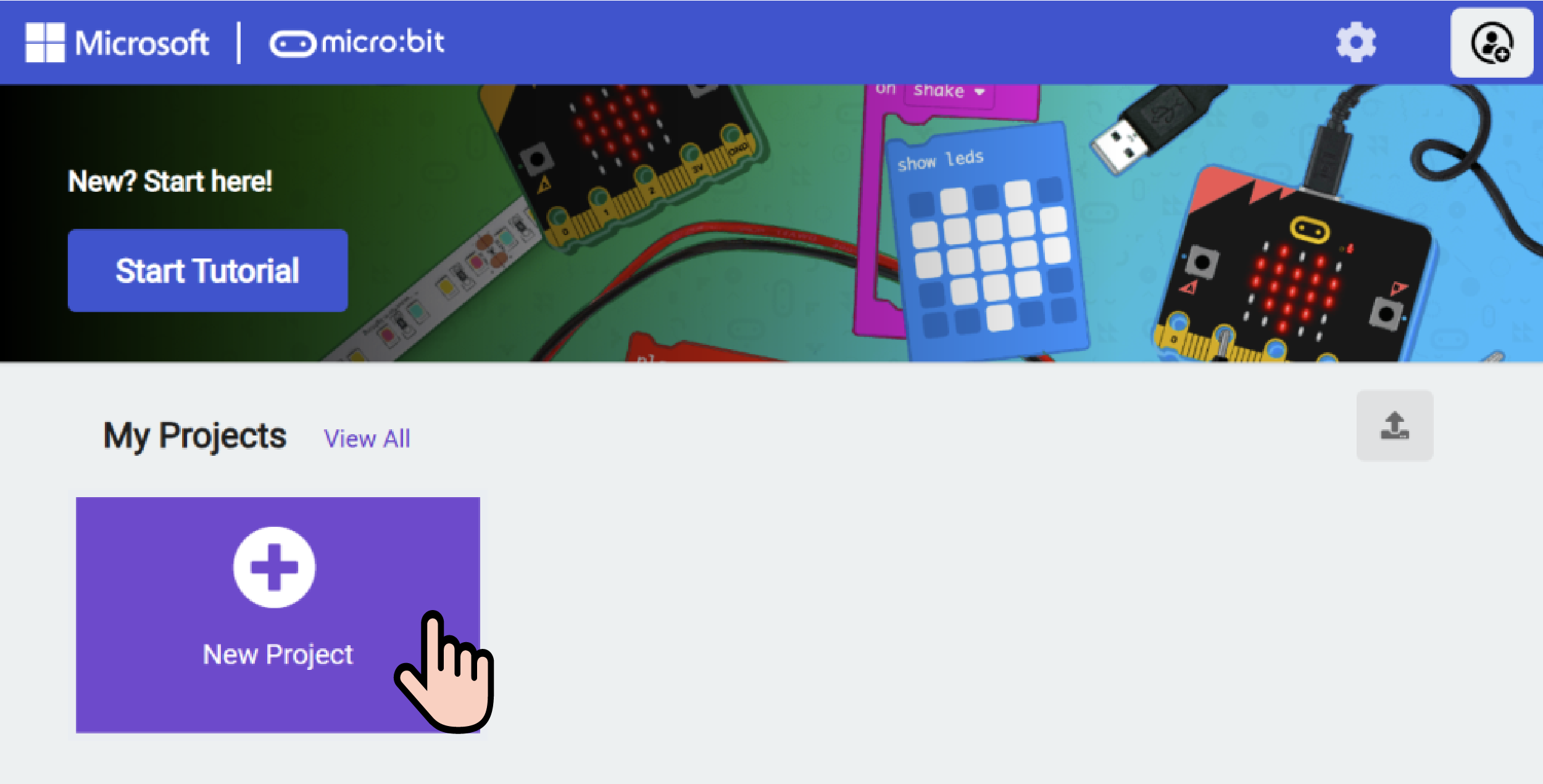
Create a New Project
Enter the project name in the pop-up window and click Create.

Add Software Library
Click Extensions in the code drawer.

Enter pu robot in the pop-up interface and click the search icon. After the pu robot software library is displayed, click it.

Write the Program
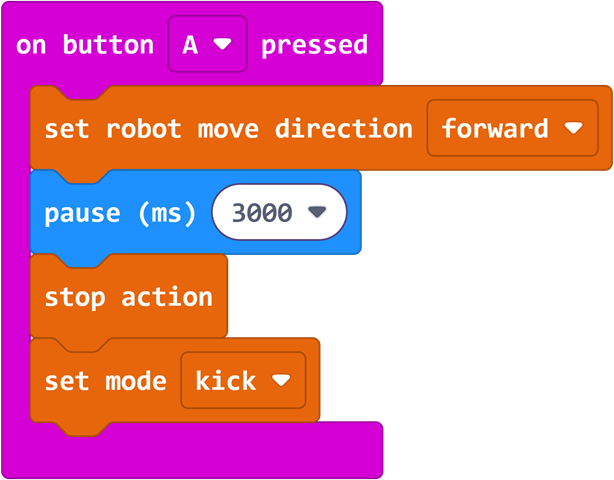
Program Link: https://makecode.microbit.org/_DwbHT85Ve5a1
Download the Program
To download the program, we first need to remove the micro:bit from the PU Robot.
Removal and Installation of micro:bit
- Rotate the PU Robot's body by 90°
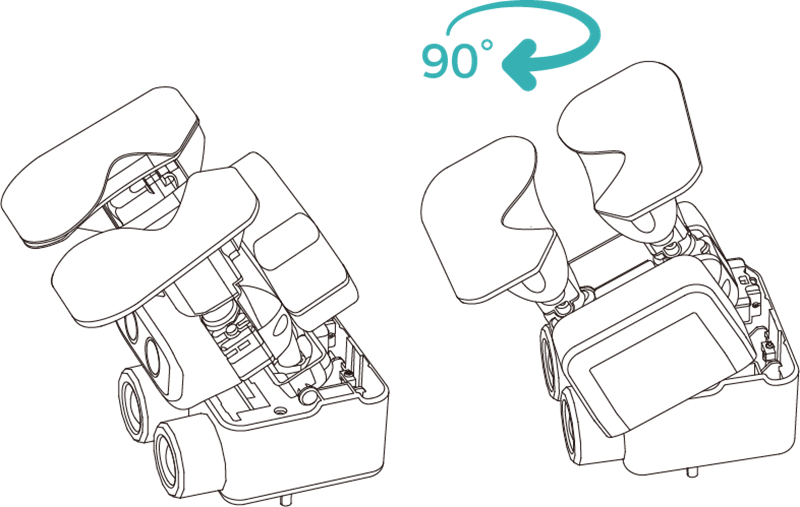
- Unscrew the fixing screws
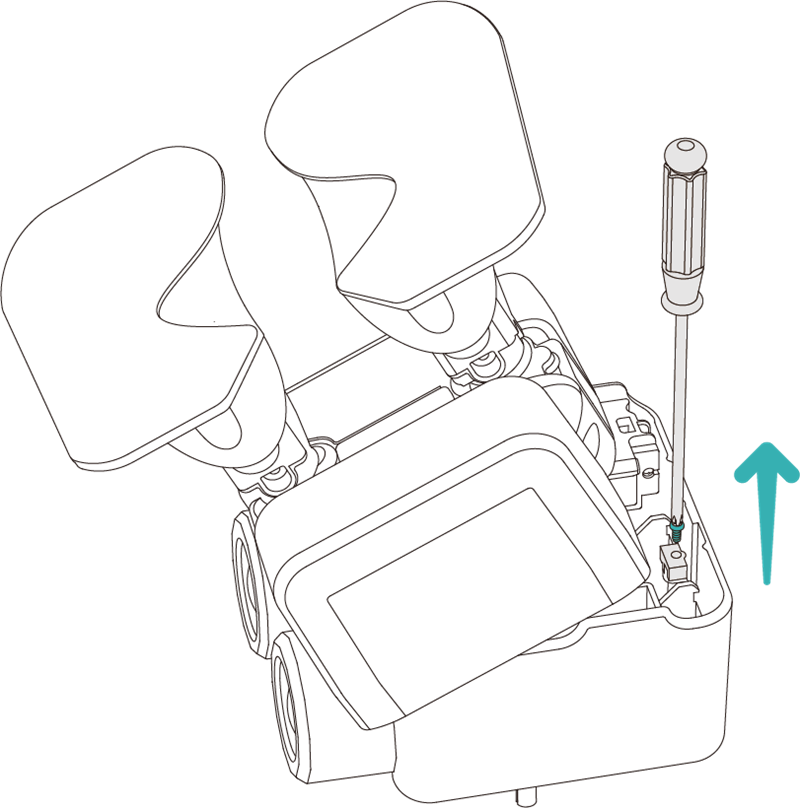
- Open the head cover and take out the micro:bit
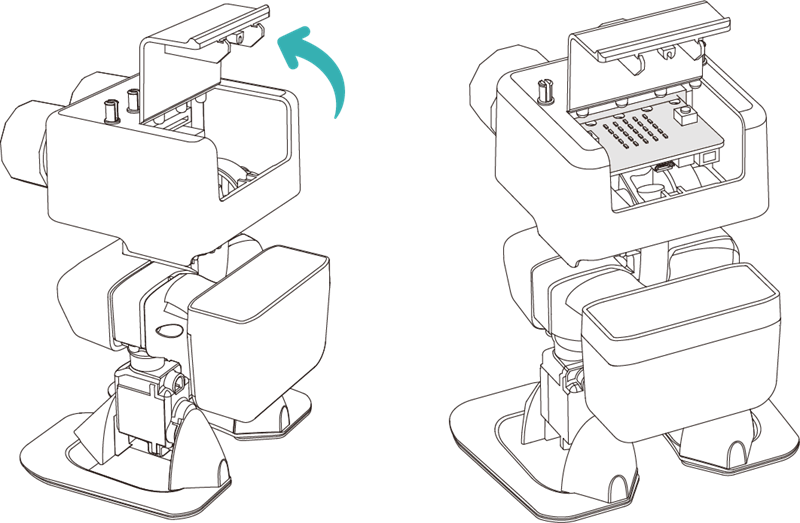
Warning: Do not forcibly twist the joints of the PU Robot when it is powered on, as this will damage the servo motors.
Program Download Steps Connect the PC and micro:bit V2 with a USB cable.

After a successful connection, a drive named MICROBIT will be recognized on the computer.

Click the icon in the lower left corner  and select Connect Device.

Click  .
.

Click  .
.

Select BBC micro:bit CMSIS-DAP in the pop-up window, then select Connect. At this point, our micro:bit has been connected successfully.

Click Download Program

Result
The PU Robot performs a kicking action after walking forward for three seconds.