How to Download Programs
How to Remove the micro:bit from the PU Robot
To program the PU Robot, you need to remove the micro:bit first.
Warning: Downloading a self-written program will overwrite the original firmware and disable remote control. To restore the original functions, please refer to the firmware flashing document and update the firmware accordingly.
Warning: Do not forcibly twist the joints of the PU Robot while it is powered on, as this will damage the servo motors.
- Rotate the body of the PU Robot by 90°.
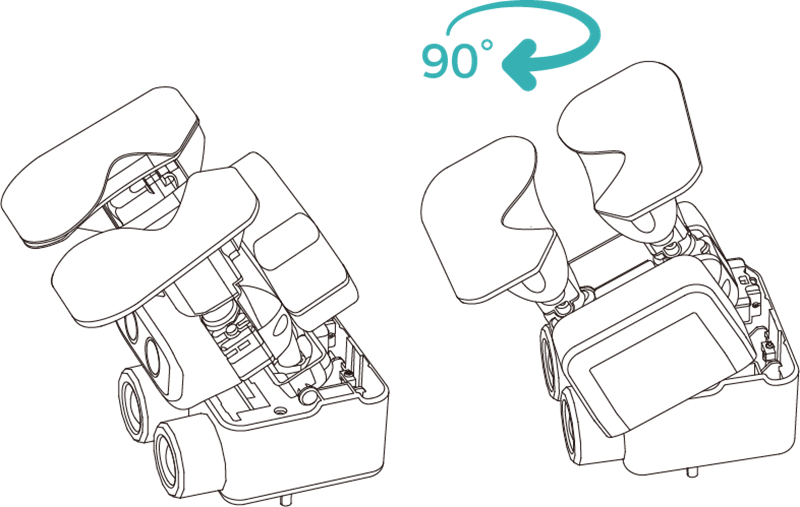
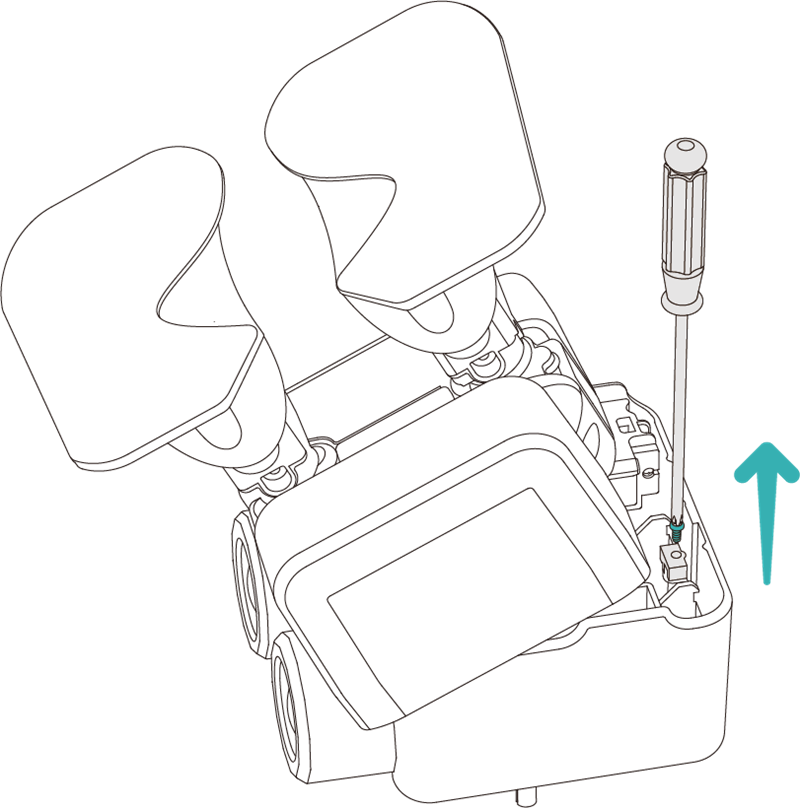
- Unscrew the fixing screws.
- Open the head cover.
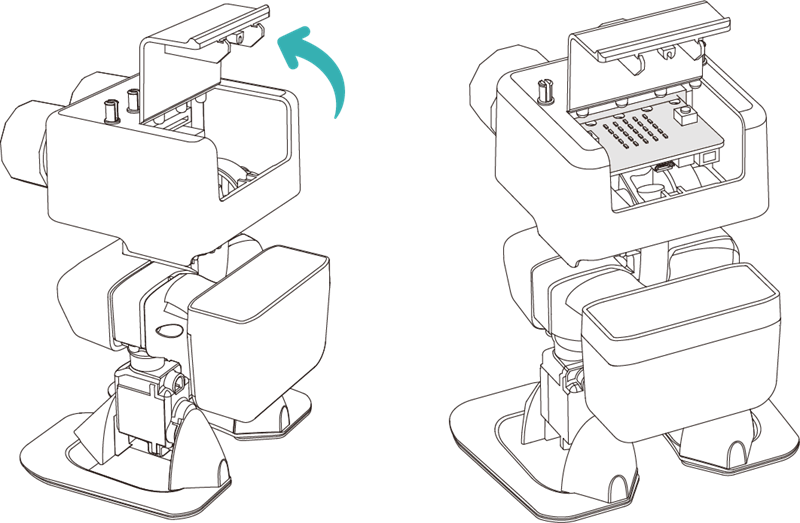
- Take out the micro:bit.
Programming Platform
Go to "makecode.microbit.org" and click New Project.
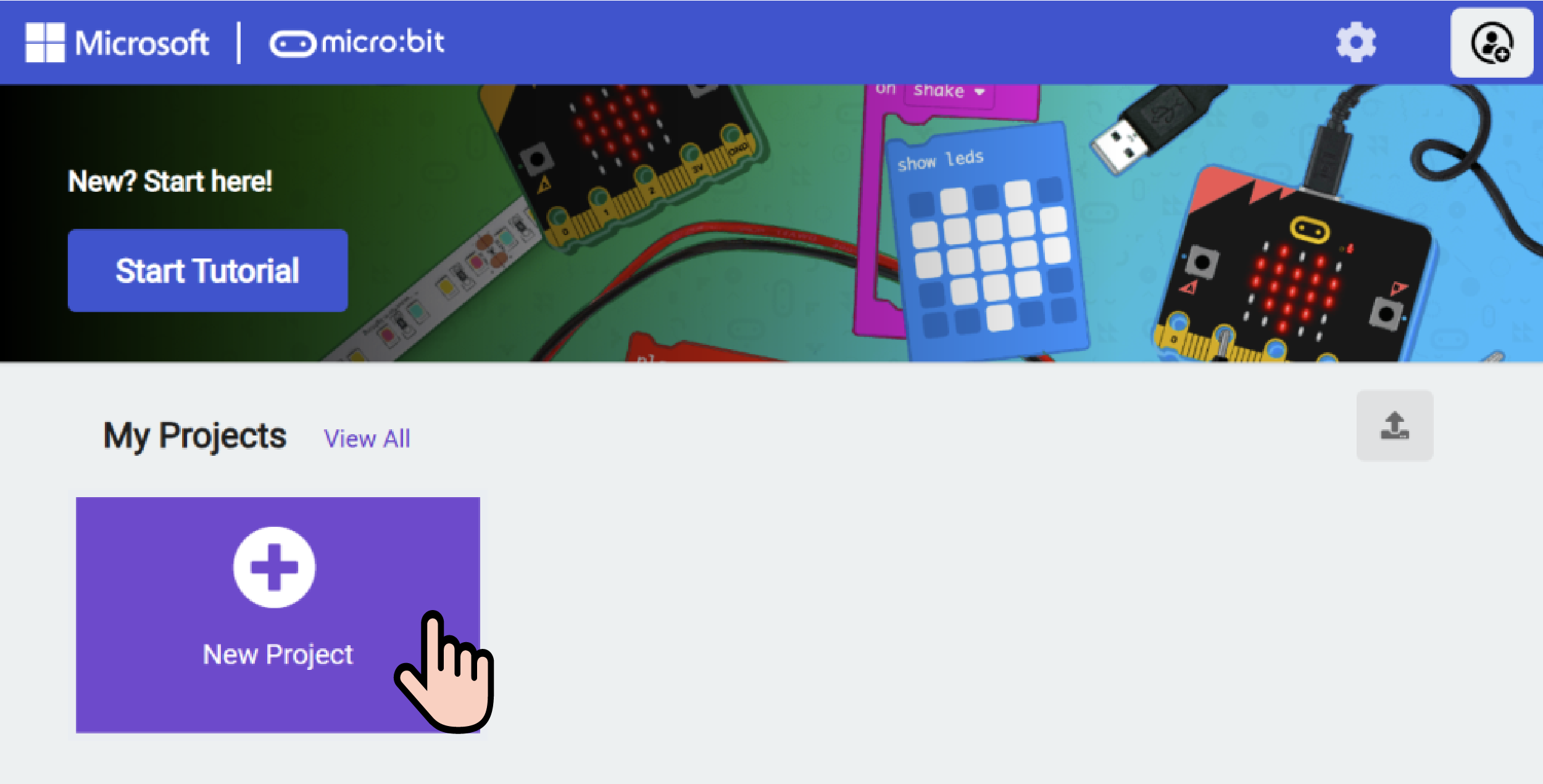
Create a New Project
Enter a project name in the pop-up window and click Create.

Add Software Libraries
Click Extensions in the code drawer.

Type pu robot in the pop-up interface and click the search icon. When the pu robot library appears, select it. Use the same method to add the PlanetX library.

Write the Program
Drag the Perform Action block under On Button A Pressed, and select Auto Explore.
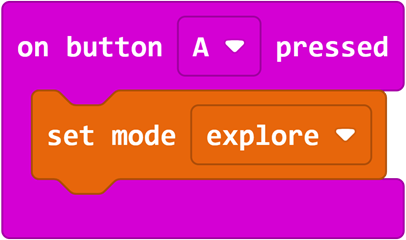
Program Link: https://makecode.microbit.org/_e1c2d338VEFL
Program Download Steps
Connect the PC and micro:bit V2 using a USB cable.

After a successful connection, a drive named MICROBIT will appear on your computer.

Click the icon in the lower-left corner
 and select Connect Device.

Click
 .
.

Click
 .
.

In the pop-up window, select BBC micro:bit CMSIS-DAP, then click Connect. Your micro:bit is now connected successfully.

Click Download Program.

Result
After turning on the power, press button A on the micro:bit. The robot will move forward automatically and avoid obstacles when detected.