Case 01: XGO APP Bluetooth Remote Control
Introduction
This course will learn how to download and install the XGO APP, and how to use the XGO APP to remotely control the XGO Rider via Bluetooth.
Teaching Objectives
Understand the download and installation of the XGO APP and the interface introduction Master the basic operations of using the XGO APP to remotely control the XGO Rider via Bluetooth
Teaching Preparation
Before starting the teaching, please make sure you have prepared the following necessary materials:
| Picture | Name | Quantity | Note |
|---|---|---|---|
 | CM4 XGO Ride | 1 | |
 | Smart Phone | 1 |
 After turning on XGO Rider, in order to keep the body balanced, it needs to move back and forth slightly. Please do not place XGO Rider on the edge of the table or in dangerous places to avoid damage.
Course Introduction
We have developed XGO APP specifically for XGO Rider to conveniently control the movement of XGO Rider. You can control the movement of XGO Rider with your fingers to experience the movement of XGO Rider firsthand.
This tutorial will take you from downloading XGO APP to finally skillfully controlling XGO Rider through XGO APP to achieve the desired movement effect, so let's get started.
Exploration Activities
How to connect XGO APP with XGO Rider?
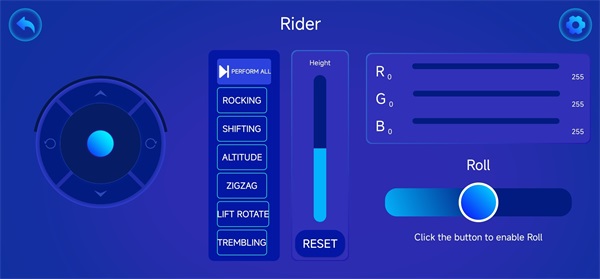
What movements can XGO APP control XGO Rider to do?
How to set the developer mode of XGO APP?
Hardware connection
Download and install XGO APP for Android
 To better protect your XGO Rider, please place XGO Rider on a spacious flat ground.
 If your smartphone's operating system is Android, you can download the latest application by clicking the [XGO APP](XGO_v3.1.2.apk - Google Drive) link. And install it.
Place XGO Rider in a safe area on the ground and turn it on, and turn on the Bluetooth function of the smartphone. Open XGO APP, click the Bluetooth icon in the upper left corner of the main interface, and connect to XGO Rider via Bluetooth according to the prompts. Note: When XGO APP connects to XGO Rider via Bluetooth, you need to agree to the Bluetooth permission and search nearby device permission requested by XGO APP, otherwise the connection will fail.

- After the connection is successful, the XGO APP will automatically return to the main interface, where the Bluetooth connection has been successful, as shown in the figure below.

- Click the right arrow on the main page to enter the function interface.

Install XGO APP for iPhone
If your phone is an iPhone, you can search for "XGO" in the App Store, download and install XGO APP on the search results page.
The use process of XGO APP for iPhone is the same as that for Android, please refer to the above content.
Teamwork and Presentation
Students are divided into groups to complete the download and installation of XGO APP together.
Encourage students to cooperate, communicate and share experiences with each other.
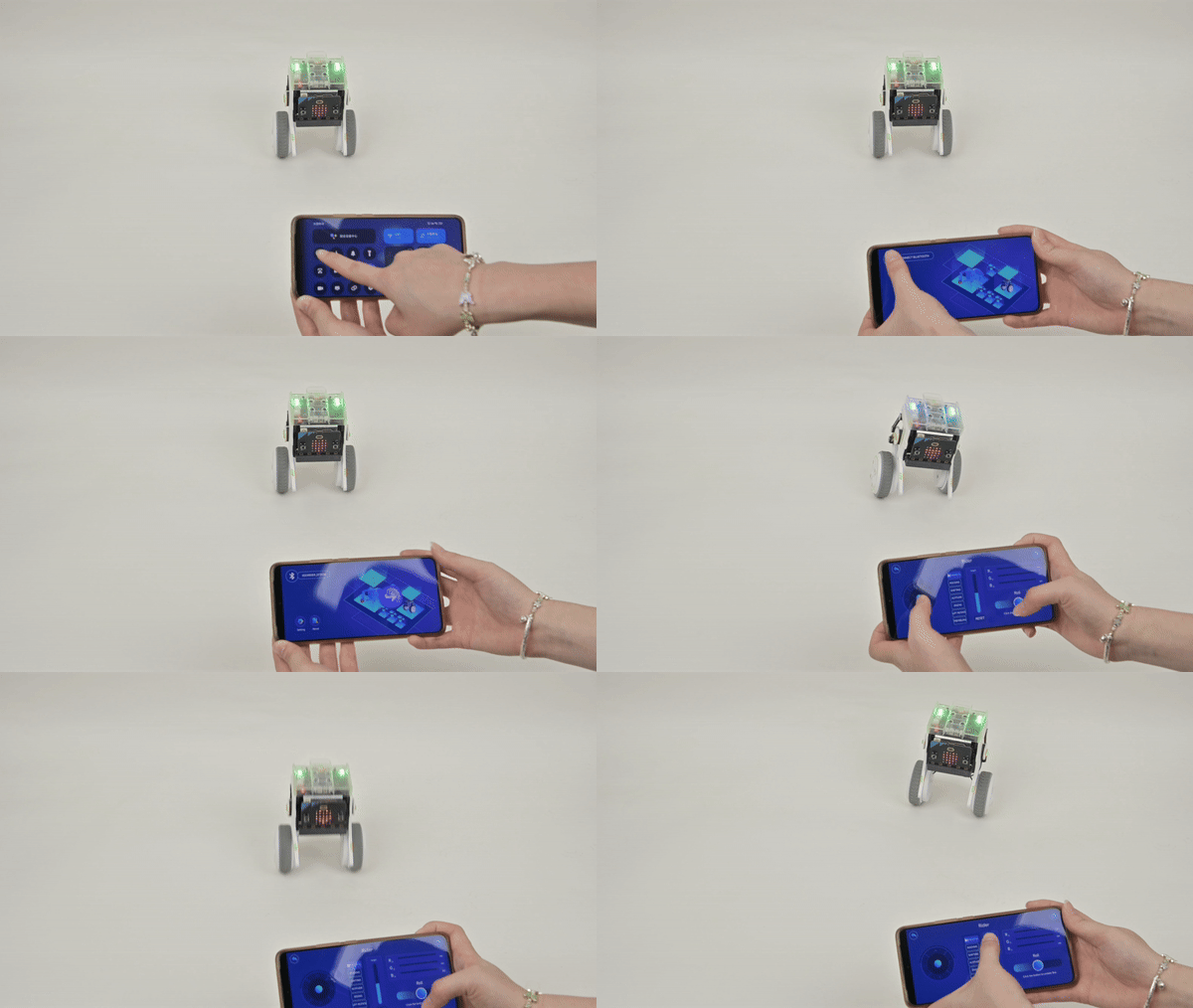
Each group has the opportunity to show other groups how they control XGO Rider to exercise through XGO APP and demonstrate.
Expected results:
Summary and reflection
Review the course content and remind students what knowledge and skills they have mastered?
Guide students to discuss the problems and difficulties they encountered during the production process and how to solve these problems.
Guide students to think and discuss together how to make XGO Rider perform interesting movements more effectively.