Book Protection Device
Introduction
In this project, we will learn how to make a book protection device.
Note: This case cannot use the set of structural parts to simulate the application scenario, but can realize the basic case production.
Teaching Objectives
Review the use of temperature and humidity sensors
Teaching Preparation
Before starting the teaching, please make sure you have prepared the following necessary materials:
| Picture | Name | Quantity | Remarks |
|---|---|---|---|
| Smart Home Explorer Kit | 1 | ||
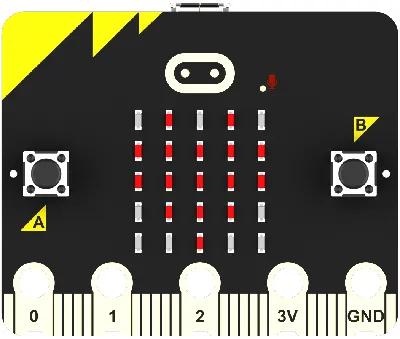 | micro:bit | 1 | Prepare by yourself |
 | PC | 1 | Prepare by yourself |
These materials will provide you with a complete experience and ensure that you can proceed smoothly with the subsequent operations and learning. If you have prepared the above contents, we can move on to the next step.
Course Introduction
In this class, we will make a book protection device. When the temperature and humidity sensor detects that the temperature or humidity is not suitable for book preservation, it will automatically display a red light for warning.
Project Production
Hardware Connection
Connect the temperature and humidity sensor to the IIC interface of the Petal Basic Expansion Board.
Connect the RGB LED to the J1 interface of the Petal Basic Expansion Board.

Programming Platform
We usually use the graphical programming platform makecode to program the micro:bit.
Programming platform entrance: https://makecode.microbit.org/
Create a New Project
Open https://makecode.microbit.org/https://makecode.microbit.org/)
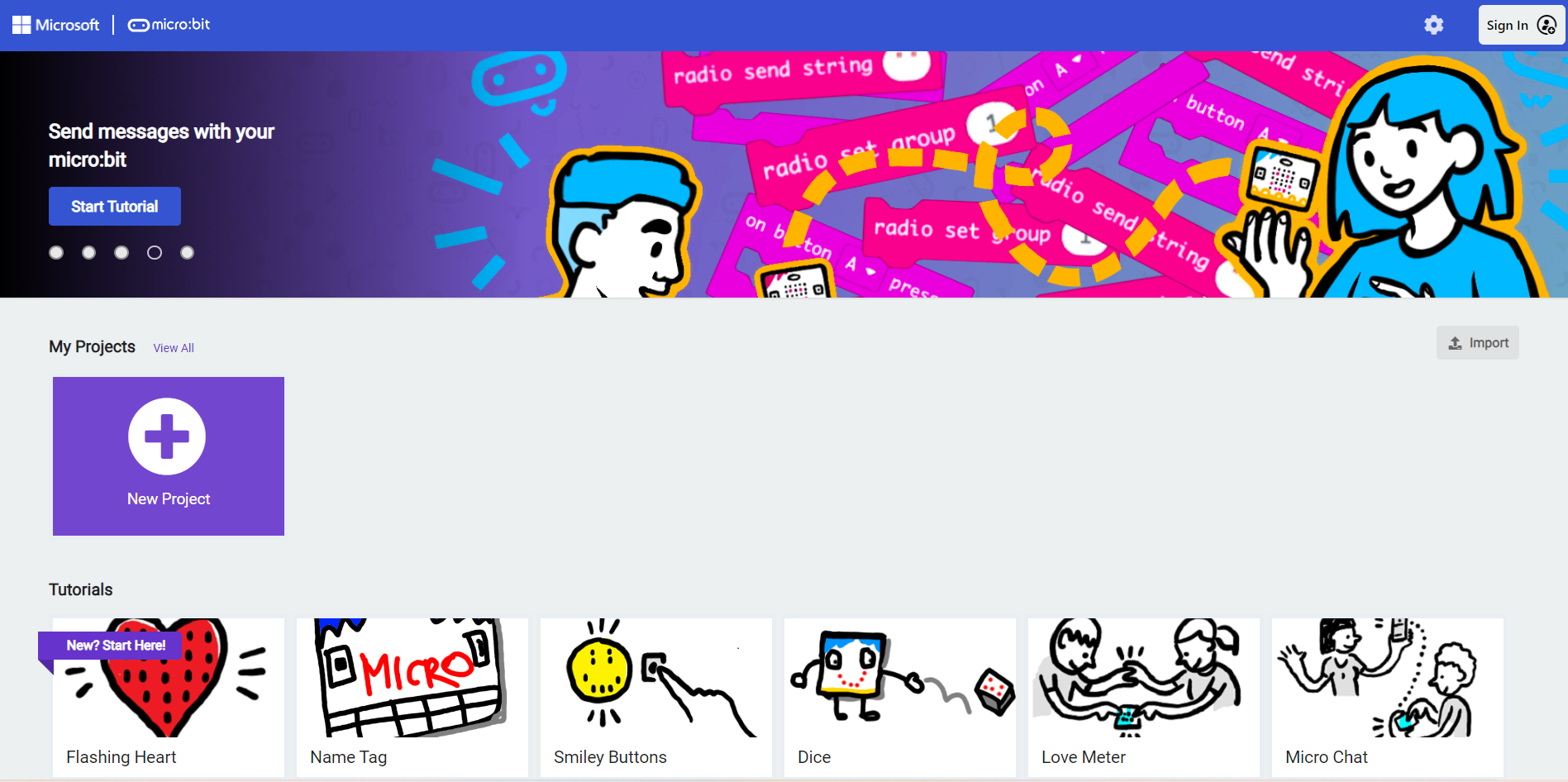
Create a new project
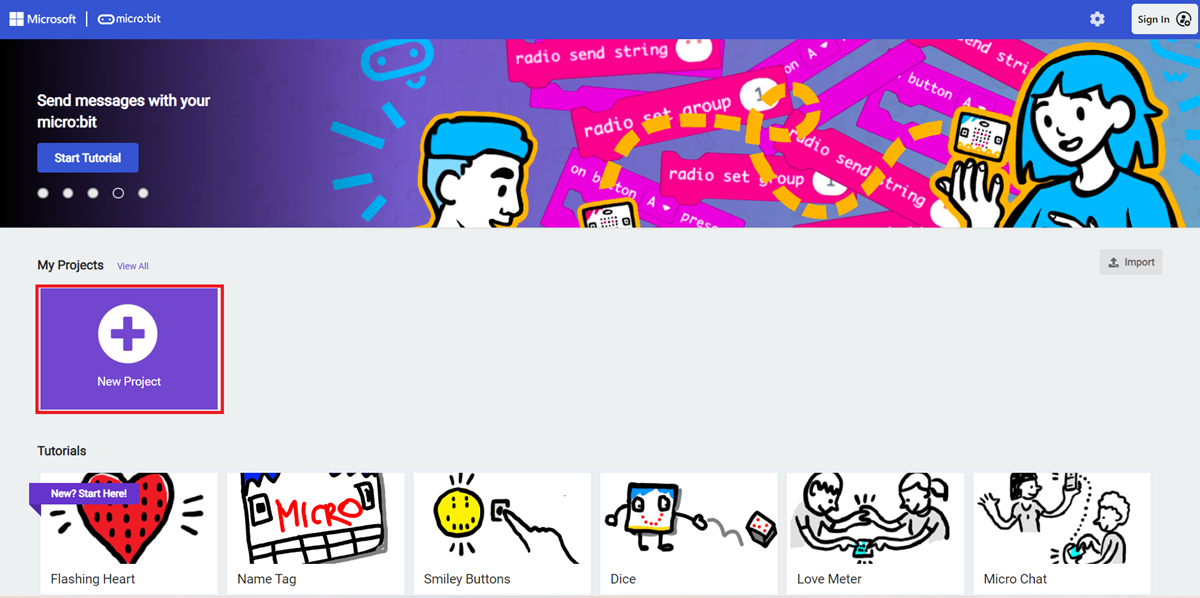
Enter the project name and click Create.

Add Software Library
Click Extensions in the Toolbox of the makecode programming interface.

Search for petal on the pop - up page and click to select the petal software library.

Write the Program
Sample program: https://makecode.microbit.org/_efohxYEmbLbXhttps://makecode.microbit.org/_efohxYEmbLbX)
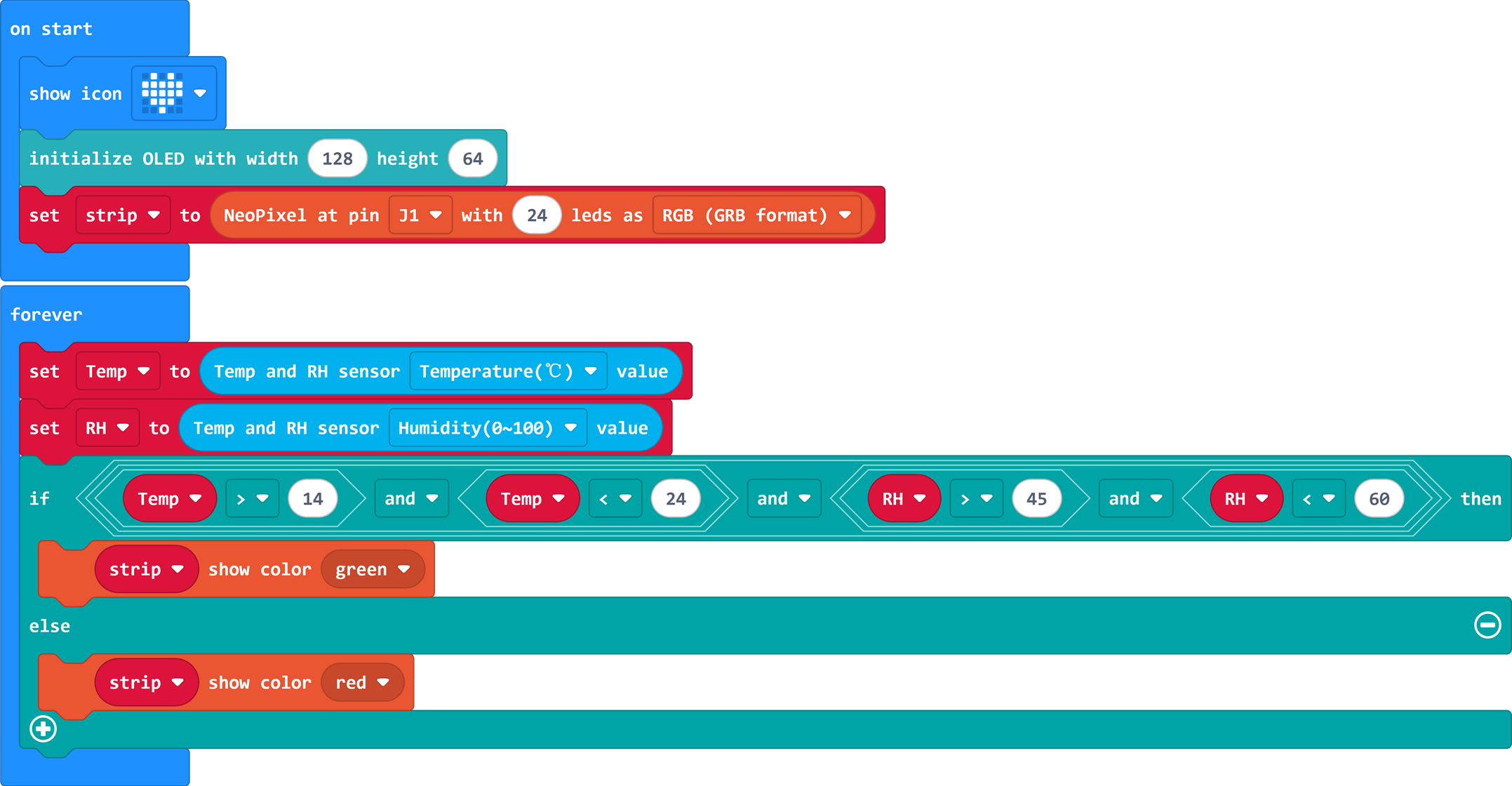
You can also download the program directly through the following web page.
How to Download the Program to micro:bit?
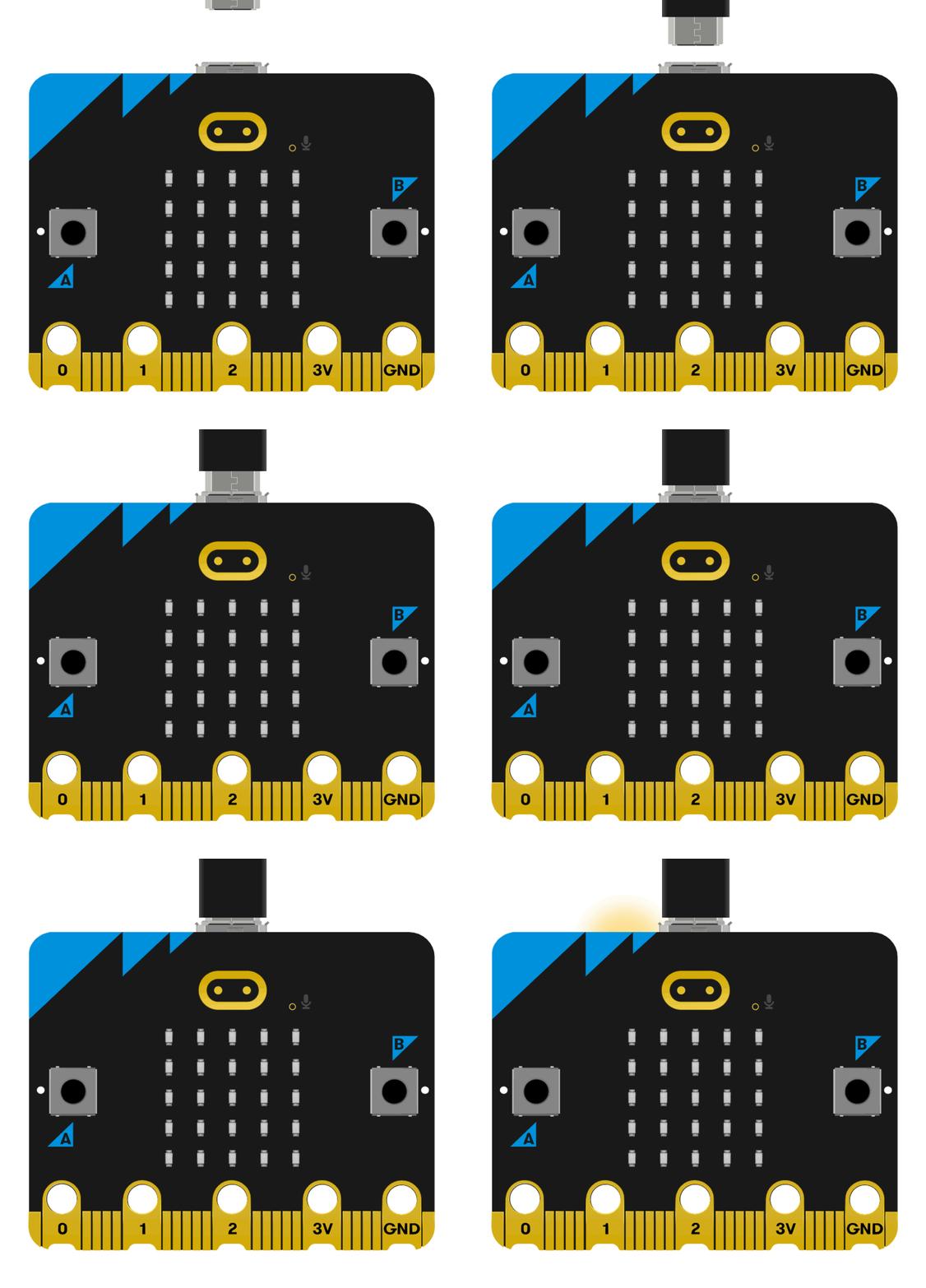
Use a USB cable to connect the PC and micro:bit V2.
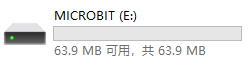
After successful connection, a drive named MICROBIT will be recognized on the computer.
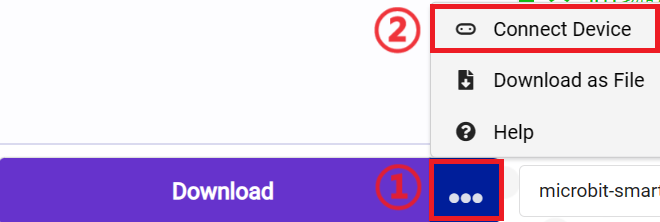
Click 
 in the lower left corner and select
 Connect Device.
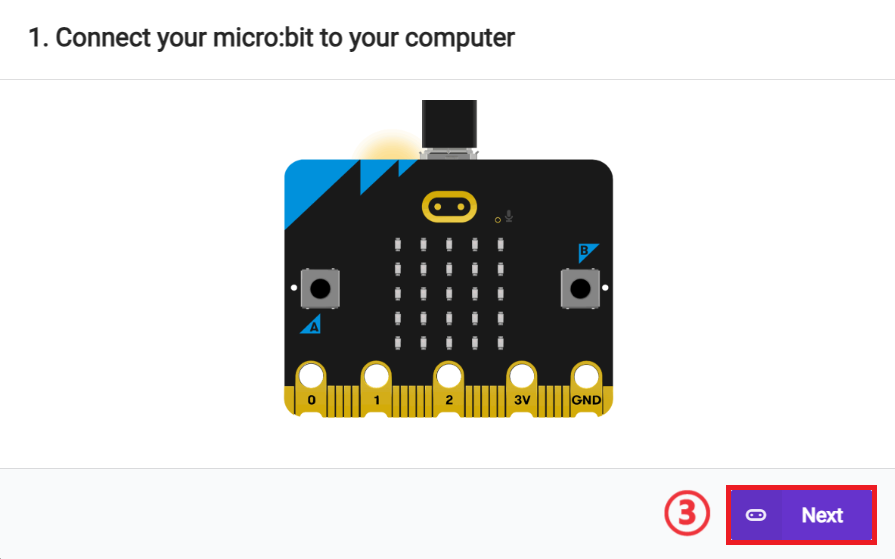
Click 。
。
Click 。
。
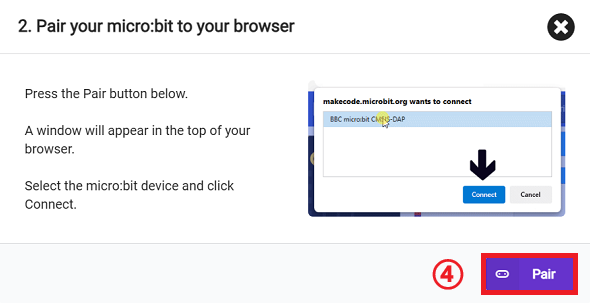
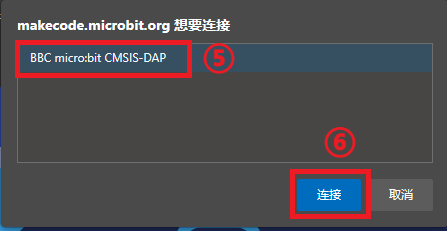
In the pop - up window, select BBC micro:bit CMSIS - DAP, then select Connect. So far, our micro:bit has been connected successfully.
Click to download the program.

Result
When the temperature and humidity sensor detects that the temperature or humidity is not suitable for book preservation, it will automatically display a red light for warning.
Extended Knowledge
Generally speaking, the suitable temperature and humidity standards for book preservation are: the temperature is controlled between 14℃ and 24℃, and the relative humidity is controlled between 45% and 60%. When the temperature is higher than 24℃ or lower than 14℃, and the humidity is higher than 60% or lower than 45%, it may cause damage to books. High temperature can easily make the book paper brittle and yellow; high humidity can easily breed mold and cause paper to stick; low humidity can make the paper dry and brittle, reducing the life of books. Applying this standard to intelligent devices, we can monitor and warn through temperature and humidity sensors.
