Rain Sensing Window
Introduction
In this project, we will learn how to make a rain sensing window.

Note: This case cannot be used with the kit's structural components for actual application scenario simulation, but basic case production can be achieved.
Teaching Objectives
Understand the working principle of the rain sensing window.
Teaching Preparations
Before starting the teaching, please ensure you have prepared the following necessary materials:
| Image | Name | Quantity | Remarks |
|---|---|---|---|
| Smart Home Explorer Kit | 1 | ||
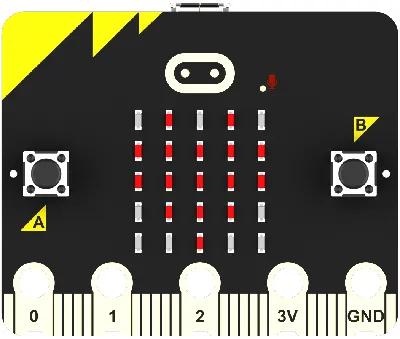 | micro:bit | 1 | Prepare separately |
 | PC | 1 | Prepare separately |
These materials will provide you with a complete experience to ensure you can smoothly proceed with subsequent operations and learning. If you have prepared the above, we can continue to the next step.
Course Introduction
In this lesson, we will make a rain sensing window that automatically closes when it rains. The rain sensing window detects the accumulation of rainwater on the windowsill through a water level sensor. When rain is detected, it automatically drives a servo motor to raise the window sill baffle to prevent rainwater from splashing into the room. At the same time, the OLED display shows "Rainy Mode", and the rainbow light presents a blue breathing light effect, providing intelligent protection for home life.
Project Production
Hardware Connection
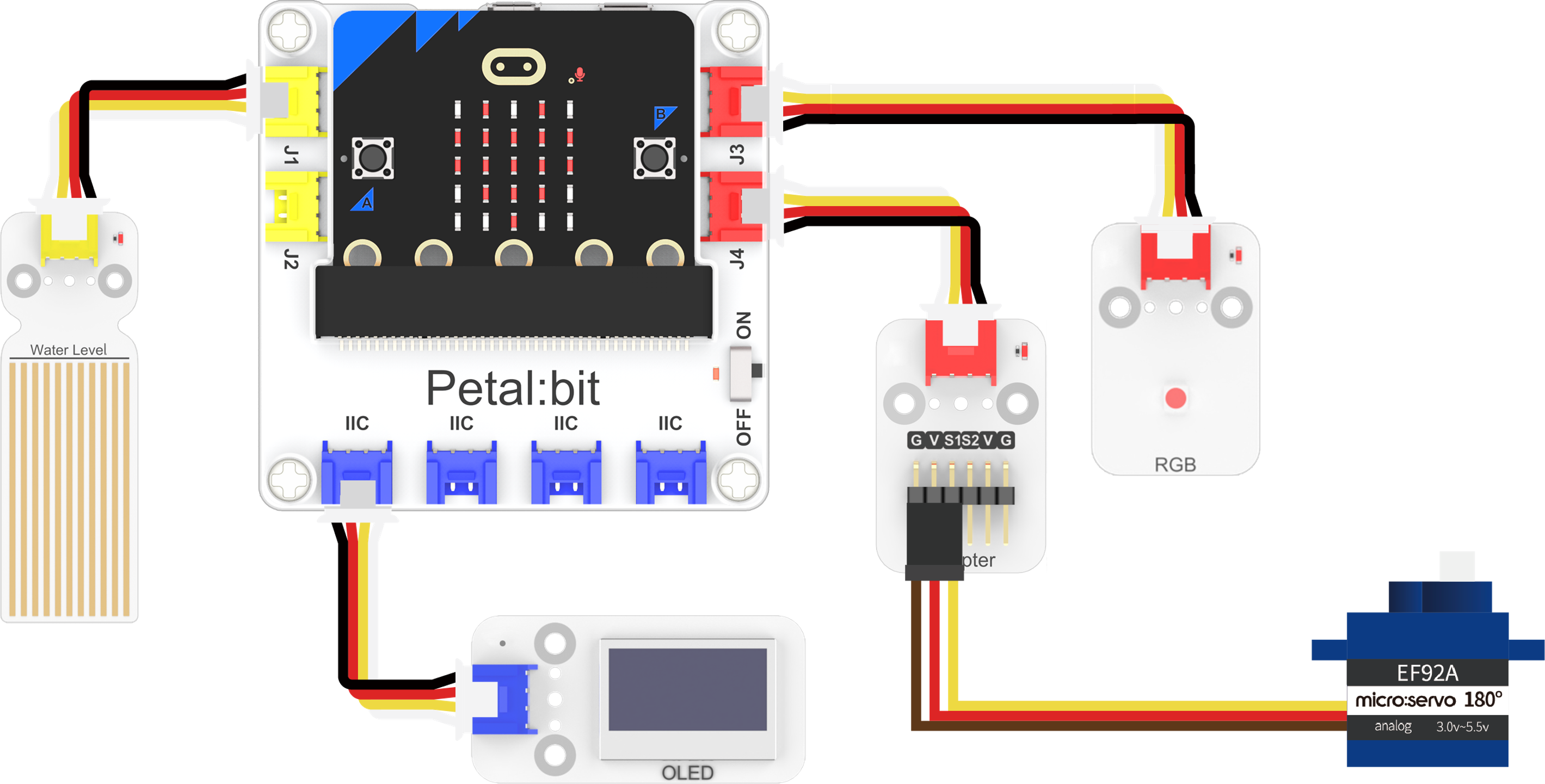
- Connect the water level sensor to the J1 interface of the Petal Base Expansion Board.
- Connect the RGB light to the J3 interface of the Petal Base Expansion Board.
- Connect the Adapter to the J4 interface of the Petal Base Expansion Board.
- Connect the 180-degree servo motor to the S1 interface of the Adapter.
- Connect the OLED display to the IIC interface of the Petal Base Expansion Board.
Programming Platform
We usually use the graphical programming platform makecode to program the micro:bit.
Programming platform entry: https://makecode.microbit.org/
Create a New Project
Open https://makecode.microbit.org/.https://makecode.microbit.org/
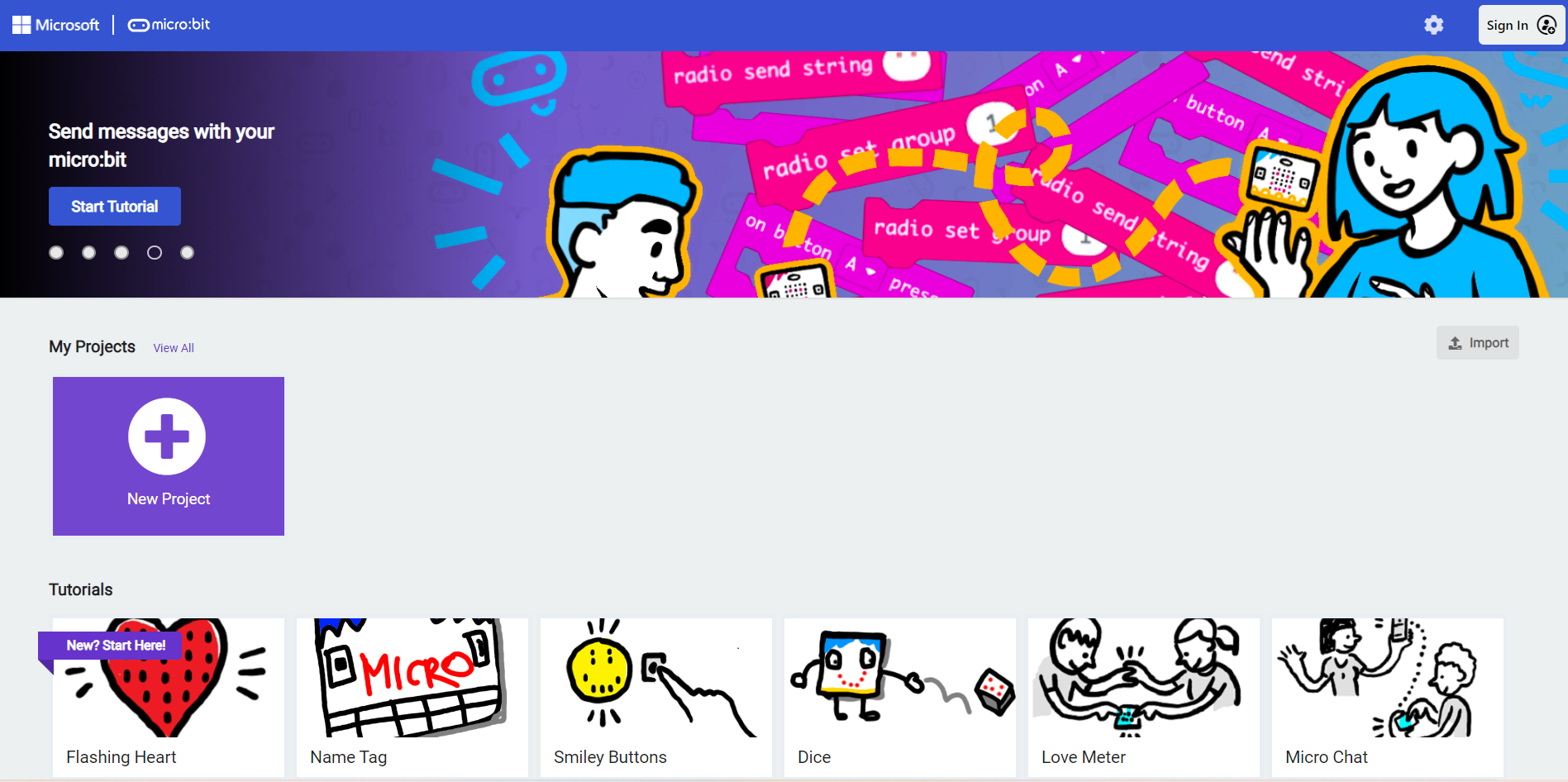
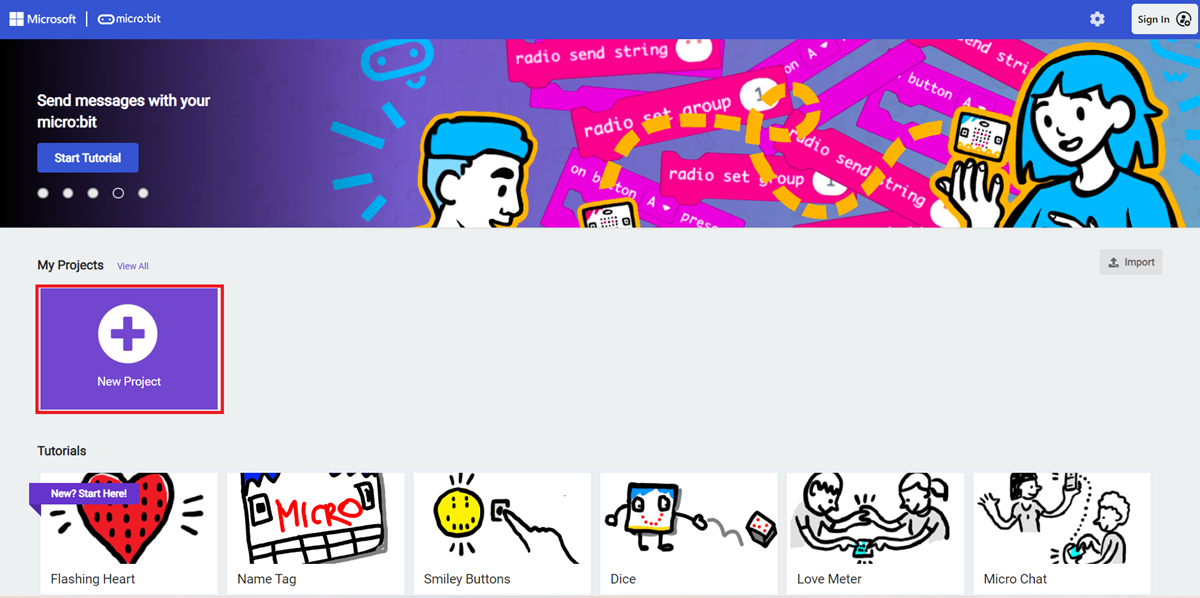
Create a new project.
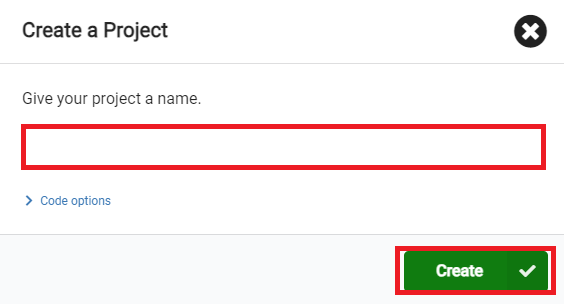
Enter the project name and click Create.
Add Software Libraries
In the makecode programming interface, click Extensions in the Toolbox.

In the pop-up page, search for petal and click to select the petal software library.

Write the Program
Example program: https://makecode.microbit.org/_6bk0s8bqf5rF
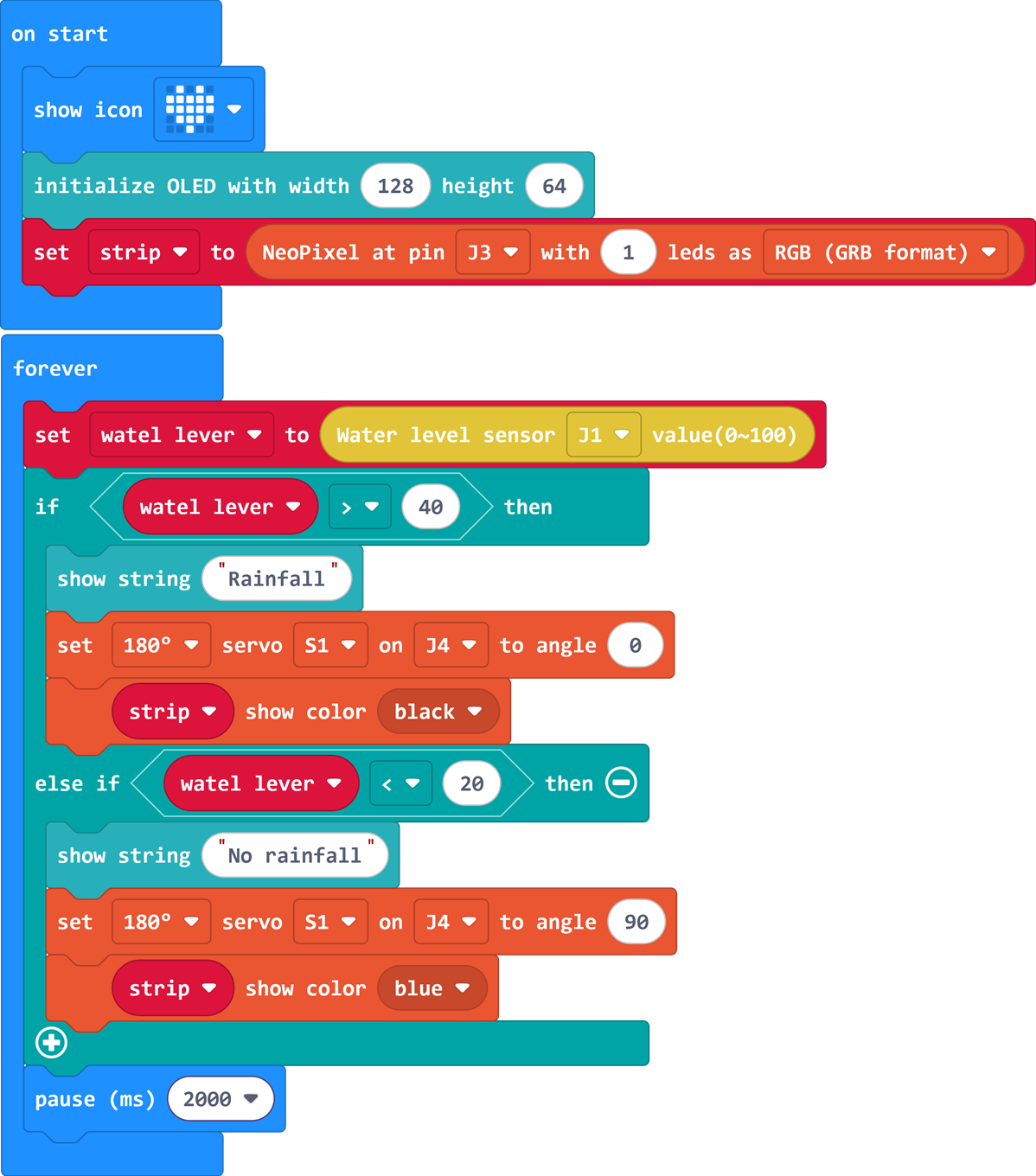
You can also directly download the program through the following web page.
How to Download the Program to micro:bit?
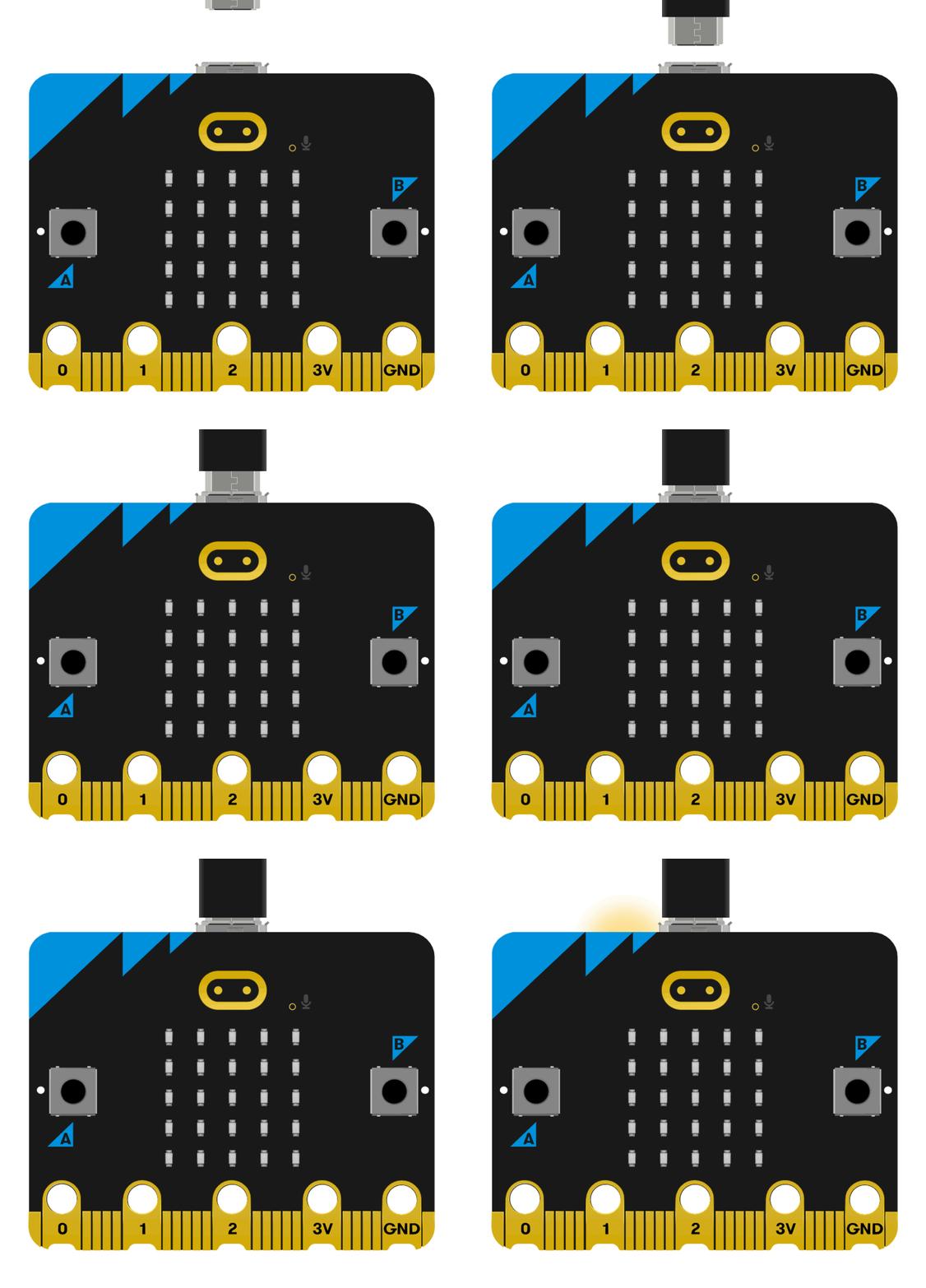
Connect the PC to the micro:bit V2 using a USB cable.
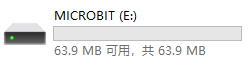
After a successful connection, a drive named MICROBIT will be recognized on the computer.
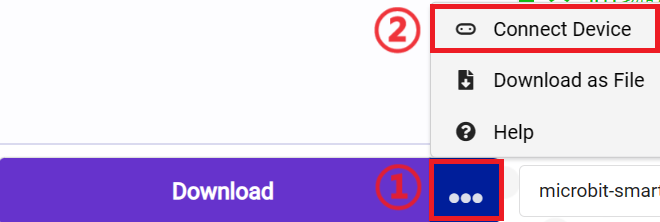
Click the icon in the lower left corner ,and select
Connect Device。
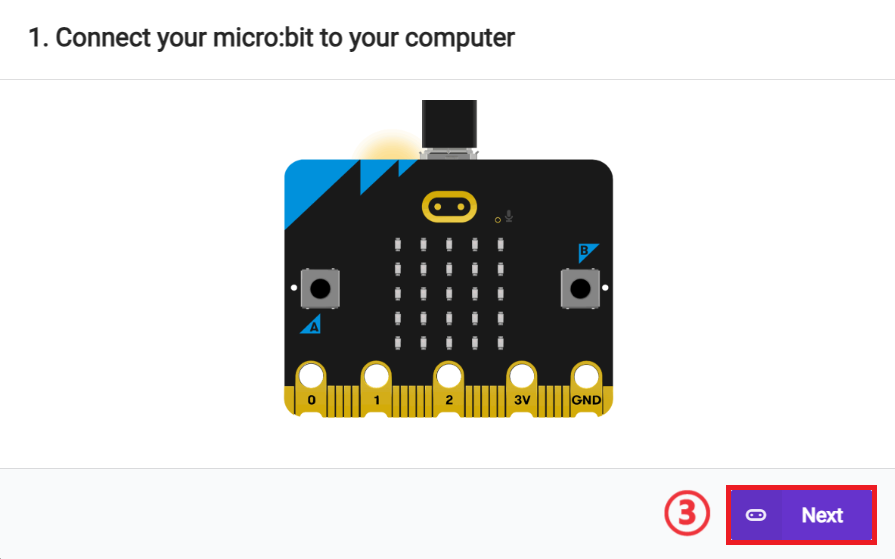
Click 。
。
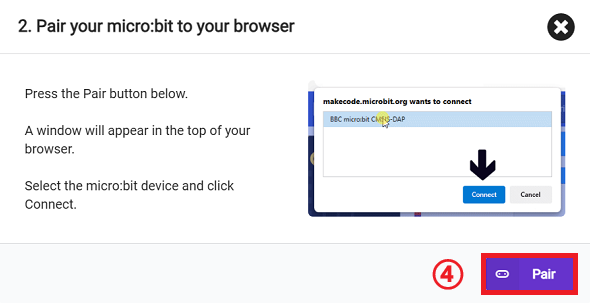
Click 。
。
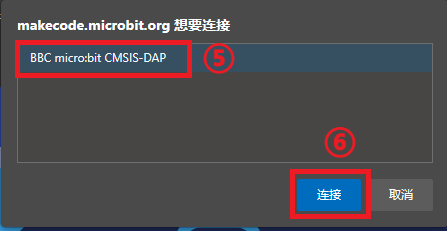
In the pop-up window, select BBC micro:bit CMSIS-DAP, then select Connect. At this point, our micro:bit is successfully connected.
Click to download the program.

Results
When rain is detected, the servo motor is automatically driven to raise the window sill baffle to prevent rainwater from splashing into the room. At the same time, the OLED display shows "Rainy Mode", and the rainbow light presents a blue breathing light effect, providing intelligent protection for home life.
