Temperature-Controlled Fan
Introduction
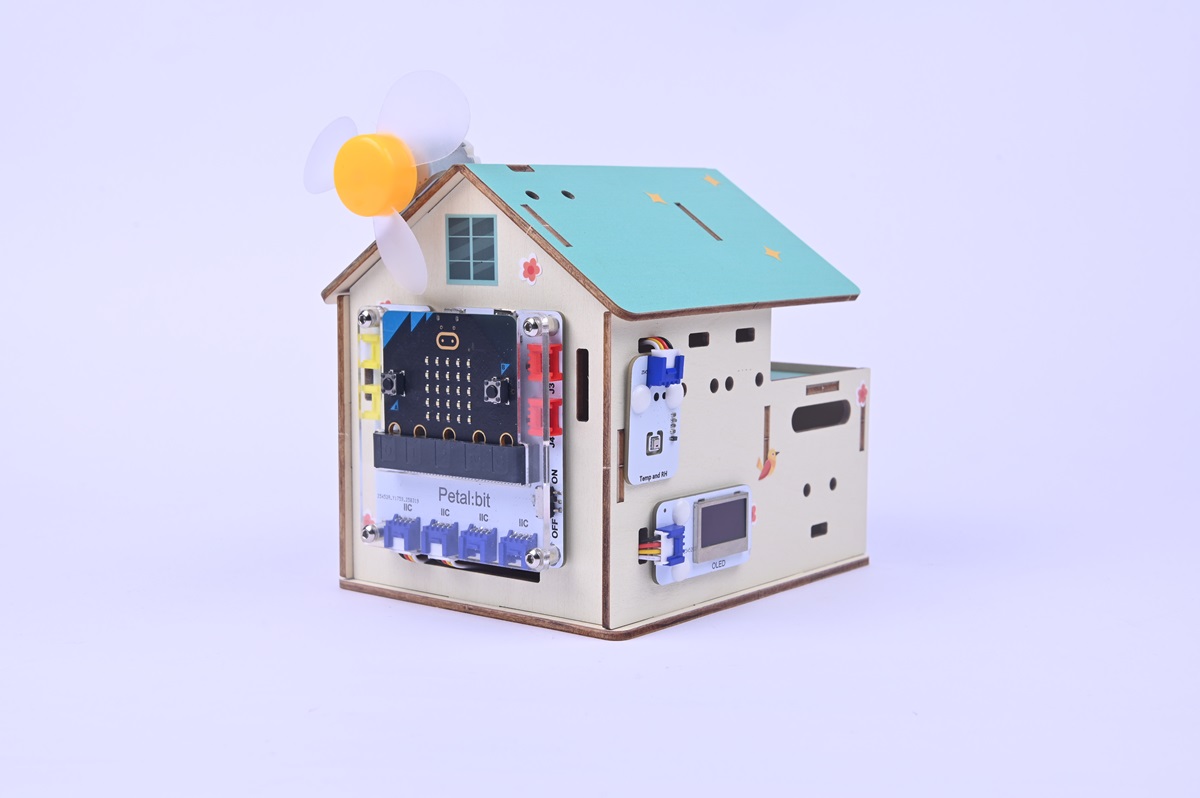
Welcome to the class on making a temperature-controlled fan! This project uses a micro:bit board, OLED display, temperature-humidity sensor, and fan module to build a smart small fan that can "sense temperature," allowing you to experience the integration of technology and daily life.
Teaching Objectives
- Understand the function of the temperature-humidity sensor and learn to read temperature data.
- Master the control method of the fan module and the display logic of the OLED screen.
- Use graphical programming to implement the intelligent logic of "temperature triggering fan on/off."
Teaching Preparations
Before starting the class, please ensure you have prepared the following necessary materials:
| Image | Name | Quantity | Remarks |
|---|---|---|---|
| Smart Home Explorer Kit | 1 | ||
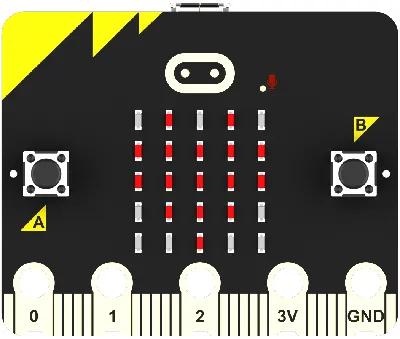 | micro:bit | 1 | Prepare separately |
 | PC | 1 | Prepare separately |
These materials will provide you with a complete experience to ensure you can smoothly proceed with subsequent operations and learning. If you have prepared the above, we can continue to the next step.
Course Introduction
When doing homework in summer, it's troublesome to manually switch the fan on and off. Can we make the fan "know" when to turn on by itself? Today, we will make a temperature-controlled fan: when the temperature exceeds the set value, the fan automatically starts to blow air; when the temperature drops, the fan automatically stops. It acts like a considerate assistant to help us maintain a comfortable study environment!
Project Production
Hardware Connection
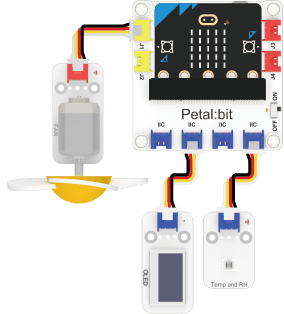
- Connect the temperature-humidity sensor and OLED display to the IIC interface of the Petal Base Expansion Board.
- Connect the fan module to the J1 interface of the Petal Base Expansion Board.
Programming Platform
We usually use the graphical programming platform makecode to program the micro:bit.
Programming platform entry: https://makecode.microbit.org/
Create a New Project
Open https://makecode.microbit.org/.https://makecode.microbit.org/)

Create a new project.

Enter the project name and click Create.

Add Software Libraries
In the makecode programming interface, click Extensions in the Toolbox.

In the pop-up page, search for petal and click to select the petal software library.

Write the Program
Example program: https://makecode.microbit.org/_8V9RkW0go0F2
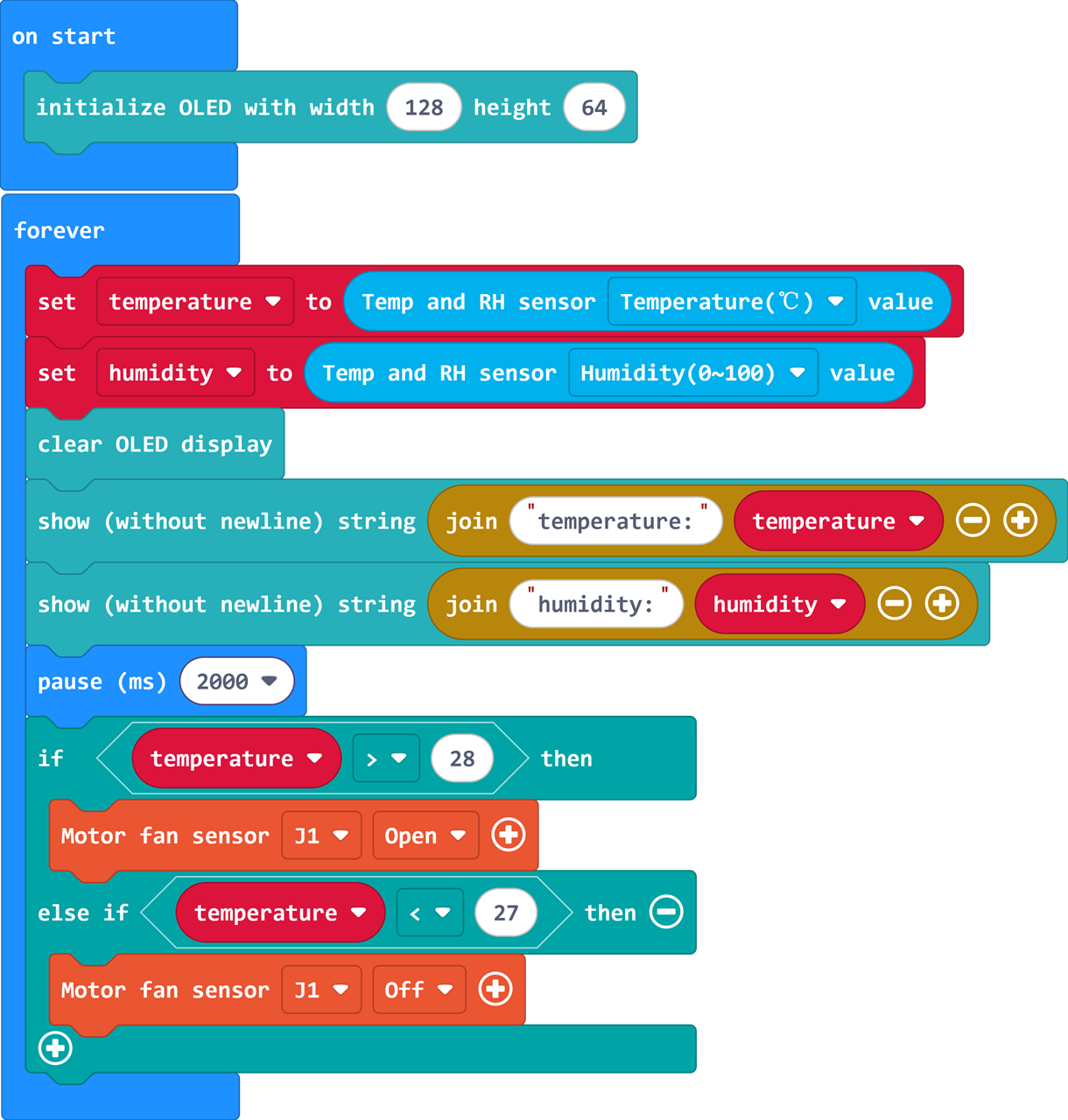
You can also directly download the program through the following web page.
How to Download the Program to micro:bit?
Connect the PC to the micro:bit V2 using a USB cable.
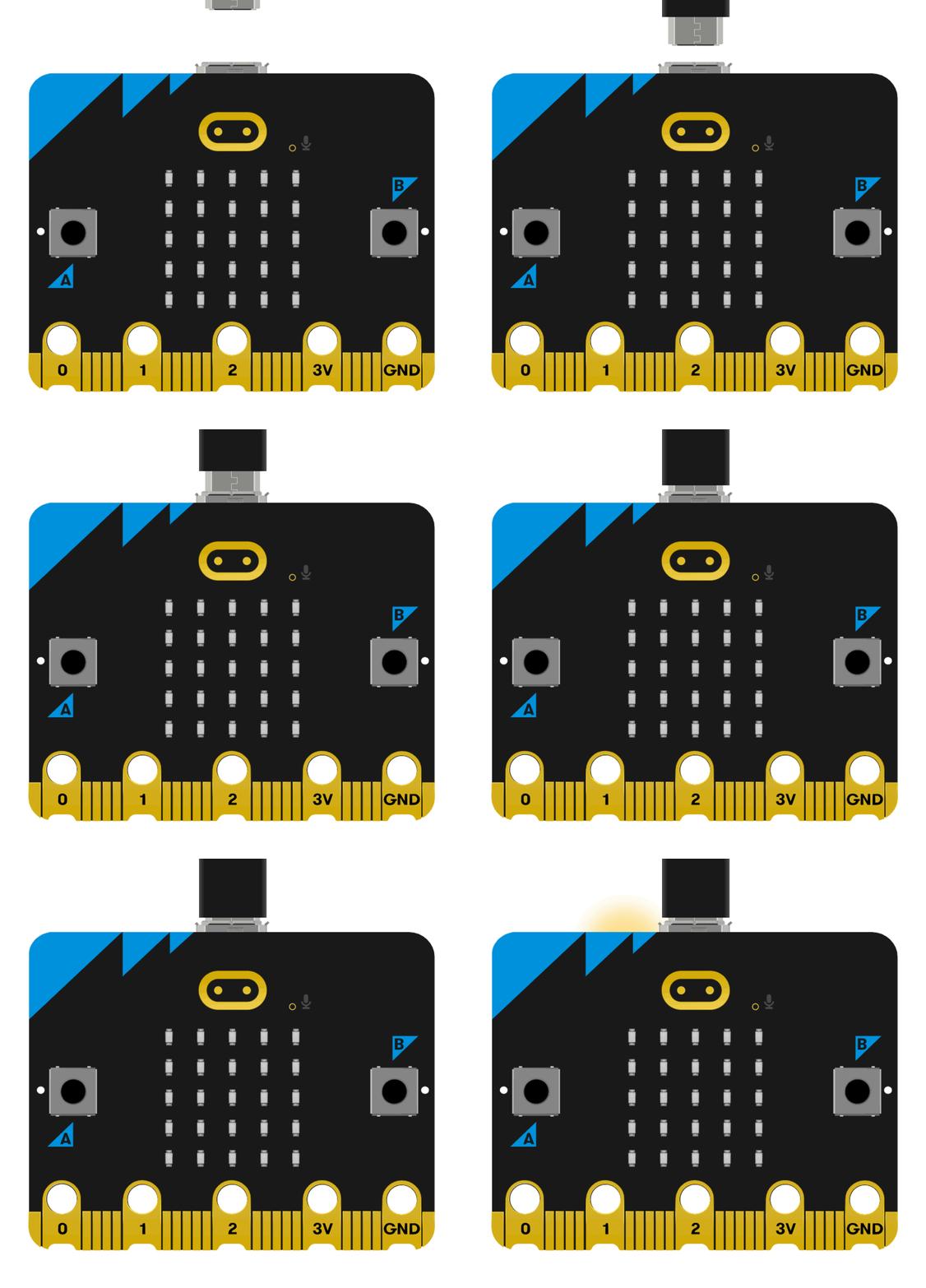
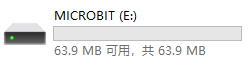
- After a successful connection, a drive named
MICROBITwill be recognized on the computer.
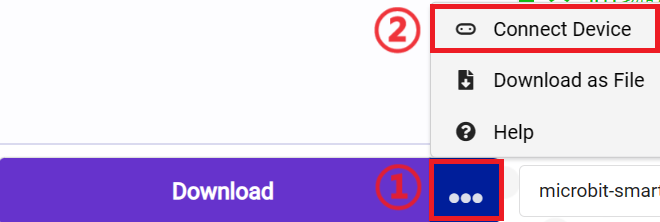
Click the icon in the lower left corner ,and select
Connect Device。
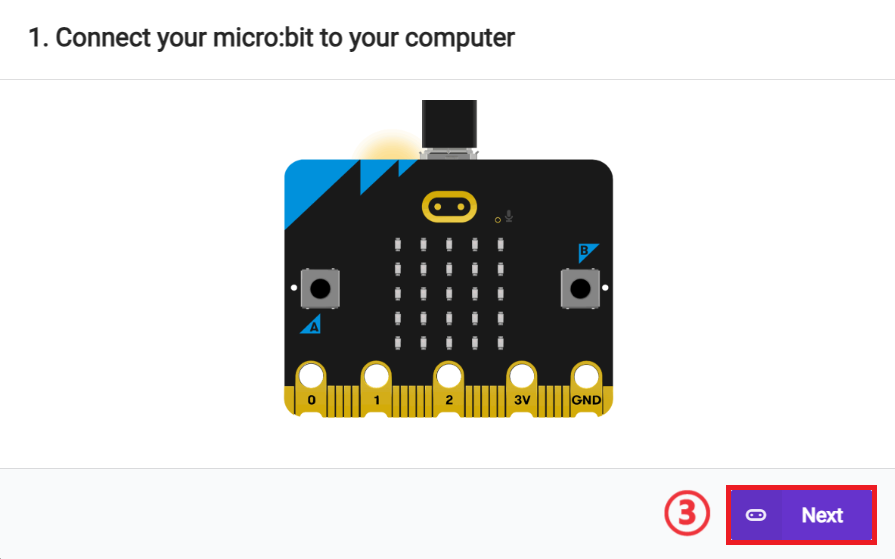
click 。
。
click 。
。
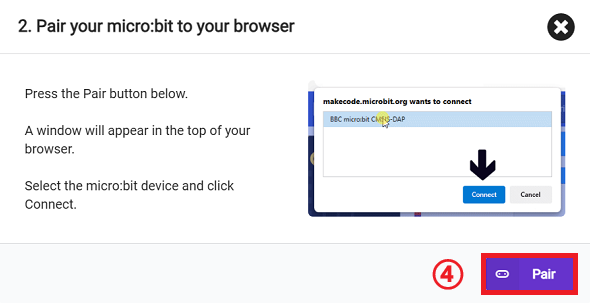
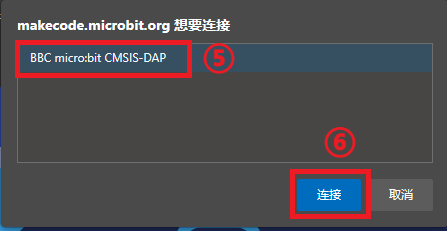
In the pop-up window, select BBC micro:bit CMSIS-DAP, then select Connect. The micro:bit is now successfully connected.
Click to download the program.

Results
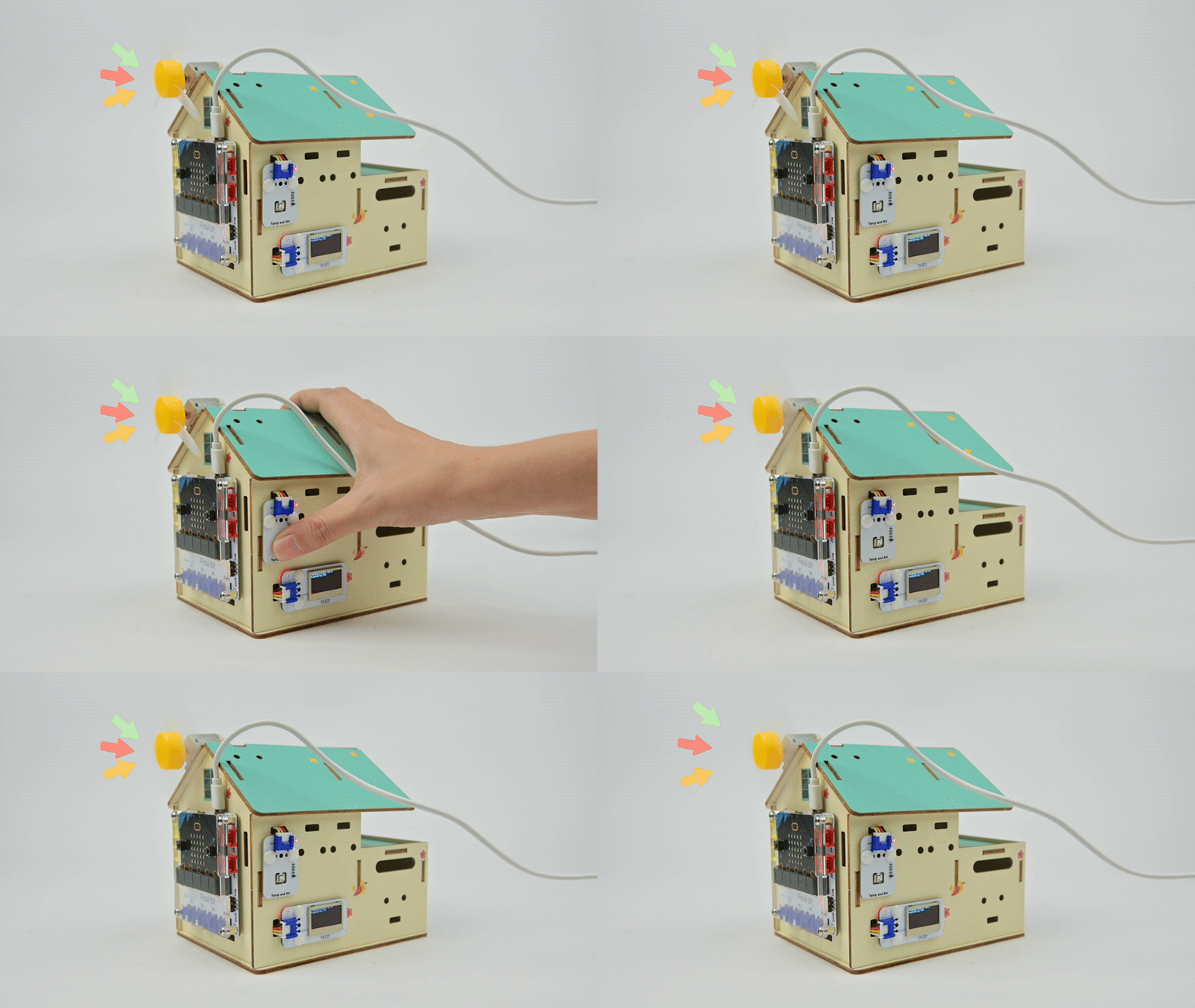
After powering on, the smart fan automatically turns on or off based on the ambient temperature.
Extended Knowledge
Applications of Temperature-Controlled Fans in Daily Life
1. Home Scenarios
- Bedroom/Study: Replaces traditional manual fans to automatically adjust indoor temperature.
- Pet Nest/Plant Corner: Provides a comfortable temperature environment for small animals or plants (e.g., succulents are sensitive to high temperatures).
2. Creative Modifications
- Desktop Mini Air Conditioner: Place ice cubes in front of the fan for enhanced cooling.
- Humidifying Fan: Combine with a spray bottle to humidify while cooling (additional materials needed).
3. Other Scenarios
- Invention Expansion: Add LED lights to the fan to display colorful lights when rotating.
- Energy-Saving Design: Automatically increase wind power during bright daytime and reduce it in dim nighttime.