Temperature and Humidity Detection Device
Introduction
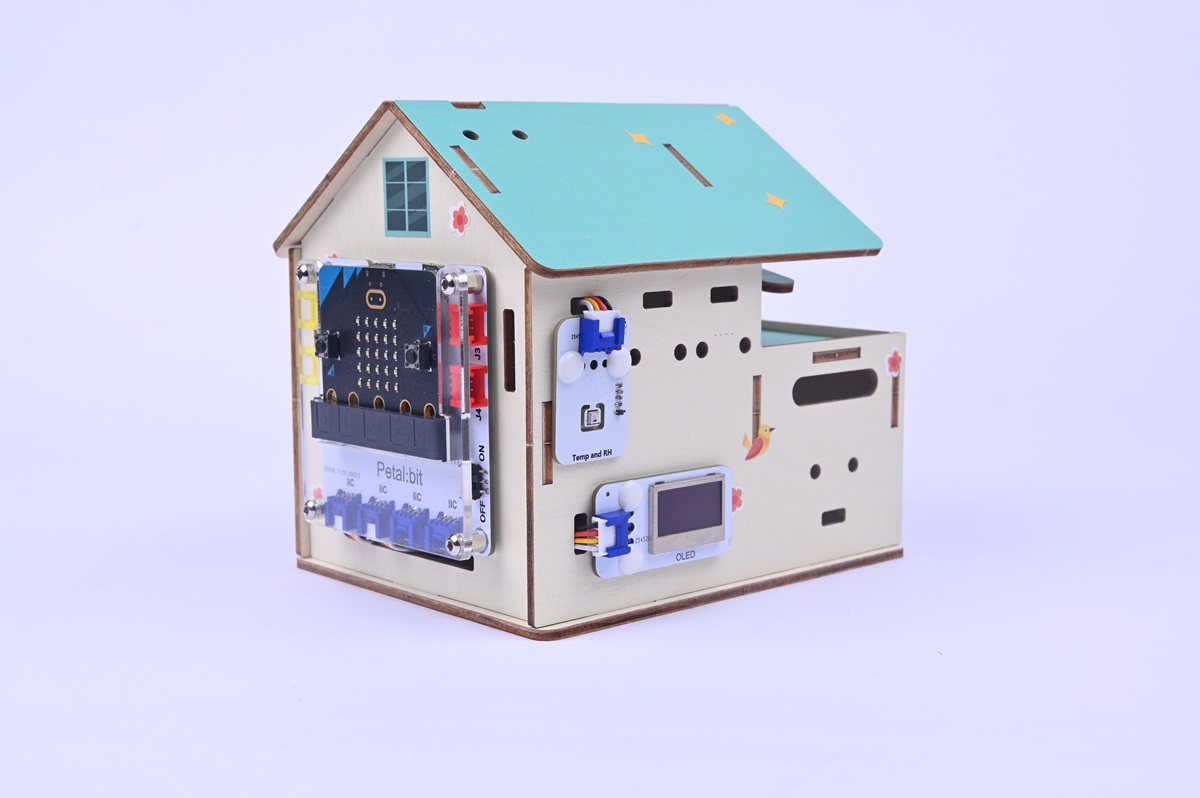
Welcome to the class on making a temperature and humidity detection device! This project uses a micro:bit board, OLED display, and temperature-humidity sensor connected via the IIC interface of the Petal Base Expansion Board to achieve real-time detection and display of environmental temperature and humidity. Primary and middle school students can make a small instrument that "senses" the weather through simple hardware connection and graphical programming, understanding the changes in temperature and humidity around them.
Teaching Objectives
- Understand the role of temperature-humidity sensors and learn to read environmental data.
- Master the basic usage of OLED displays.
- Use graphical programming to implement data display logic.
Teaching Preparations
Before starting the class, please ensure you have prepared the following necessary materials:
| Image | Name | Quantity | Remarks |
|---|---|---|---|
| Smart Home Explorer Kit | 1 | ||
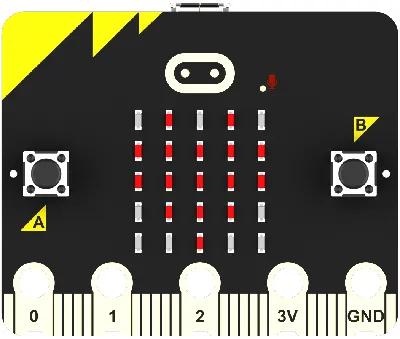 | micro:bit | 1 | Prepare separately |
 | PC | 1 | Prepare separately |
These materials will provide you with a complete experience to ensure you can smoothly proceed with subsequent operations and learning. If you have prepared the above, we can continue to the next step.
Course Introduction
Do you know how hot the classroom is today? Is the humidity at home too dry? The temperature and humidity detection device is like a small "environmental scout" that helps us understand the surrounding temperature and humidity in real time. For example:
- When turning on the air conditioner in summer, it can tell you if the indoor environment is too dry.
- When heating in winter, it can remind you if humidification is needed. Let's make it together!
Project Production
Hardware Connection
Connect the temperature-humidity sensor and OLED display to the IIC interface of the Petal Base Expansion Board.
Programming Platform
We usually use the graphical programming platform makecode to program the micro:bit.
Programming platform entry: https://makecode.microbit.org/
Create a New Project
Open https://makecode.microbit.org/.https://makecode.microbit.org/
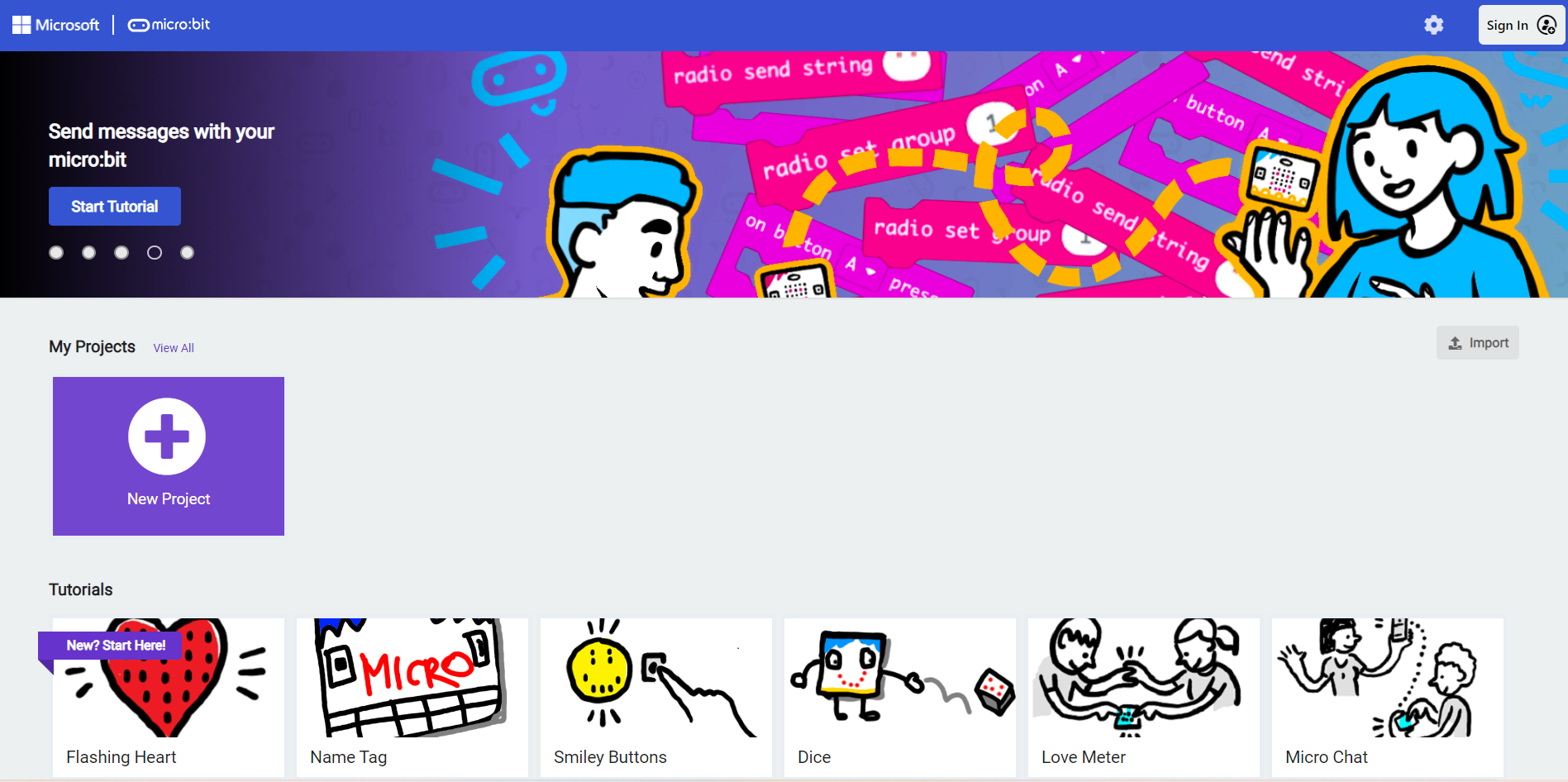
Create a new project.
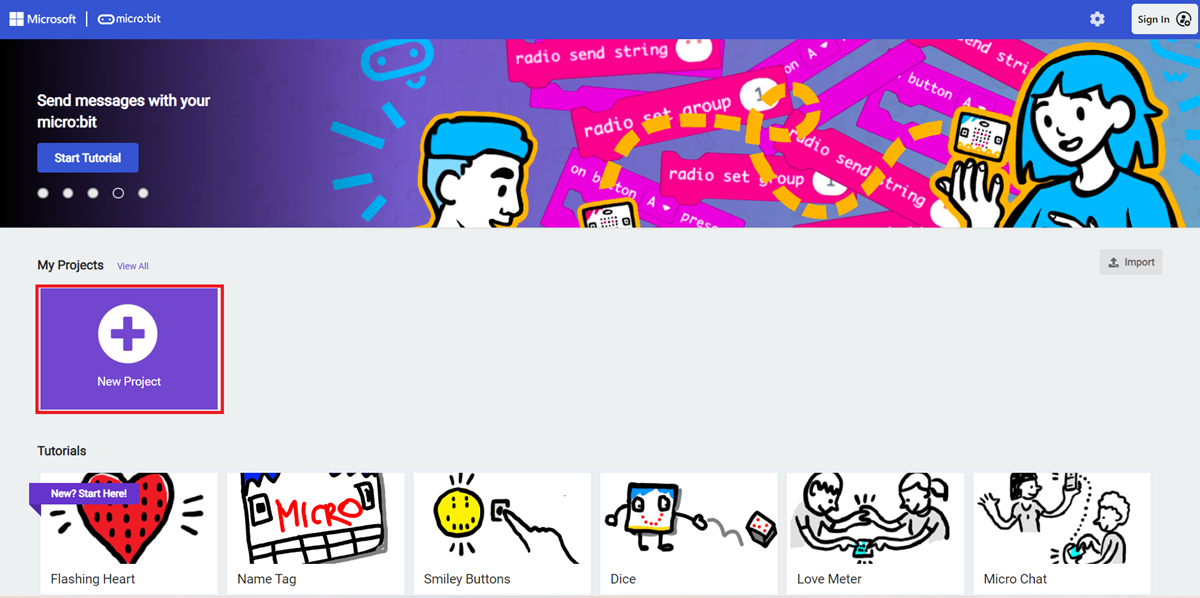
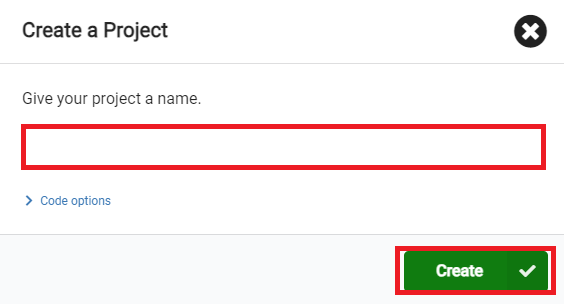
Enter the project name and click Create.
Add Software Libraries
In the makecode programming interface, click Extensions in the Toolbox.

In the pop-up page, search for petal and click to select the petal software library.

Write the Program
Example program: https://makecode.microbit.org/_7Wog5ydxPRym

You can also directly download the program through the following web page.
How to Download the Program to micro:bit?
Connect the PC to the micro:bit V2 using a USB cable.
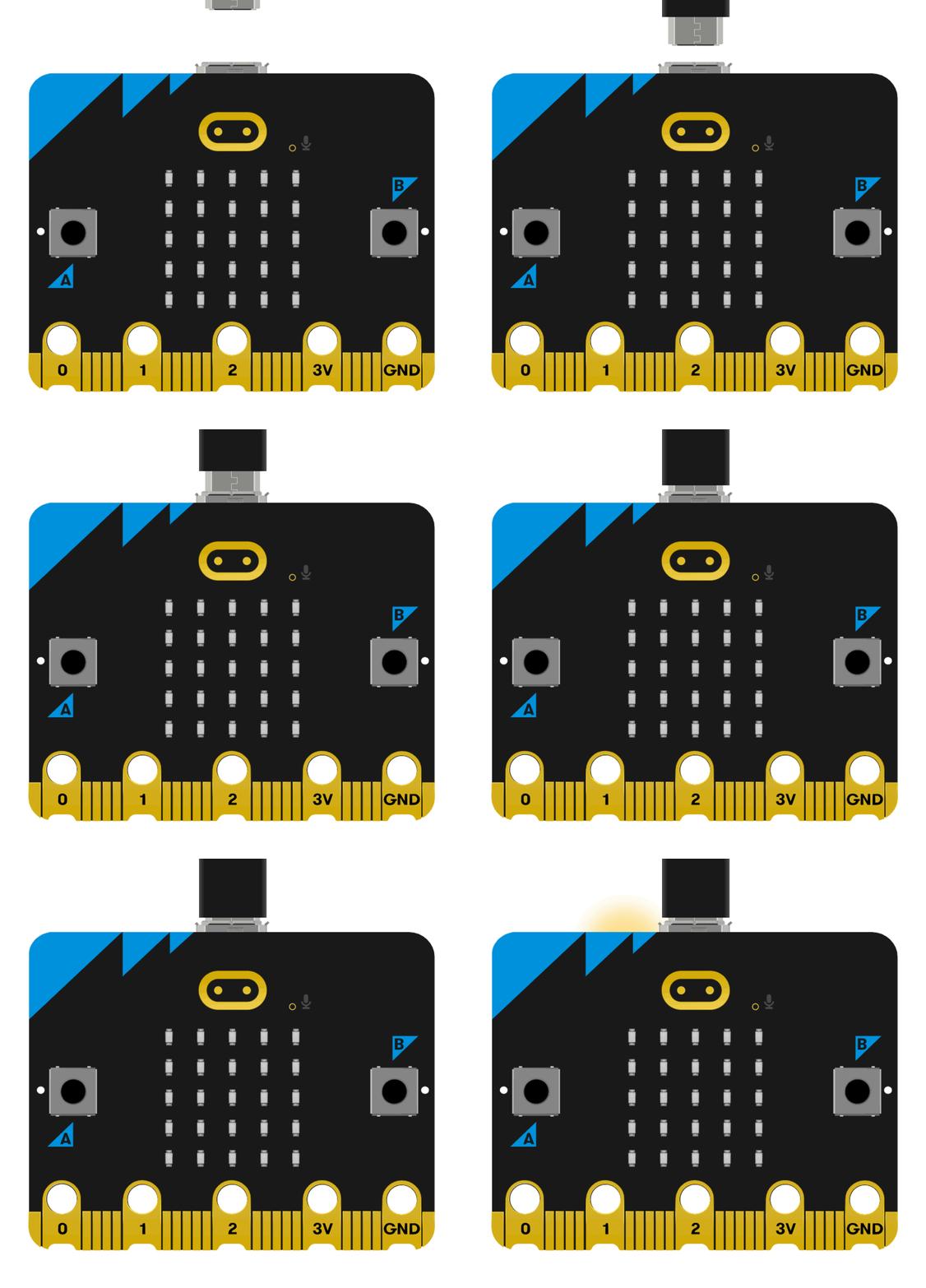
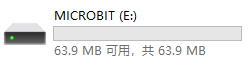
After a successful connection, a drive named MICROBIT will be recognized on the computer.
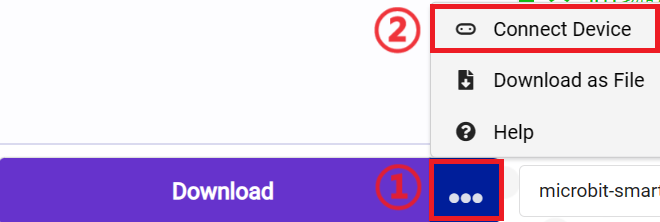
Click the icon in the lower left corner ,and select
Connect Device。
 click
click 。
。
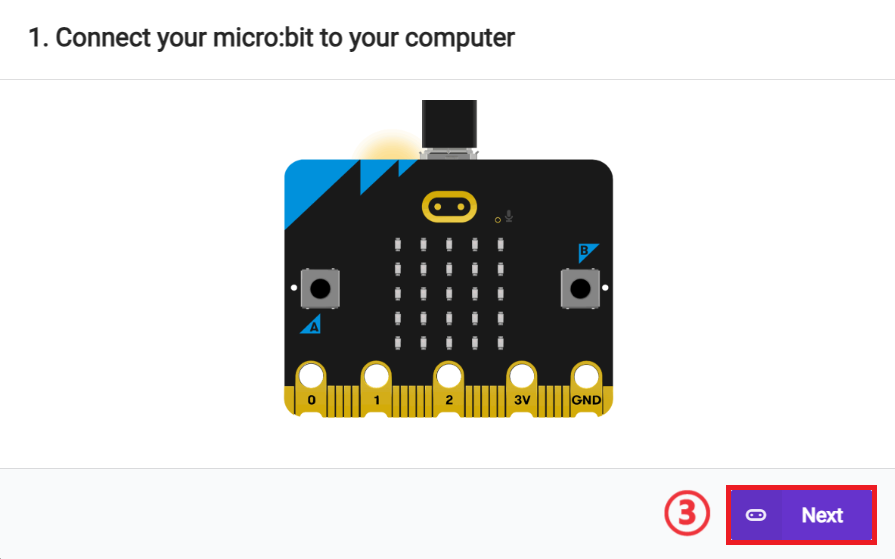
click 。
。
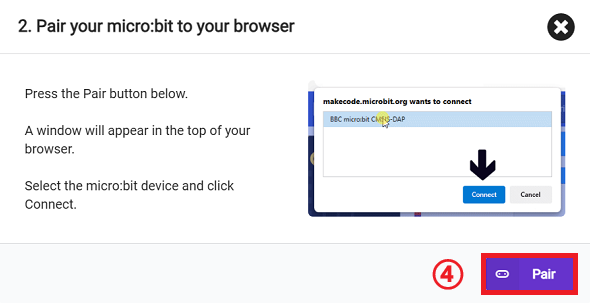
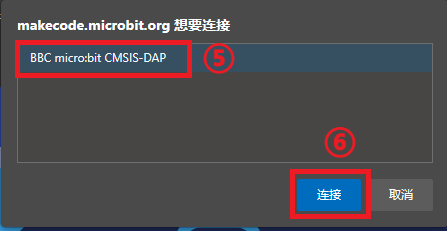
In the pop-up window, select BBC micro:bit CMSIS-DAP, then select Connect. The micro:bit is now successfully connected.
Click to download the program.

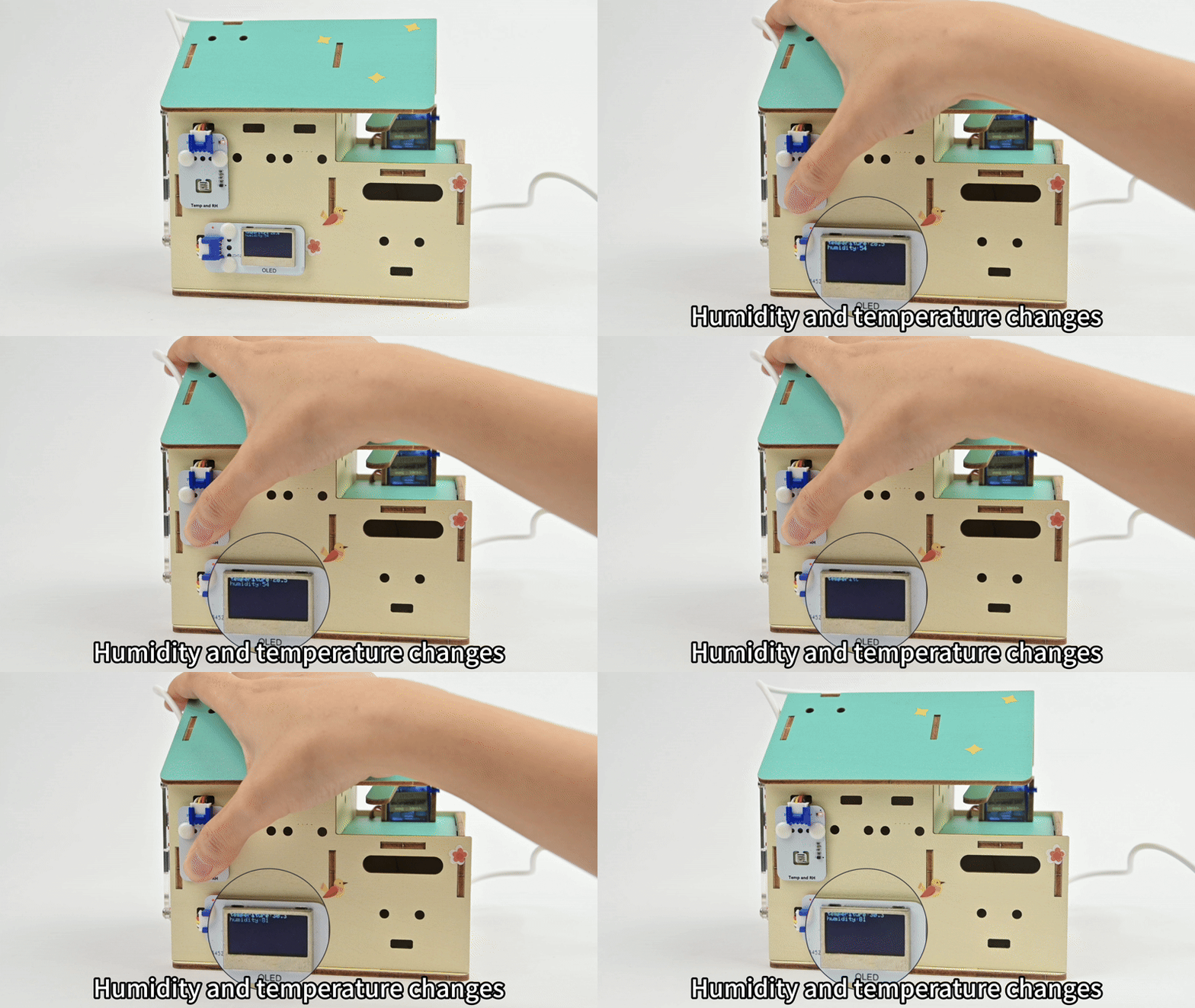
Results
The OLED display shows two lines of real-time data:
- First line: Temperature (unit: °C)
- Second line: Humidity (unit: %)
Extended Knowledge
Applications of Temperature and Humidity Detection in Daily Life
1. Home Scenarios
- Air conditioner/humidifier control: Reminds you to turn on the humidifier when humidity is below 30%; reminds you to turn on the air conditioner when temperature exceeds 28°C.
- Clothes drying: Prompts "Not suitable for drying clothes today" when humidity is too high.
2. Agriculture/Plant Care
- Temperature and humidity monitoring in greenhouses to assist plant growth.
- Checking humidity before watering home succulents to see if watering is needed.
3. Health Reminders
- When humidity is below 20%, the throat is prone to dryness; remember to drink more water.
- When temperature exceeds 35°C and humidity is high, pay attention to heatstroke prevention and cooling.
4. Creative Extensions
- Make a "weather assistant": Display weather icons (such as sun, raindrop) on the micro:bit screen based on temperature and humidity data.
- Link with a small fan: Automatically start the small fan when temperature exceeds 30°C (requires additional connection of a motor module).