Button Sensor
Introduction
Features
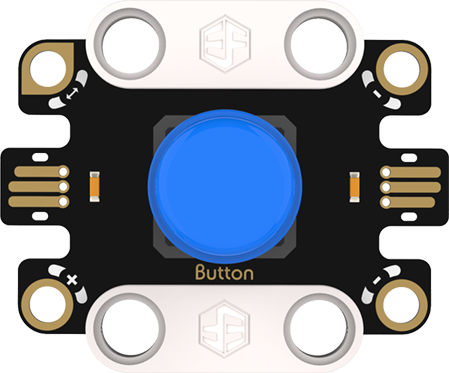
Button Sensor: A simple and easy-to-use digital input module. It sensitively captures user presses and converts physical actions into digital signals, enabling connected devices to respond quickly. Widely used in human-computer interaction scenarios such as start/pause control, it adds convenient operation to various projects.
Specifications
| Item | Parameter |
|---|---|
| Name | Button Sensor |
| SKU | EF16002 |
| Connection | Digital Output |
| Operating Voltage | 4.15V |
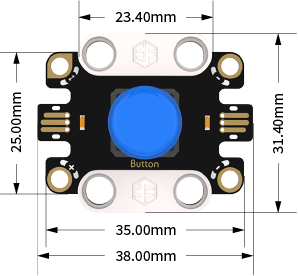
| Product Size | 38.00mm×31.40mm (L×W) |
Appearance and Dimensions
Product Links
None
Quick Start
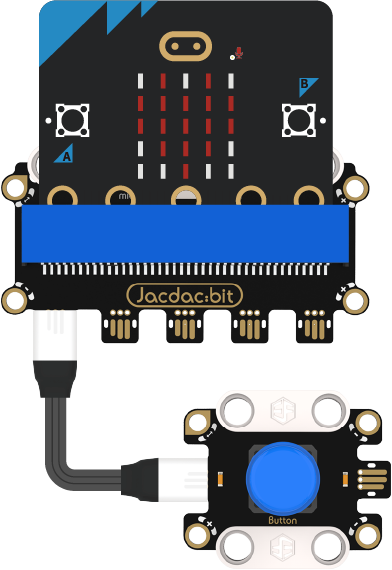
Hardware Connection Diagram
Usage Tutorials
Programming Software
MakeCode Programming
Step 1: Adding the Jacdac Extension
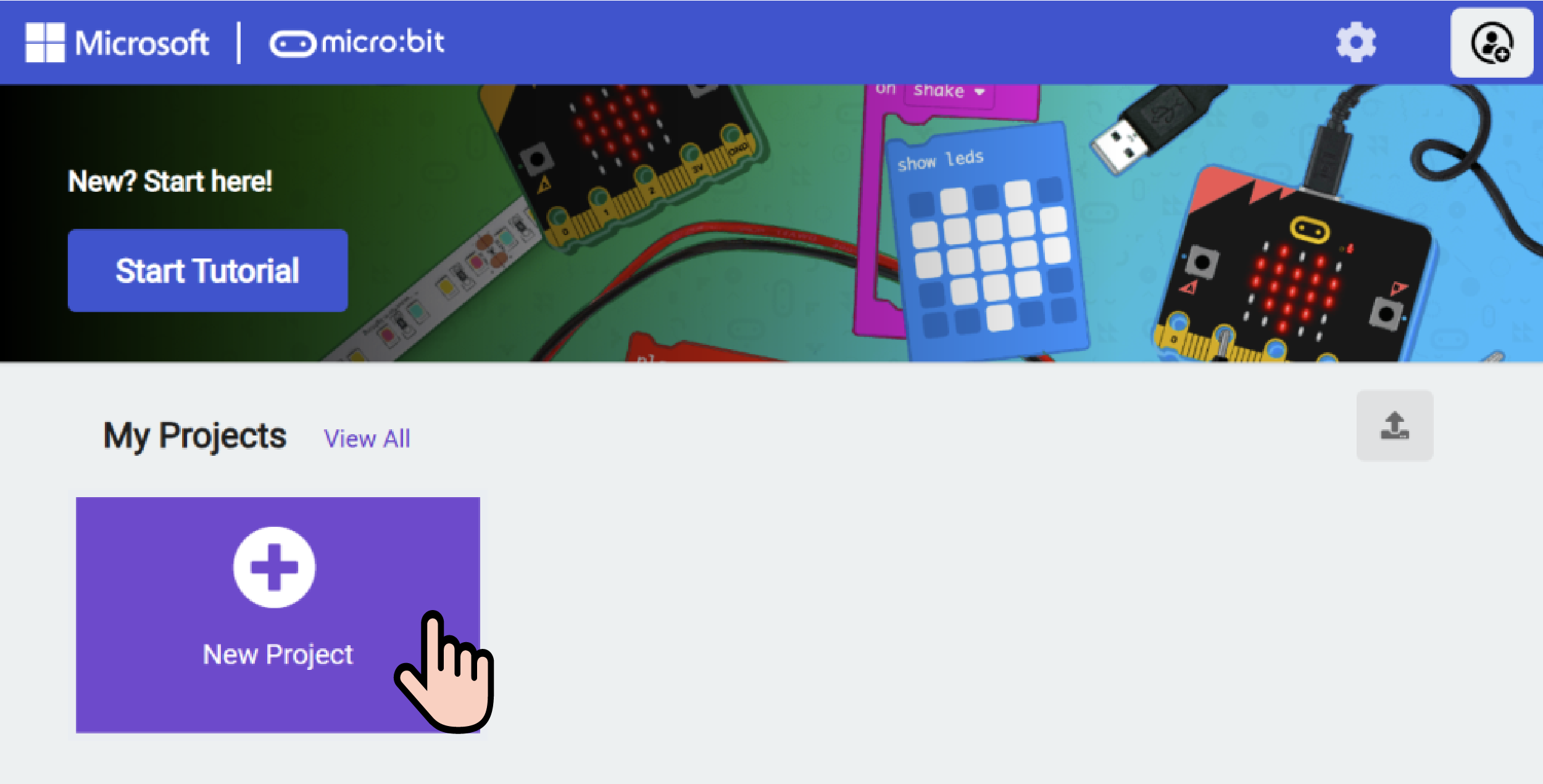
- Go to Microsoft MakeCode and click New Project.
- Enter a project name in the pop-up window and click Create.

- Click Extensions in the code drawer.

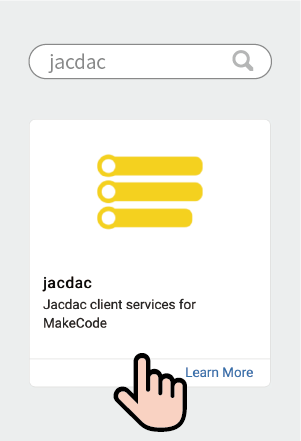
- Type "Jacdac" in the search bar, click the magnifying glass icon, and select the Jacdac software library as shown.
Step 2:
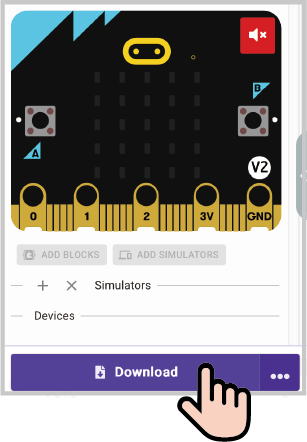
- Connect the micro:bit to your computer using a data cable. Note: If this is the first time running a Jacdac program on the micro:bit, preload a blank Jacdac program first. Skip this step if already done.
- Connect the sensor. MakeCode will automatically detect it and simulate the sensor status in the emulator.
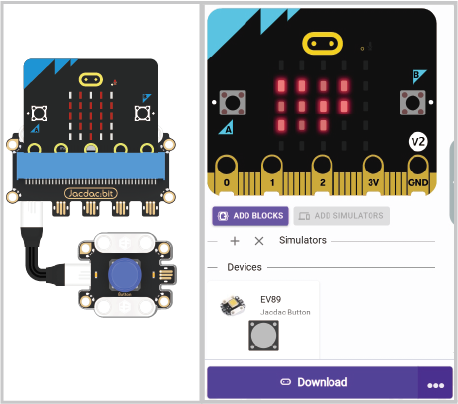
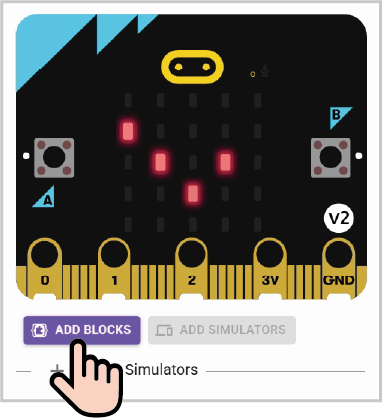
- Click ADD BLOCKS for the sensor extension module. Note: Repeat this step each time you connect a new sensor.
Program Code
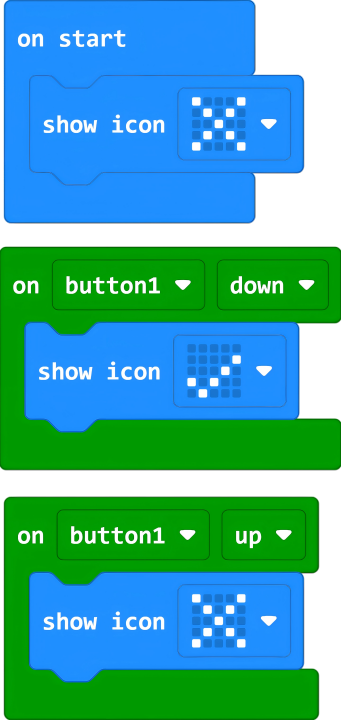
Reference Program
Link: https://makecode.microbit.org/_7C43iwgjJFuX
You can also download it via the embedded link below:
Results
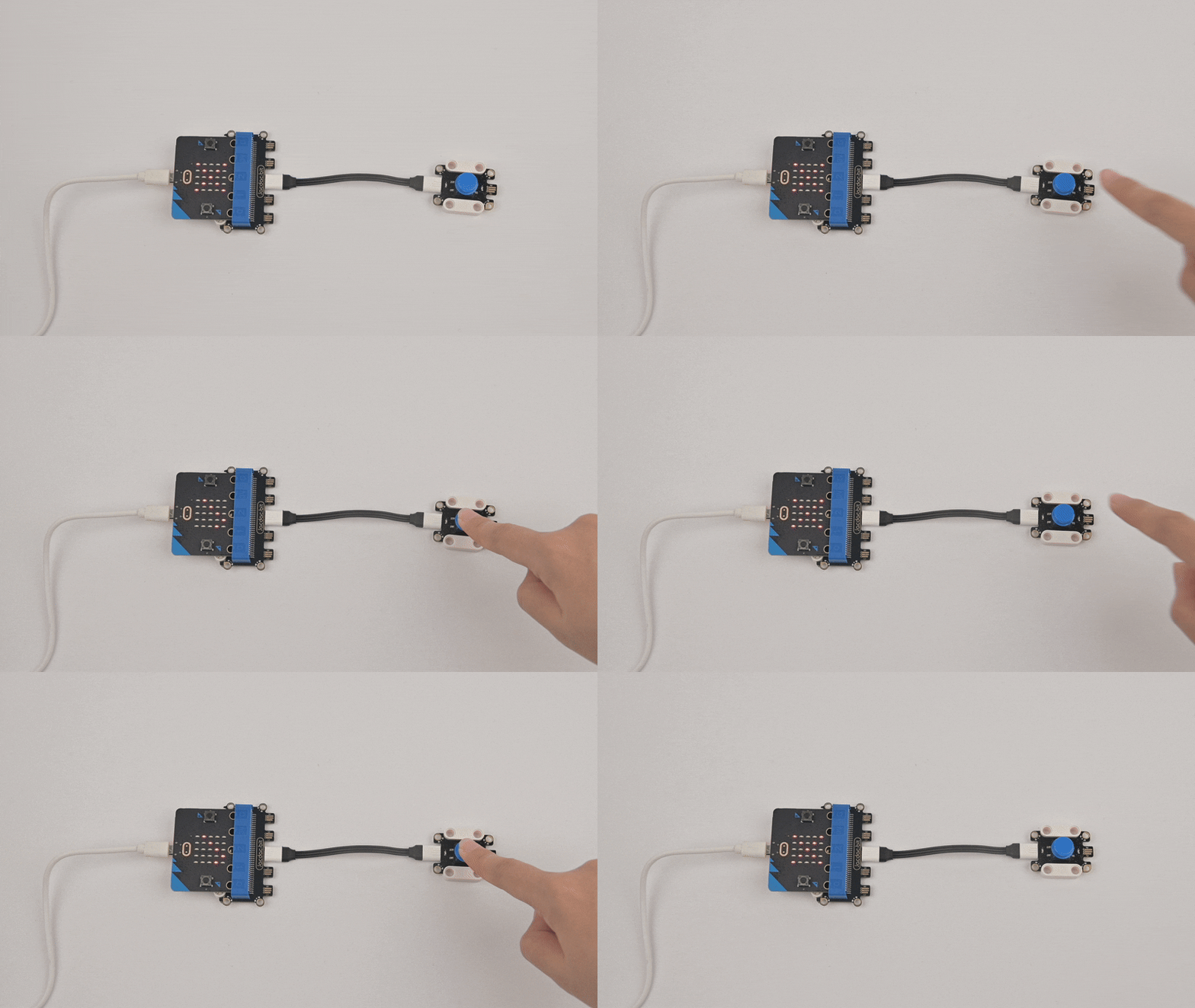
When the button sensor is pressed, the micro:bit displays "√"; when released, it displays "×".