
Case 7: Basketball Shooting Robot

Case Introduction

Design a basketball shooting robot.

Teaching Preparation

NameGraphics
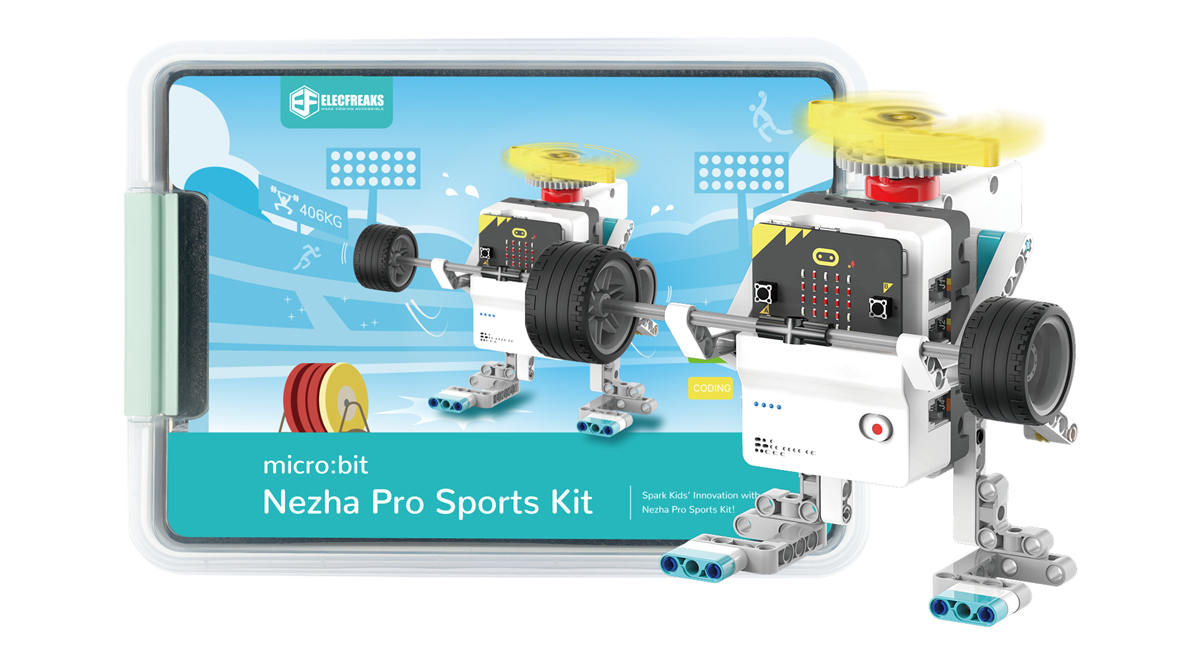
Nezha Pro Sport Kit

Teaching Objectives

Understand the basic use of Makecode

How to download the program

Course Introduction

Welcome children to join our wonderful STEAM journey! Today, we will explore how to make a shooting robot. In this project, we will learn how to control the movement of the robot through simple mechanical transmission. You don’t need complex programming knowledge, just assemble and adjust it by hand, and you can create a shooting robot. Let’s start this exciting STEAM learning journey together and stimulate your creativity and problem-solving ability!

Learning Exploration

How to download the micro:bit program

Building Steps

Hardware connection

Connect the collision sensor to the J1 interface of the Nezha Pro expansion board, and connect the smart motor to the M1 interface of the Nezha Pro expansion board.

Hardware connection diagram

Code programming

Go to "makecode.microbit.org" and click New Project.

Enter a project name in the pop-up window and click Create.

Click Extension in the code drawer.

In the pop-up interface, enter nezha pro and click the search icon. Click it when the nezha pro software library is displayed. Load the PlanetX software library in the same way.

Sample Program

Program link: https://makecode.microbit.org/_8vgFCod711oo

You can also download the program directly from the following website.

## Download the program

Use a USB cable to connect PC and micro:bit V2.

After the connection is successful, a drive named MICROBIT will be recognized on the computer.

Click in the lower left corner and select Connect Device.

Click

Click

In the pop-up window, select BBC micro:bit CMSIS-DAP, and then select Connect. At this point, our micro:bit has been successfully connected.

Click Download the program

Case demonstration

Press button A on the micro:bit to make the shooting robot start preparing to shoot, and press button B on the micro:bit to make the shooting robot start preparing to shoot.

Summary and sharing

Extended knowledge

What are the functions of micro:bit?

micro:bit is a microcomputer development board designed for programming education for teenagers. It has many functions. The following is an introduction to its main functions:

Input function

Button input: There are two programmable buttons A and B on the front of micro:bit, which can be used alone or in combination to trigger various events, such as start, pause, select and other operations.

Touch input: The gold logo of the v2 version of micro:bit can be used as a touch sensor, which is equivalent to an additional button, adding a new input method to the program.

Sensor input: Including light sensor, temperature sensor, acceleration sensor and compass sensor, which can detect information such as ambient light intensity, ambient temperature, acceleration and movement status of the device, direction of the earth's magnetic field, etc.

Output function

LED display: There are 25 independently programmable LED lights arranged in a 5×5 grid, which can display text, numbers, images and animations, etc., for displaying information or interacting with users.

Sound output: The v2 version is equipped with a speaker that can play sounds and melodies. It can be used to make music, sound effects and other projects, which increases the fun of the project.

Communication function

Radio communication: Supports radio communication, which can transmit wireless data between multiple micro:bit boards, and is used to create multiplayer games, interactive projects, etc.

Bluetooth low energy: Through the Bluetooth low energy antenna, micro:bit can communicate wirelessly with computers, mobile phones, tablets and other devices to achieve connection and control between devices.

Extended function

Pin interface: There are 25 external interface pins on the edge of the micro:bit connector. Through these pins, various external electronic components such as motors, LED lights, sensors, etc. can be connected to expand its functions.

USB interface: Used to connect to a computer to download, upload and debug programs, and also provide power for micro:bit.