Case 6: Swimming Robot

Case Introduction​

Design a swimming robot.

Teaching Preparation​

NameGraphic
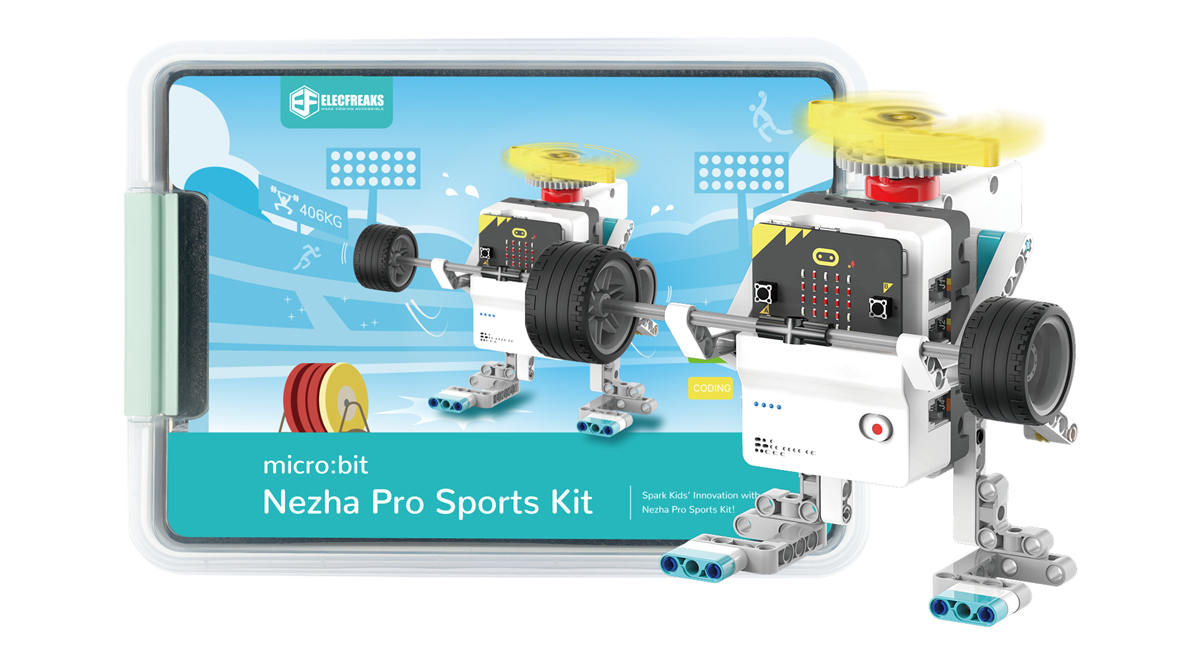
Nezha Pro Sport Kit

Teaching Objectives​

Learn the basic use of Makecode

How to download the program

Course Introduction​

Welcome to join our wonderful STEAM journey! Today, we will explore how to make a swimming robot. In this project, we will learn how to control the movement of the robot through simple mechanical transmission. You don't need complex programming knowledge; just assemble and adjust it, you can create a swimming robot. Let's start this exciting STEAM learning journey together and stimulate your creativity and problem-solving ability!

Learning Exploration​

How to download the micro:bit program

Building steps​

Hardware connection​

Connect the smart motor to the M1 interface of the Nezha Pro expansion board.

Hardware connection diagram

Code programming​

Go to "makecode.microbit.org" and click New Project.

Enter a project name in the pop-up window and click Create.

Click Extension in the code drawer.

In the pop-up interface, enter nezha pro and click the search icon. Click it when the nezha pro software library is displayed. Load the PlanetX software library in the same way.

Sample Program​

Program link: https://makecode.microbit.org/_CdtHzDJtCbeM

You can also download the program directly from the following website.

## Download the program

Use a USB cable to connect PC and micro:bit V2.

After the connection is successful, a drive named MICROBIT will be recognized on the computer.

Click in the lower left corner and select Connect Device.

Click。

Click。

In the pop-up window, select BBC micro:bit CMSIS-DAP, and then select Connect. At this point, our micro:bit has been successfully connected.

Click Download program

Case Demonstration​

Press button A on the micro:bit to start the swimming robot moving.

Summary and sharing​

Expand your knowledge​