Case 9: Compare whose hand speed is faster
Introduction:
Two players press their button sensors at the same time to see who can complete 10 presses first and win the game.
Case purpose:
Understand the variable blocks in MakeCode
Understand the digital operation blocks in MakeCode
Materials Needed:
| Item | 图片 | Quantity |
|---|---|---|
| micro:bit V2 | .png) | 1 |
| Jacdac Expand board | 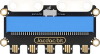 | 1 |
| Jacdac 10cmConnection Line |  | 2 |
| Button Sensor | 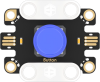 | 2 |
| USB Cable |  | 1 |
Sensor principle description:
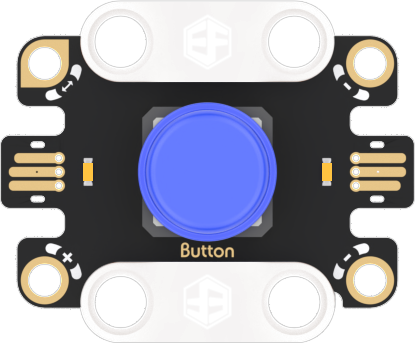
Principle description
Button sensor: A sensor used to detect the status of a button, which outputs signals carrying "0" and "1".
Connection diagram
As shown in the figure below, insert the micro:bit
board into the Jacdac expansion board, and use the connecting wire to connect the two button sensors in a star connection to the gold finger interface of the Jacdac expansion board.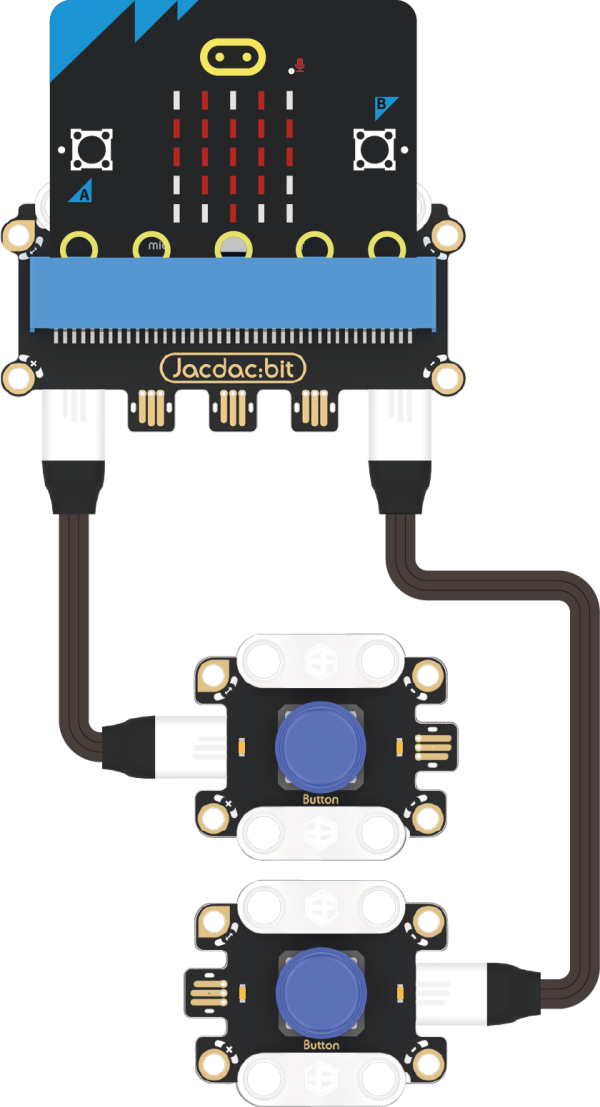
Programming software
Makecode programming
Step 1: How to add Jacdac extension
- Enter Microsoft Makecode and click "New Project".
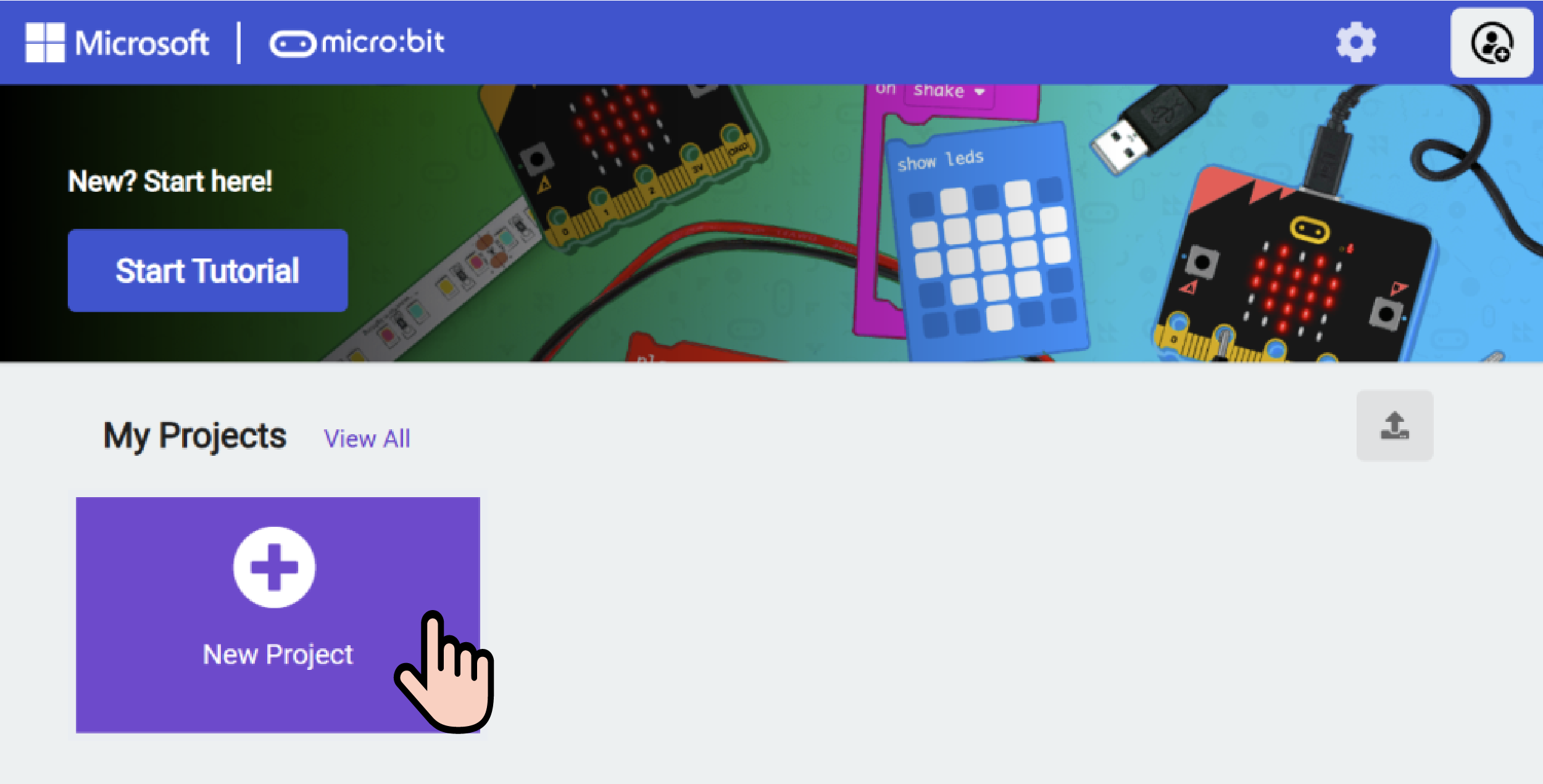
- In the pop-up window, enter a project name and click Create.

- Click "Extend" in the code drawer.

- In the pop-up interface, enter "Jacdac" and click the search icon, select the Jacdac software library, as shown in the figure.
Step 2:
- Connect the micro:bit mainboard to the computer with a data cable.
Note: If the micro:bit mainboard is running the Jacdac program for the first time, please pre-install a blank Jacdac program on the mainboard, otherwise skip this step.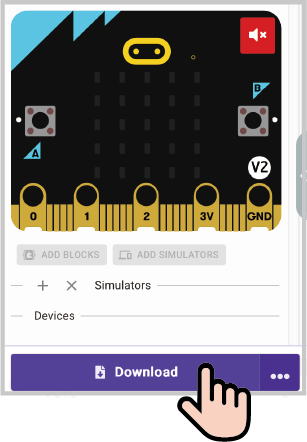
- Connect the sensor, MakeCode will automatically identify and simulate it, and the sensor will provide real-time feedback of the sensor status in the simulation area.
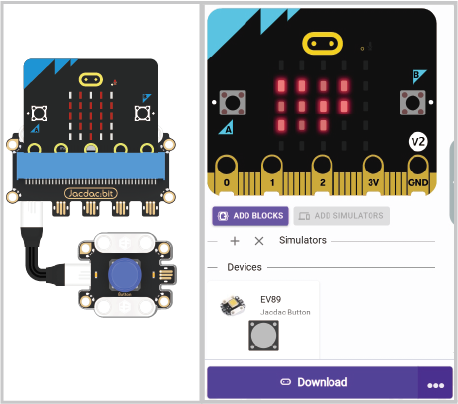
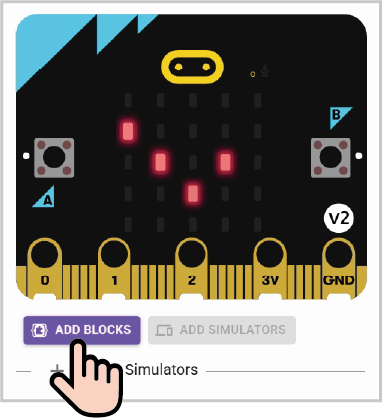
Click on "ADD BLOCKS" sensor expansion module.
Note: To connect a new sensor, repeat the "Click on "ADD BLOCKS" sensor expansion module" operation process.
Write the program as shown
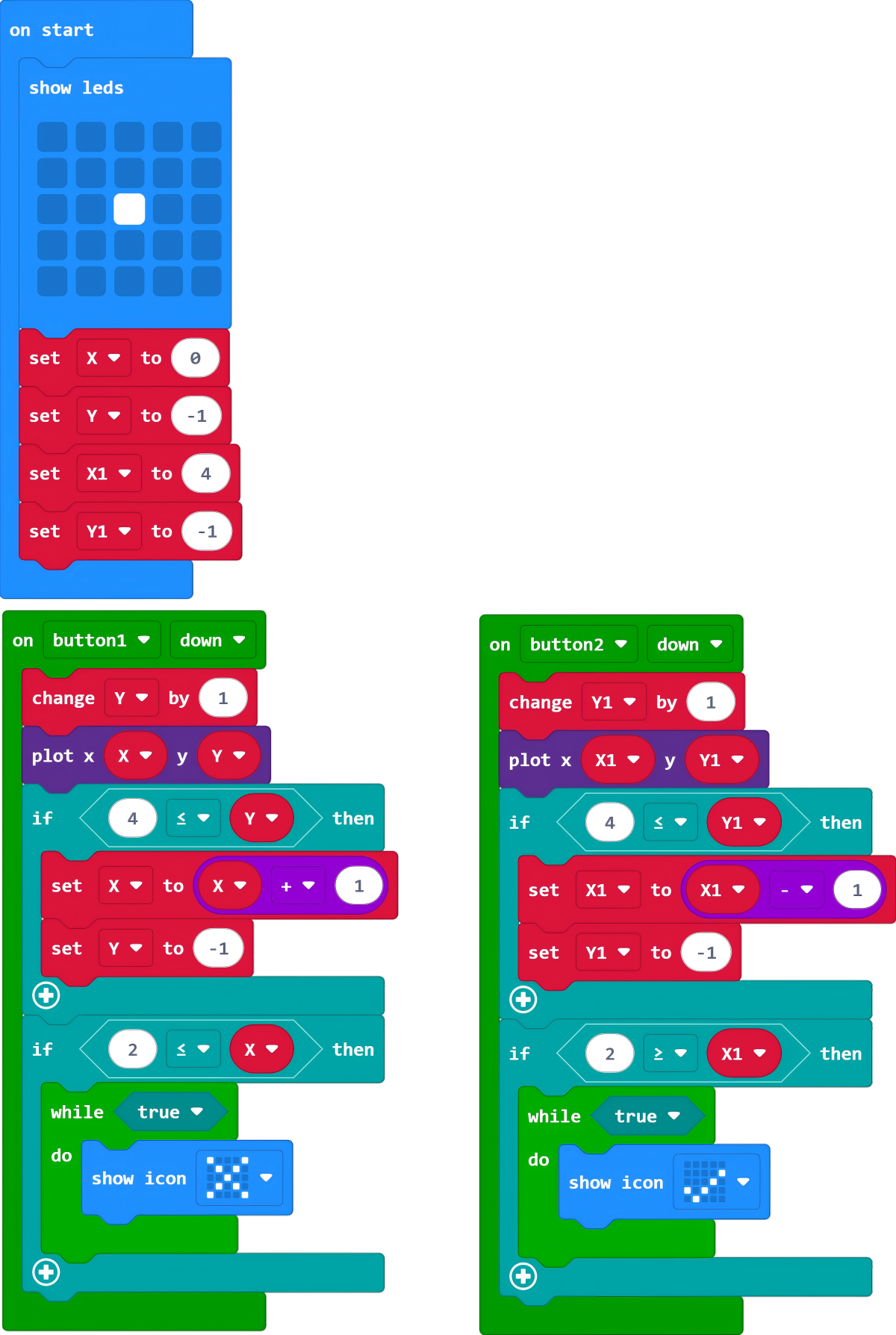
Reference program link:
https://makecode.microbit.org/S04563-87350-86165-83144
You can also download the program directly from the following webpage and start running the program after the download is complete.
Result
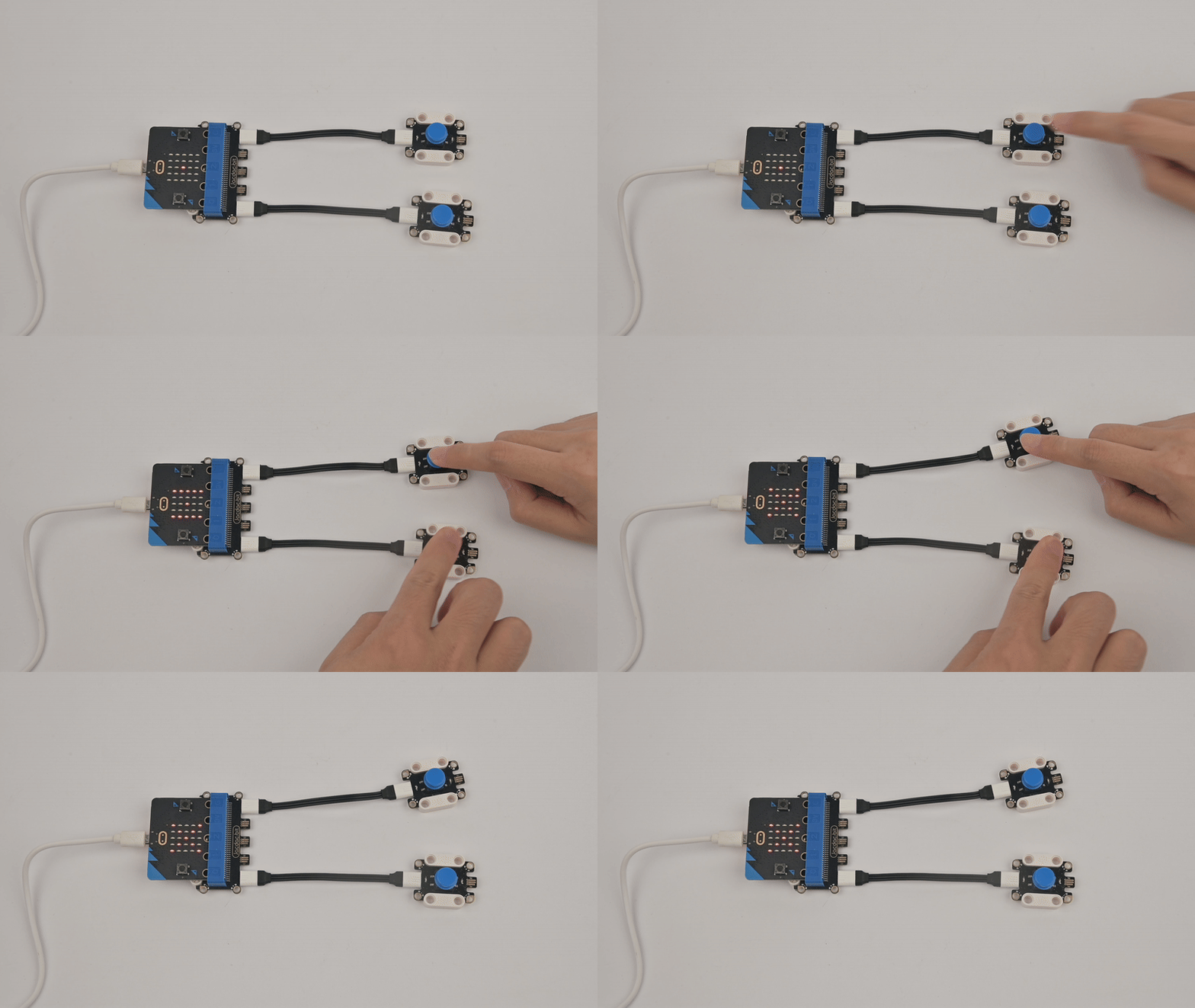
When the A button sensor is detected to be pressed, one LED light will be lit in the two columns of LED lights on the left side of the micro:bit motherboard for counting. Similarly, when the B button sensor is detected to be pressed, one LED light will be lit in the two columns of LED lights on the right side of the motherboard for counting. The goal of the game is to see who can quickly press the corresponding button sensor 10 times, and that player will be the winner. If you need to restart the game, press the reset button of the micro:bit motherboard.
Thinking
What is the difference between variables and constants.