Case 1: Compare
Introduction
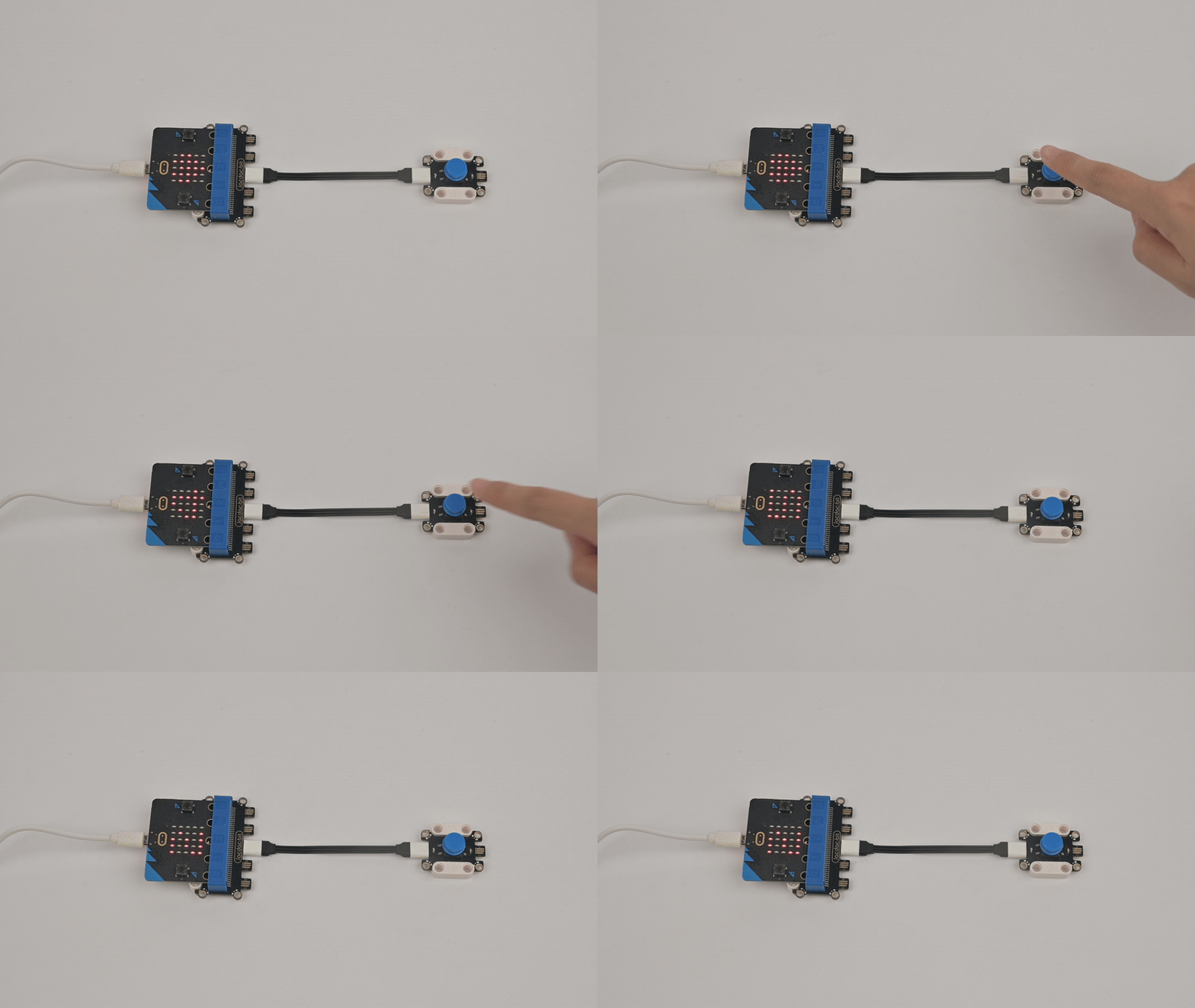
Press the button sensor, the micro:bit screen will randomly display numbers from 1 to 6, compare the numbers with your friends.
Purpose of the case
Learn about the button sensor and its working principle.
Learn about the button sensor programming blocks in MakeCode.
Materials required
| Item | Picture | Quantity |
|---|---|---|
| micro:bit V2 | .png) | 1 |
| Jacdac expantion board |  | 1 |
| Jacdac 10cm wire |  | 1 |
| Button Sensor | 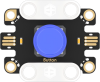 | 1 |
| USB Cable |  | 1 |
Sensor principle description:
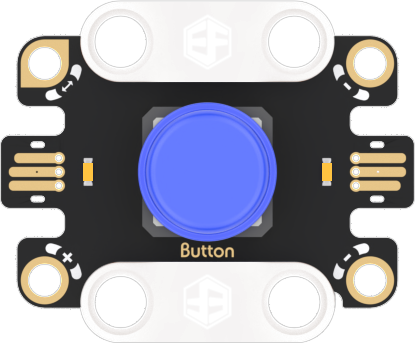
Principle description:
Button sensor: A sensor used to detect the status of a button, which outputs signals carrying "0" and "1".
Connection diagram
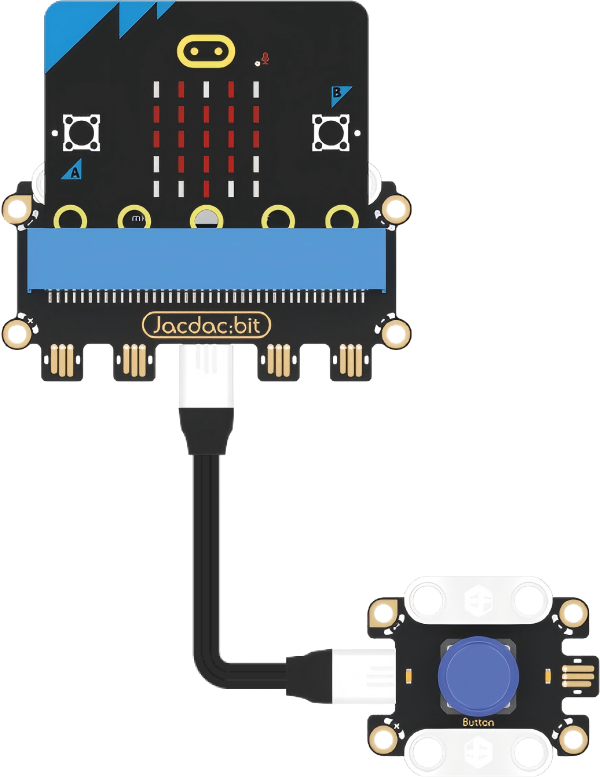
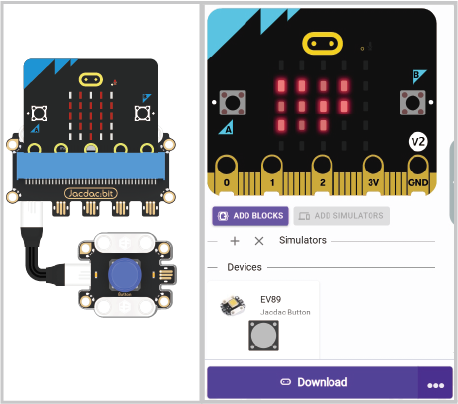
As shown in the figure below, insert the micro:bit into the Jacdac expansion board, and use a connecting wire to connect the button sensor to the gold finger interface of the Jacdac expansion board.
Programming software
Makecode programming
Step 1: How to add Jacdac extension
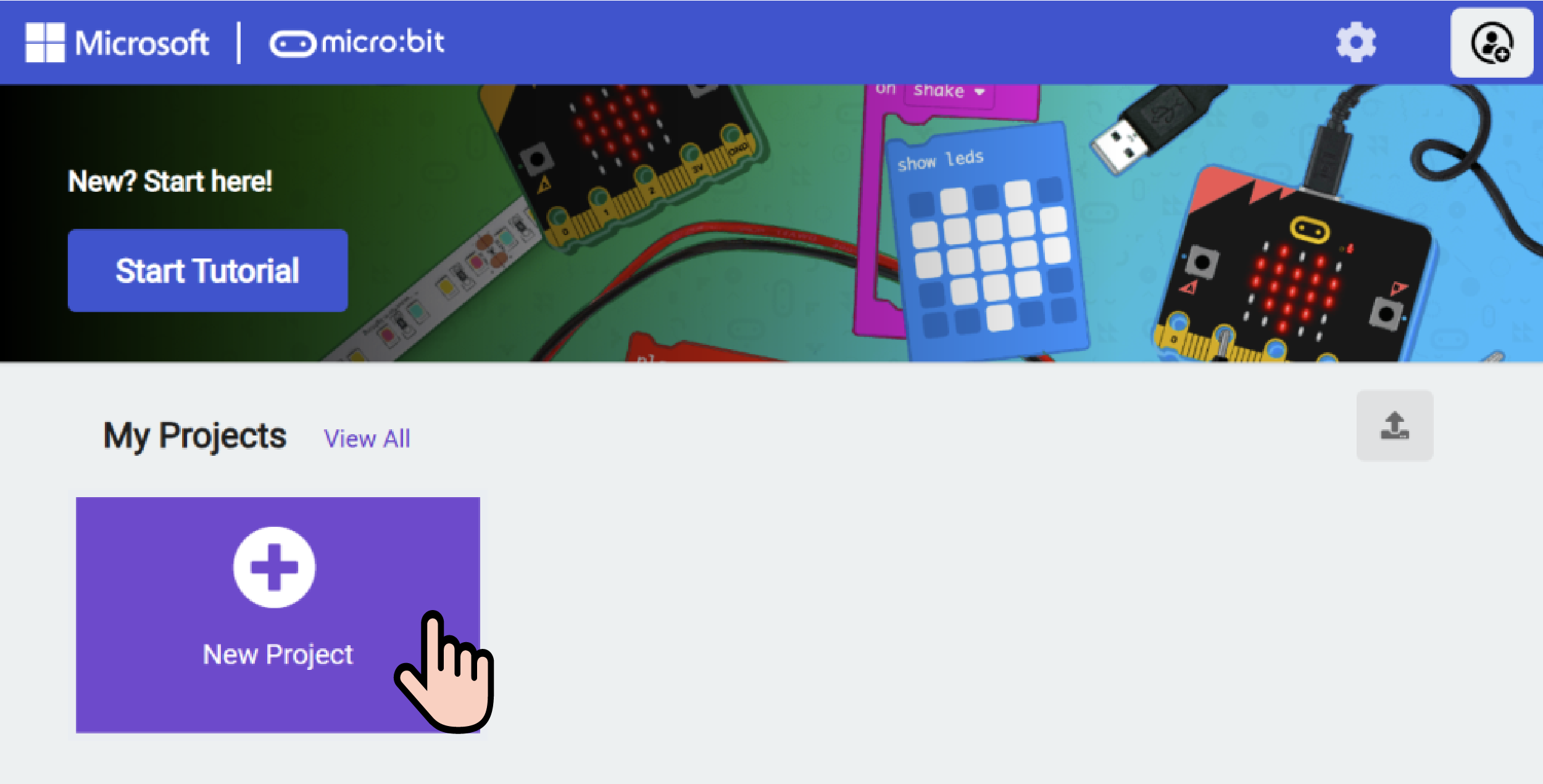
- Enter Microsoft Makecode and click "New Project".
- Enter a project name in the pop-up window and click Create.

- Click "Extend" in the code drawer.

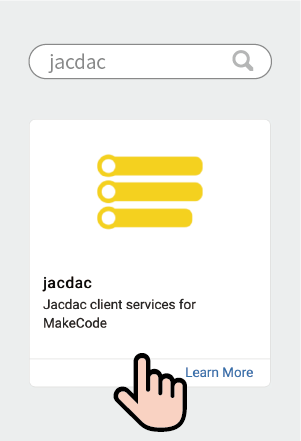
- In the pop-up interface, enter "Jacdac" and click the search icon, select the Jacdac software library, as shown in the figure.
Step 2:
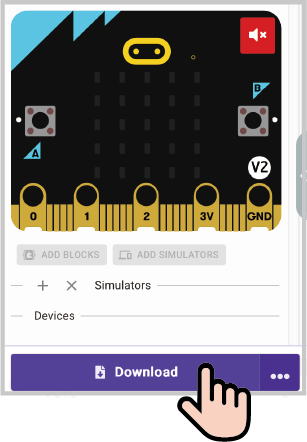
- Connect micro:bit to the computer with a data cable.
Note: If the micro:bit is running the jacdac program for the first time, please pre-install a blank jacdac program to the micro:bit, otherwise skip this step.
Connect the sensor, MakeCode will automatically identify and simulate it, and the sensor will provide real-time feedback of the sensor status in the simulation area.
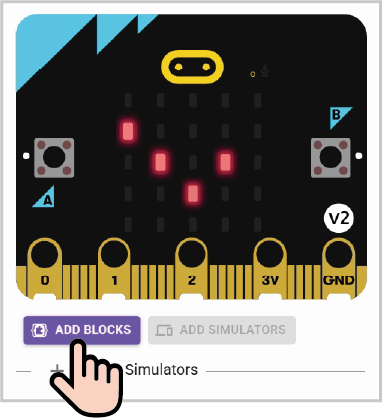
Click on "ADD BLOCKS" sensor expansion module.
Note: To connect a new sensor, repeat the "Click on "ADD BLOCKS" sensor expansion module" operation process.
Write the program as shown
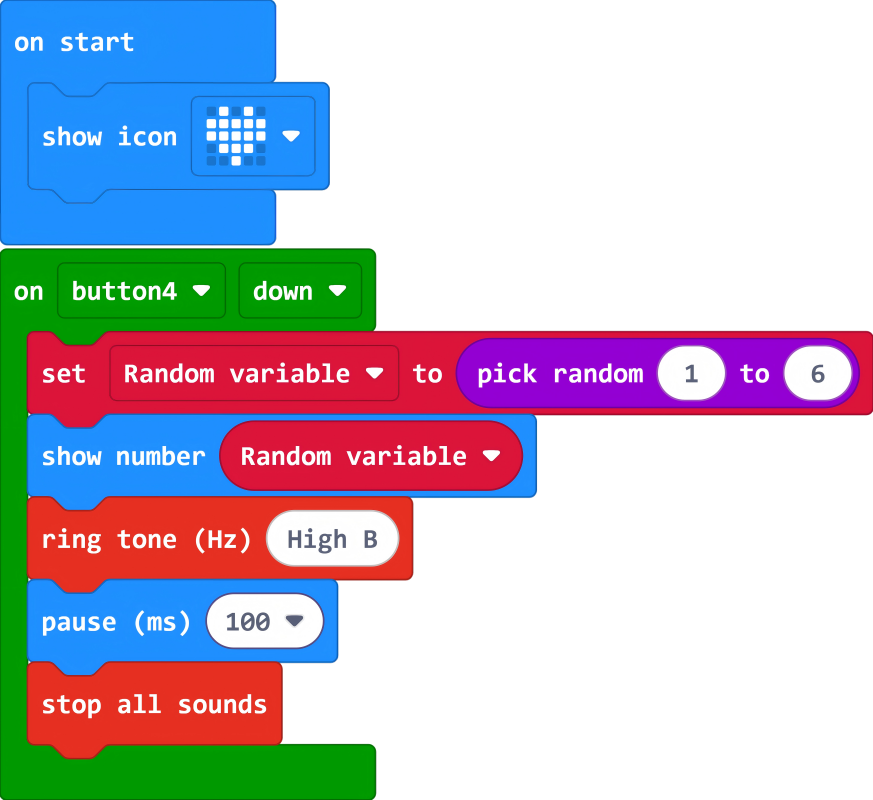
Reference program link:
https://makecode.microbit.org/_FEADwWWVCU31
You can also download the program directly from the following webpage, and start running the program after downloading.
Result
When the button sensor is pressed, numbers 1 to 6 appear randomly on the micro:bit screen.
Thinking
In this case, in addition to displaying numbers on the micro:bit screen, what other ways are there to express numbers?