Color Recognition with TPBot
Purpose
- Using Smart AI Lens to recognize the color and display it on the head lights of TPBot.
Materials required
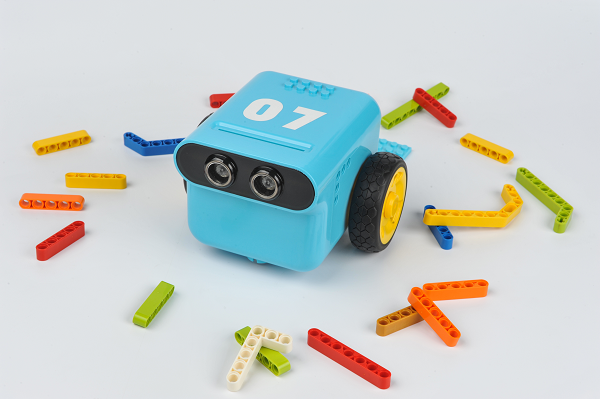
- 1 x TPBot
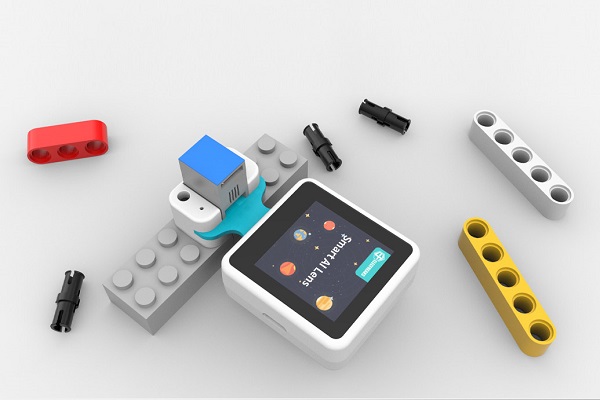
- 1 x AI Lens
Hardware Connections
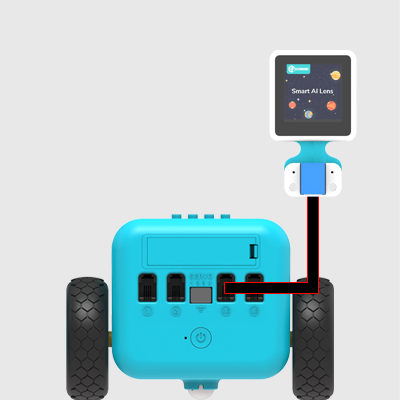
Connect the AI Lens to the IIC port on TPBot.
Software
MakeCode Programming
- Click "Advanced" to see more choices in the MakeCode drawer.
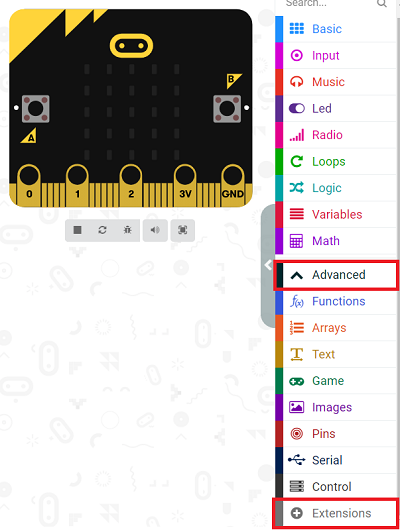
- We need to add a package for programming. Click "Extensions" in the bottom of the drawer and seach with "tpbot" in the dialogue box to download it.
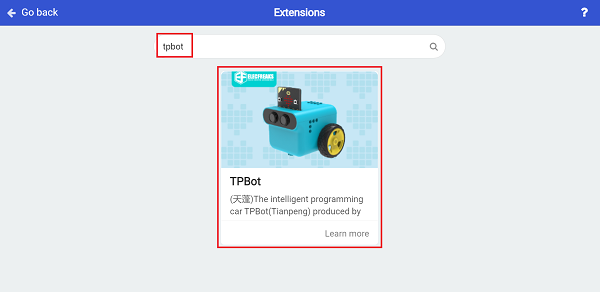
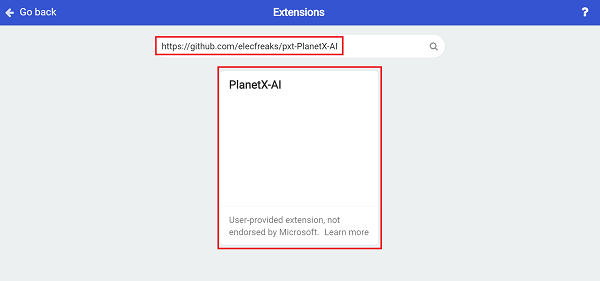
- We need to add a package for programming the AI Lens kit. Click "Extensions" in the bottom of the drawer and seach with
https://github.com/elecfreaks/pxt-PlanetX-AIin the dialogue box to download it.
Sample Code
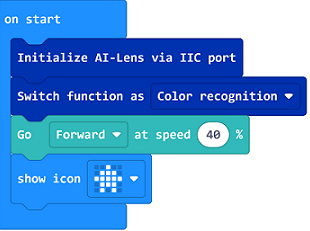
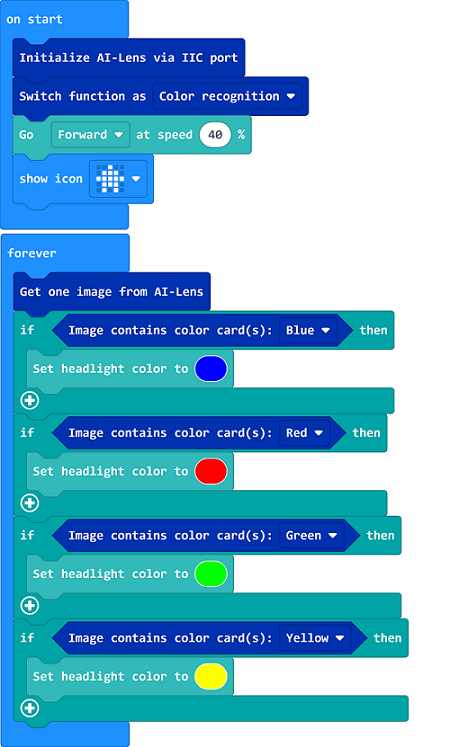
- Initialize the AI lens kit in the On start brick and switch its function to color recognition, then show an icon.
- In forever brick, get an image from the AI lens and adjust TPBot's headlights' color by the color recognized in the lens.
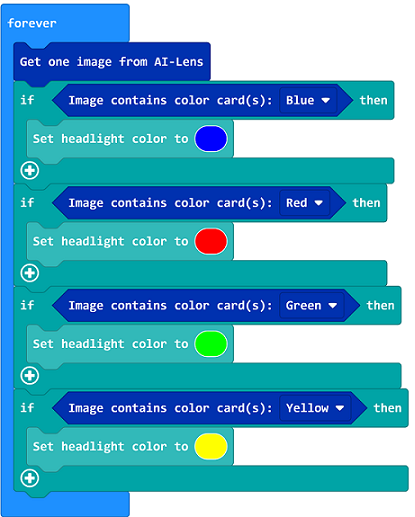
- Complete Code:
Reference
You may also download it directly below:
Python Programming
Add TPBot extension: https://www.elecfreaks.com/learn-cn/microbitKit/TPbot_tianpeng/TPbot-python.html
Add AI Lens extension: https://www.elecfreaks.com/learn-cn/microbitplanetX/ai/Plant-X-EF05035-python.html
Code
from microbit import *
from AILens import *
from TPBot import *

tp = TPBOT()
ai = AILENS()
# Set the function of AI Lens in color recognition
ai.switch_function(Color)
tp.set_motors_speed(40,40)
while True:
    #  Get an image
    ai.get_image()
    if (ai.get_color_type() == "Blue"):
        tp.set_car_light(0, 0, 255)
        tp.set_car_light(0, 0, 255)
    if (ai.get_color_type() == "Red"):
        tp.set_car_light(255, 0, 0)
        tp.set_car_light(255, 0, 0)
    if (ai.get_color_type() == "Green"):
        tp.set_car_light(0, 255, 0)
        tp.set_car_light(0, 255, 0)
    if (ai.get_color_type() == "Yellow"):
        tp.set_car_light(255, 255, 0)
        tp.set_car_light(255, 255, 0)
Result
The TPBot drives forward, If the blue card is recognized, the TPBot lights on in blue; If the red card is recognized, the TPBot lights on in red; If the green card is recognized, the TPBot lights on in green; If the yellow card is recognized, the TPBot lights on in yellow.
Exploration
FAQ
Q: TPBot doesn't work with the sample code. A: It is probably due to the lack of battery power, please try adding the speed of the TPBot or replacing with new batteries. Q: The AI Lens is not working, and it does not go to the function page with the sample code. A: Please try replacing with new batteries.