Case 15: Gesture-Controlled Car
Introduction
Control the movements of the Cutebot car through custom gestures that are collected and trained.
Purpose of the Case
Learn the data collection method for Create AI custom gestures.
Required Materials
| Item | Image | Quantity |
|---|---|---|
| Watch Kit Pro | 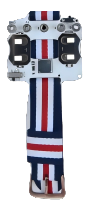 | 1 |
| micro:bit | .png) | 2 |
| USB Cable |  | 1 |
| Cutebot | 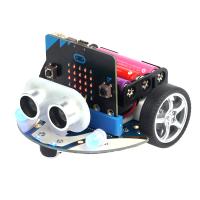 | 1 |
| Personal Computer |  | 1 |
User Tutorial
Step 1: Create a New Project
- Use the Chrome or Edge web browser to visit https://createai.microbit.org/ as shown in the figure below, and click "Get Started".
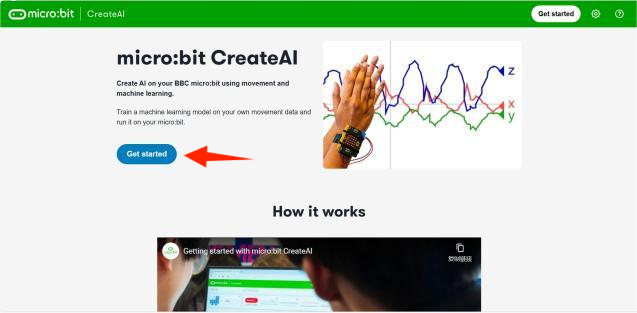
- Click "New Session" and name the project.
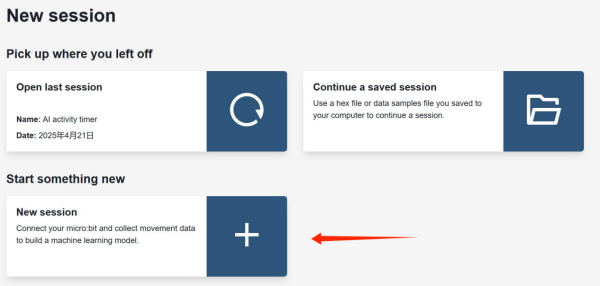
Step 2: Connect the micro:bit Board
- Connect your micro:bit board to the computer using a data cable, and click "Connect".
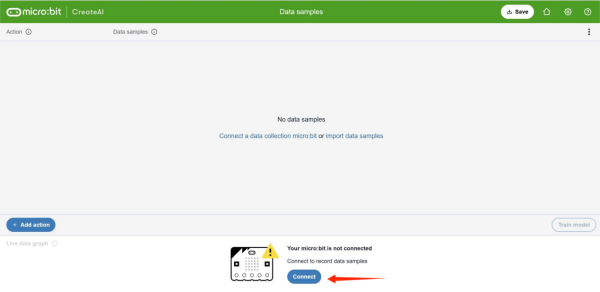
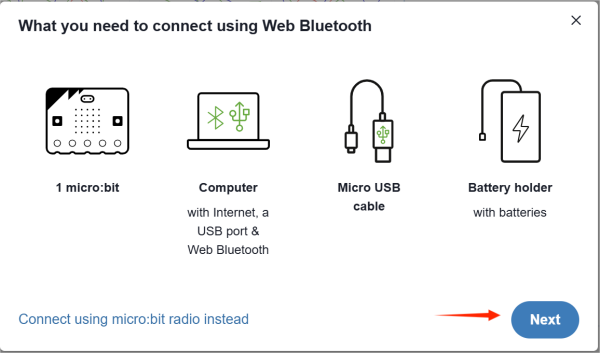
- Prepare the corresponding materials and equipment, and click "Next".
(If your personal computer has Bluetooth connectivity, only one micro:bit board is needed. If your personal computer does not support Bluetooth connection, click "Use micro:bit Wireless Connection" and follow the tutorial to complete the connection.)
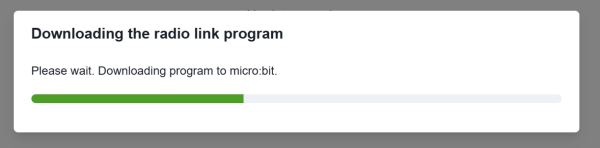
- Please connect your micro:bit board to the computer using a data cable, then click "Next" and follow the tutorial to complete the program download.
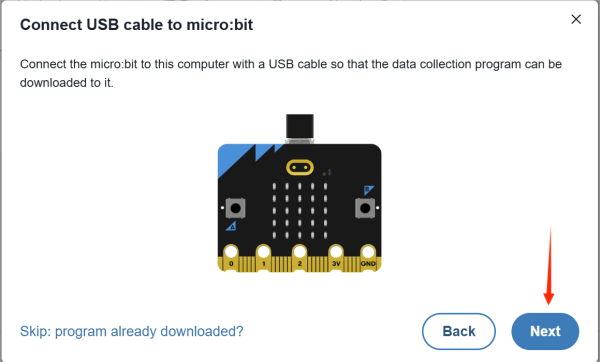
- Wait for the program to be downloaded and installed on the micro:bit board.
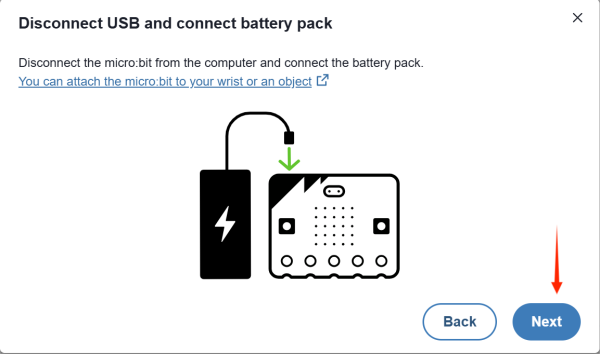
- Disconnect the USB cable and turn on the power of the Watch Kit Pro, then click "Next".
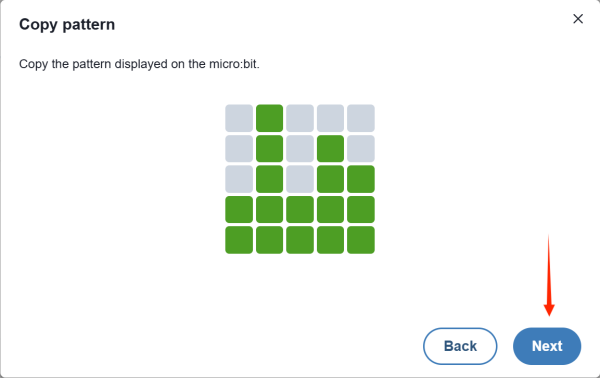
- Click "Next" and follow the tutorial to complete the Bluetooth connection authentication process.
- Select "micro:bit Board" and click "Pair", wait until the connection is successful.
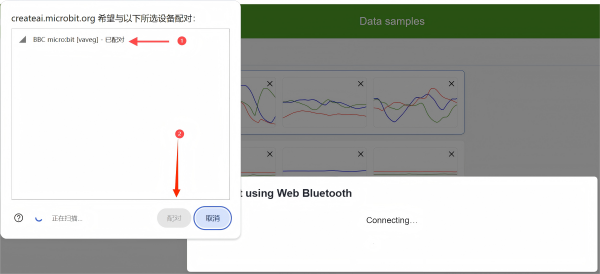
- If the connection is successful, the "X", "Y", "Z" lines in the "Real-time Data Area" will change accordingly as you shake the watch.
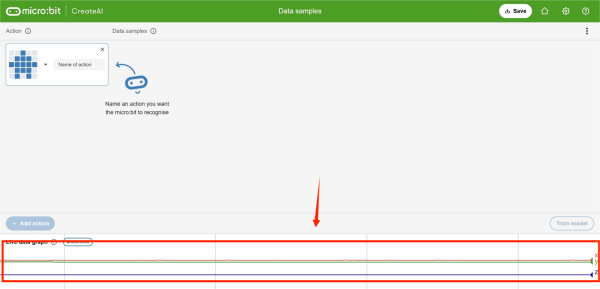
Step 3: Data Collection
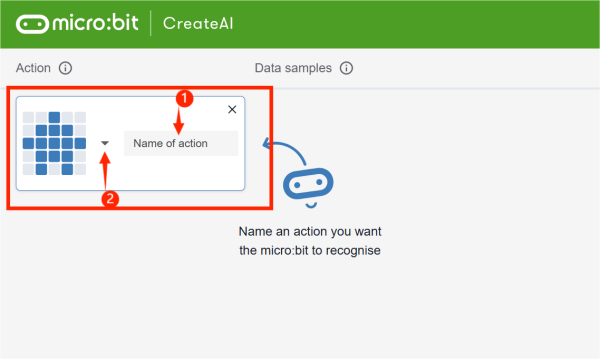
Enter "Forward" in the "Action Name" input box to name it. Click the "triangle" icon to select the corresponding pattern displayed on the micro:bit for this action.
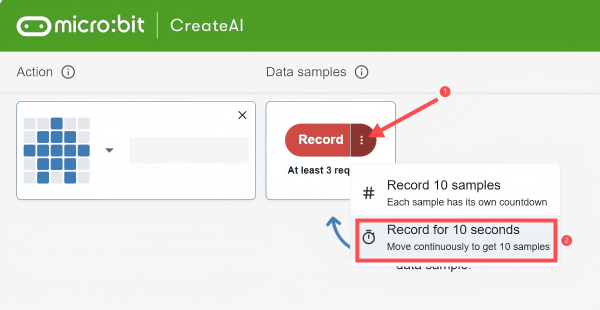
Please hold the watch strap with the logo facing outward and the micro:bit LED matrix screen facing up, as shown in the figure. Click the three vertical dots icon to adopt the continuous collection method, then start collecting data samples of the "Forward" gesture action. A 3, 2, 1 countdown will be displayed on the screen. When the word "GO" appears, start shaking the watch up and down until 10 sample data are collected. Note: When collecting action data, it is necessary to collect the high, medium, and low frequencies of shaking the watch, with 10 samples collected for each frequency.
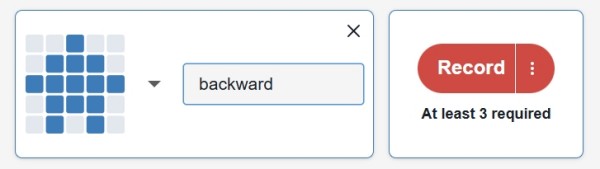
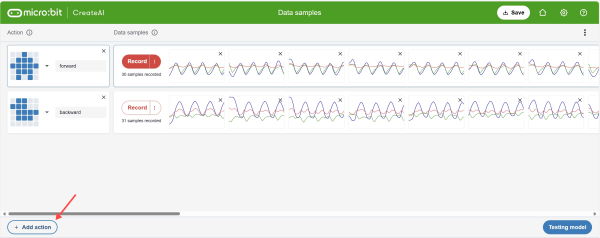
Please hold the watch strap with the logo facing outward and the micro:bit LED matrix screen facing down, as shown in the figure. Click "Add Action" and name it "Backward". Click the three vertical dots icon to adopt the continuous collection method, then start collecting data samples of the "Backward" gesture action. A 3, 2, 1 countdown will be displayed on the screen. When the word "GO" appears, start shaking the watch up and down until 10 sample data are collected. Note: When collecting action data, it is necessary to collect the high, medium, and low frequencies of shaking the watch, with 10 samples collected for each frequency.
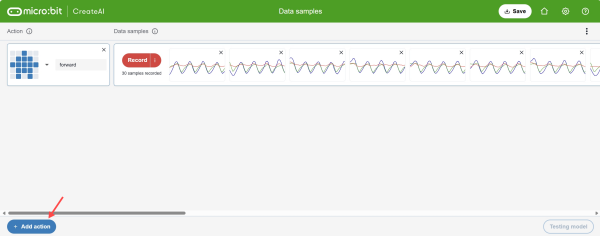
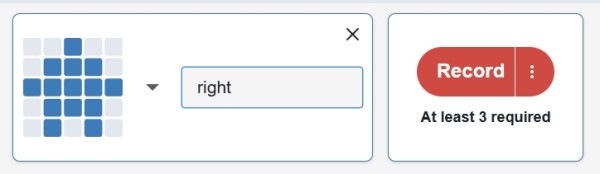
Please hold the watch strap with the logo facing outward and the micro:bit LED matrix screen facing right, as shown in the figure. Click "Add Action" and name it "Right". Click the three vertical dots icon to adopt the continuous collection method, then start collecting data samples of the "Right" gesture action. A 3, 2, 1 countdown will be displayed on the screen. When the word "GO" appears, start shaking the watch left and right until 10 sample data are collected. Note: When collecting action data, it is necessary to collect the high, medium, and low frequencies of shaking the watch, with 10 samples collected for each frequency.
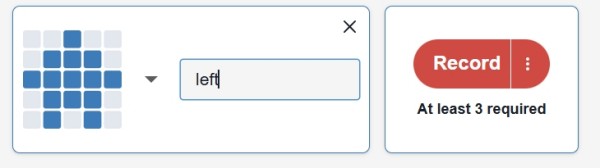
Please hold the watch strap with the logo facing outward and the micro:bit LED matrix screen facing left, as shown in the figure. Click "Add Action" and name it "Left". Click the three vertical dots icon to adopt the continuous collection method, then start collecting data samples of the "Left" gesture action. A 3, 2, 1 countdown will be displayed on the screen. When the word "GO" appears, start shaking the watch left and right until 10 sample data are collected. Note: When collecting action data, it is necessary to collect the high, medium, and low frequencies of shaking the watch, with 10 samples collected for each frequency.
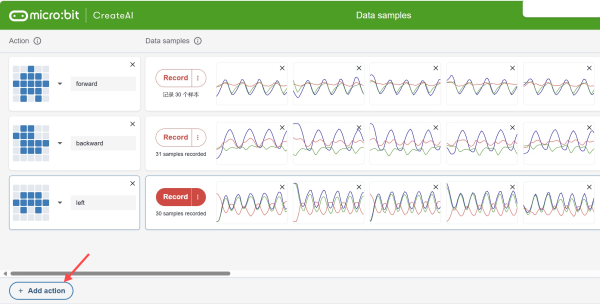
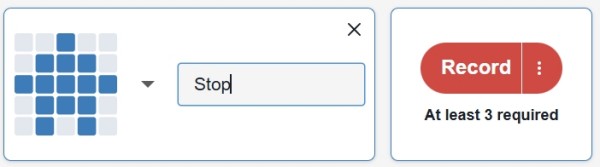
Click "Add Action" and name it "Stop". Click the three vertical dots icon to adopt the continuous collection method, then start collecting data samples of the "Stop" gesture action. A 3, 2, 1 countdown will be displayed on the screen. When the word "GO" appears, keep the watch stationary until 10 sample data are collected. Note: When collecting stop action data, the static states of the previous four directions should be collected.
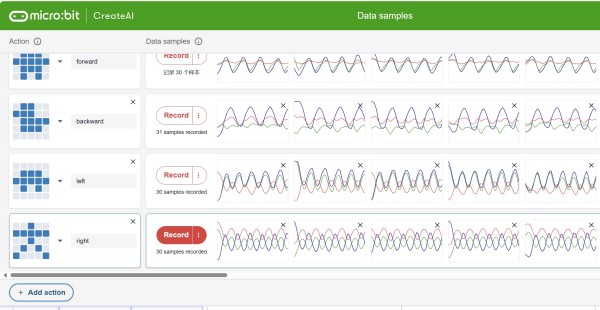
Explanation of Collection Principle. Create AI collects the "X", "Y", "Z" axis data of the micro:bit board's gyroscope, draws these data in the form of line graphs, and extracts the "X", "Y", "Z" axis data within a specific time period to form a set of data samples.
Step 4: Model Training and Data Model Recognition Calibration
- Click "Train Model" and wait for the model training to complete.
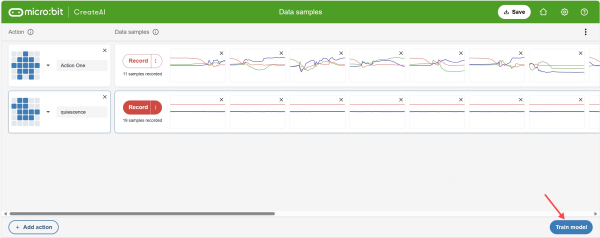
- The accuracy rate of the action data model detection exceeds 80%. If all items reach this accuracy rate, the data collection is completed. If the accuracy rate of a certain action data model is lower than 80%, return to the data collection page, re-collect data and train until the accuracy rate of this action data model reaches or exceeds 80%.
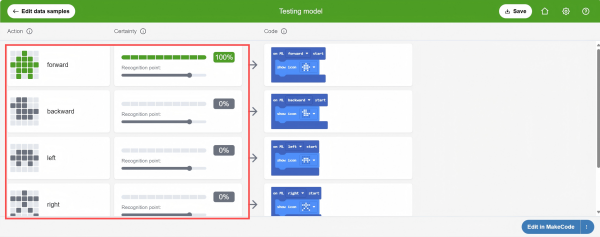
Step 5: Program Writing and Download
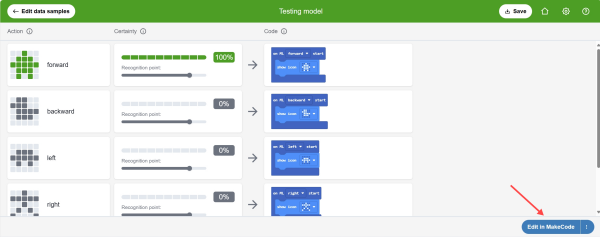
- Click "Edit in MakeCode".
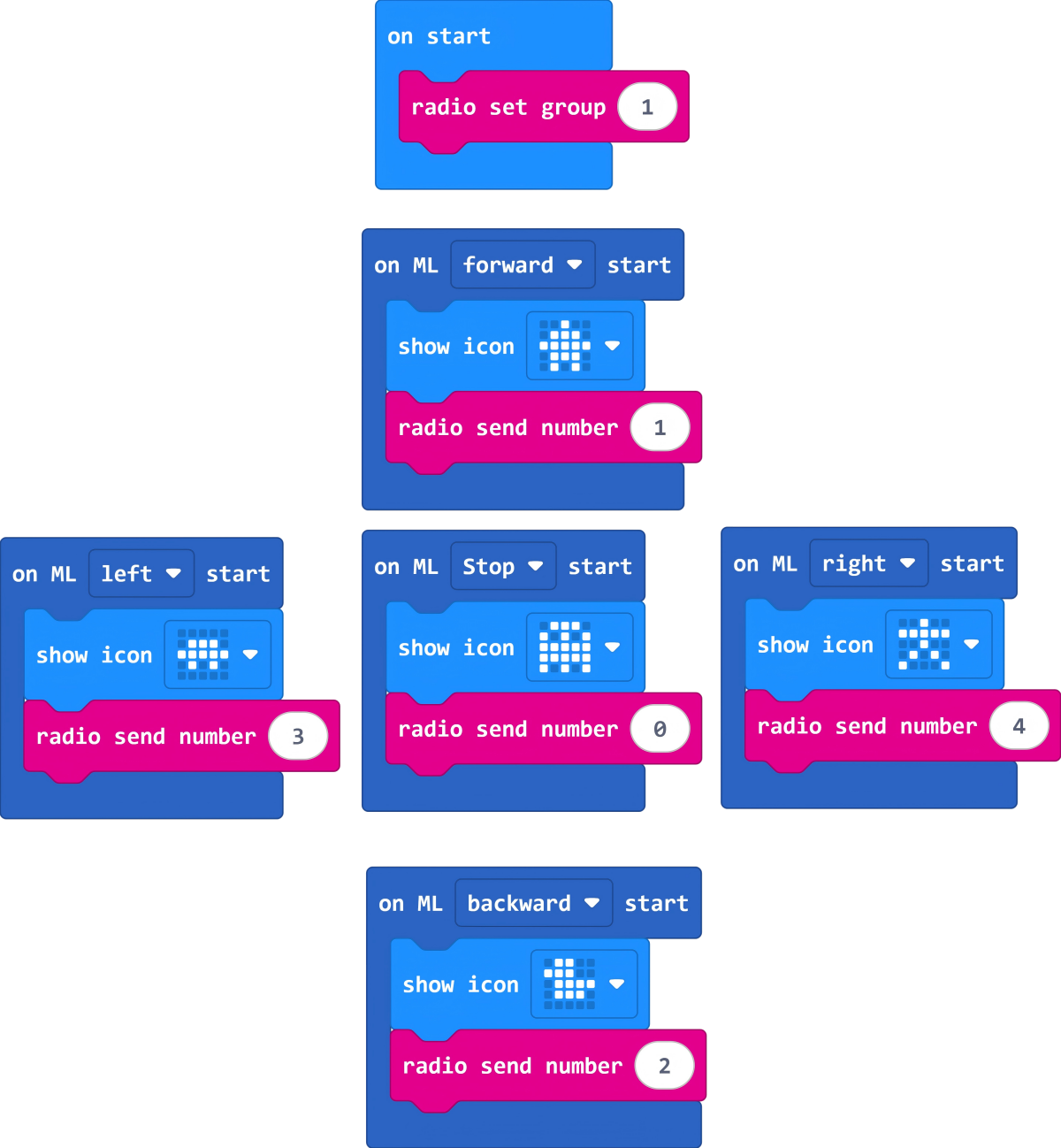
- Please complete the program writing as shown in the figure below, connect the micro:bit board to the personal computer using a data cable, and download the program.
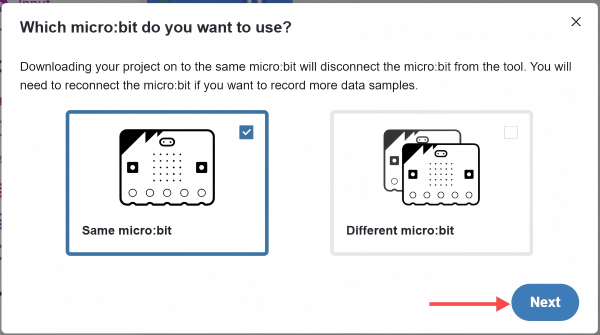
- Click "Next" If the download location is the micro:bit board used for data collection, select "Same micro:bit"; if the download is to another micro:bit board, select "Different micro:bit".
Step 6: Program Writing for the Receiver
- Use the Chrome or Edge web browser to visit https://makecode.microbit.org/ as shown in the figure below, write the corresponding program, and download the program.
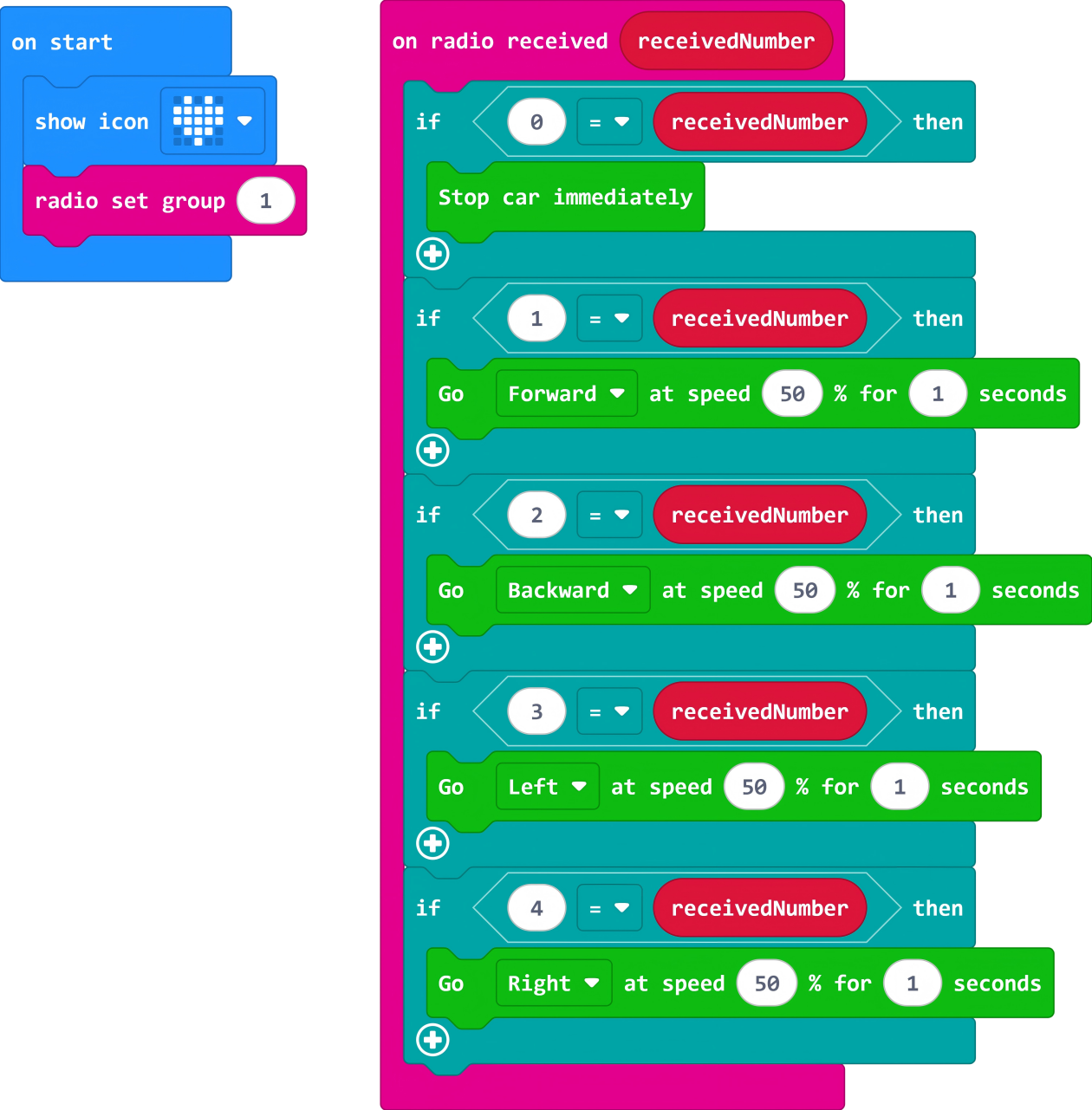
Please refer to the program link https://makecode.microbit.org/_9iV3b1cgR0T4
You can also download the program directly through the following webpage.
Result
When the front of the watch is facing up and you shake the watch up and down, the car moves forward; when the front of the watch is facing down and you shake the watch up and down, the car moves backward; when the front of the watch is facing right and you shake the watch left and right, the car turns right; when the front of the watch is facing left and you shake the watch left and right, the car turns left; when the watch is stationary, the car stops.