SmartIoT Quick Start
Introduction
SmartIot is an easy-to-use IoT platform produced by ELECFREAKS. It connects to the Internet of Things in 3 minutes, uploads sensor data at any time, and remotely controls the micro:bit.
Platform portal:https://www.smartiot.space/
Please note that when using IoT:bit/Petal series WIFI module/Planet series WIFI module to connect to Wi-Fi network, please make sure your Wi-Fi network is running in 2.4GHz mode.
Language Switch
The SmartIoT platform supports multiple languages (machine translation), allowing users to select their preferred language.
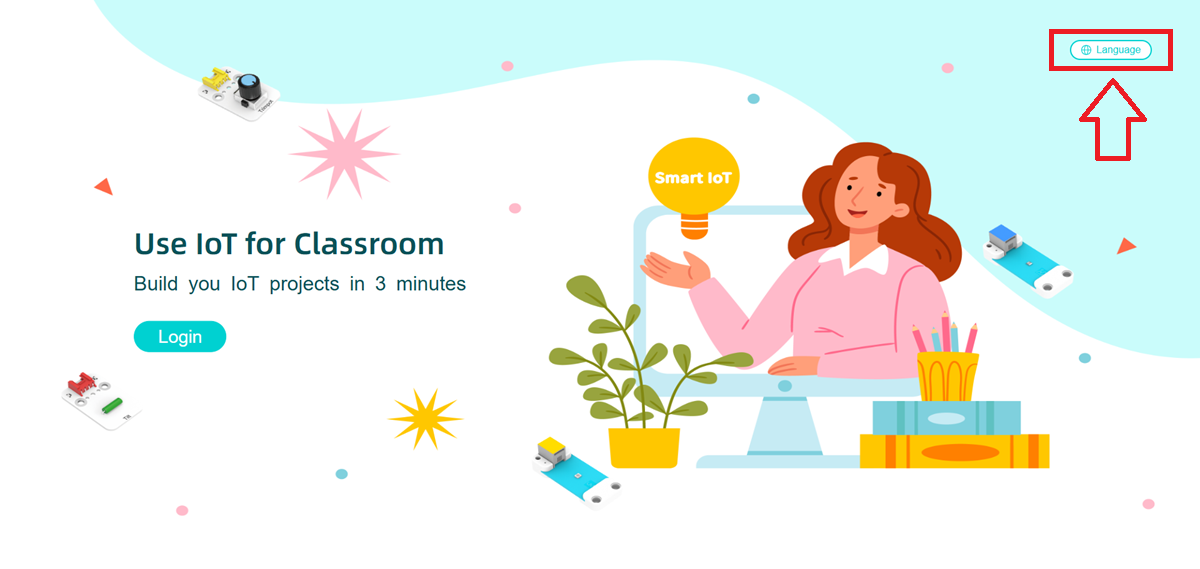
Click the language switch button in the upper right corner.
Select the language you want to use.
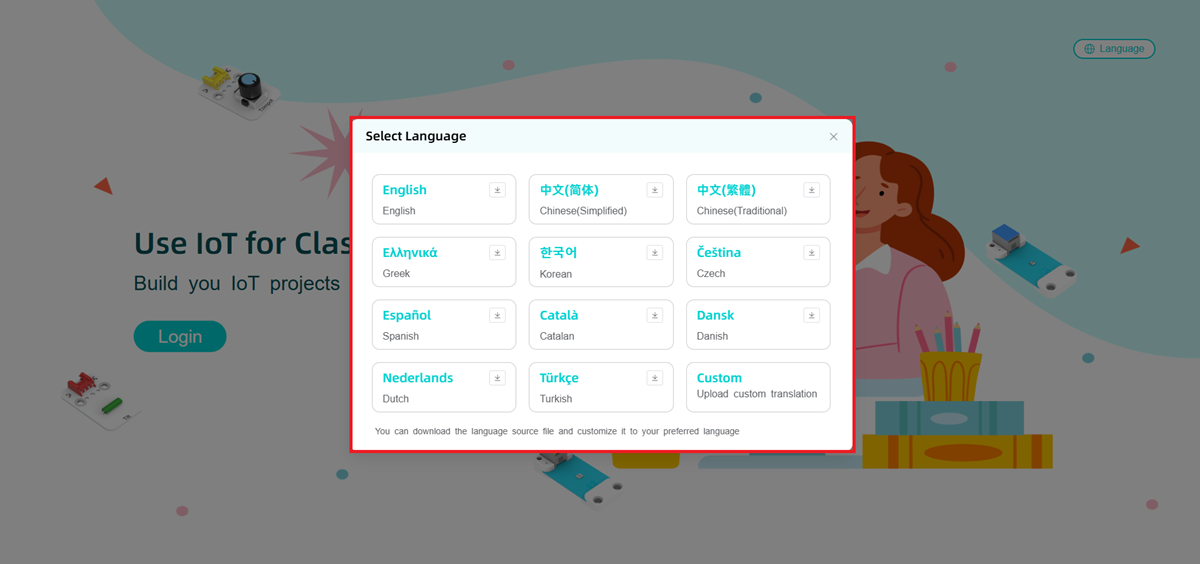
If the available languages do not meet your needs or the translation is incorrect, you can click Download Template to translate it by yourself.
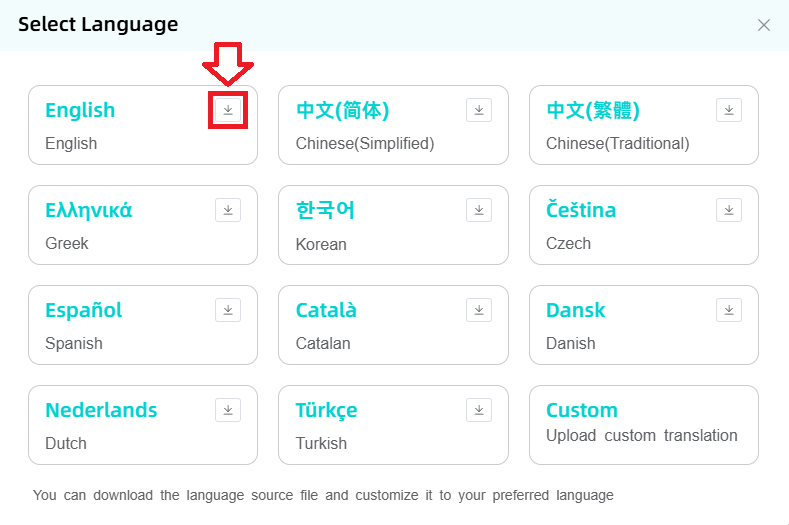
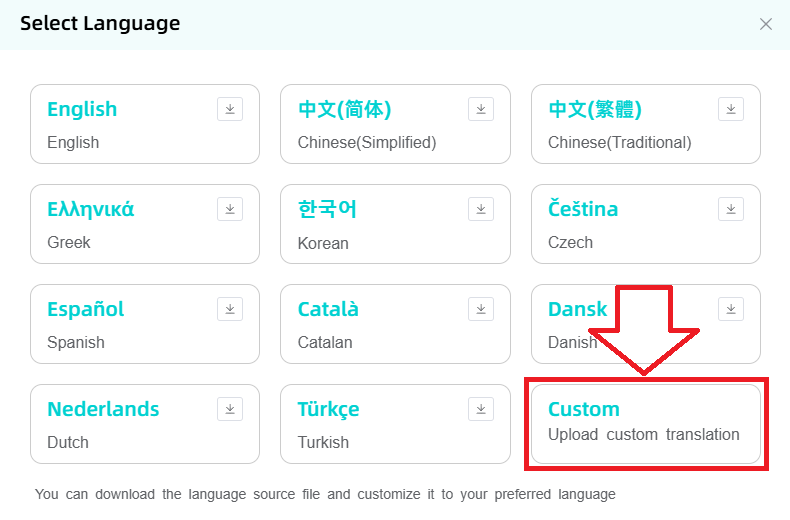
After the translation is completed, click Upload to upload the translation file yourself. This translation function can only be used on the local machine.
SmartIoT Account Registration
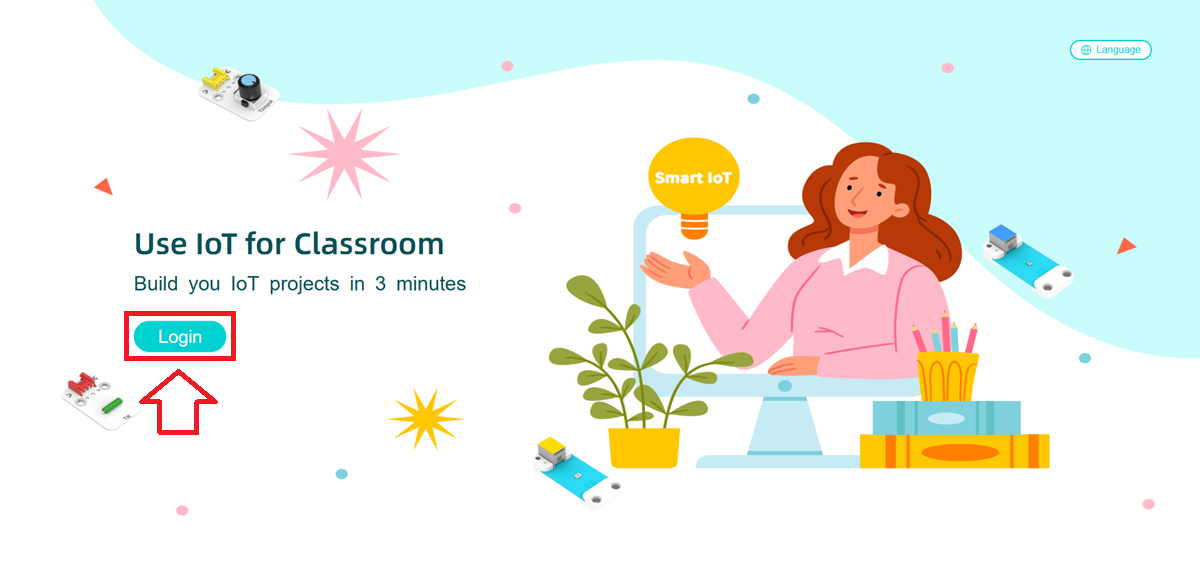
Go to the SmartIot official website and click Login to enter the account login page.
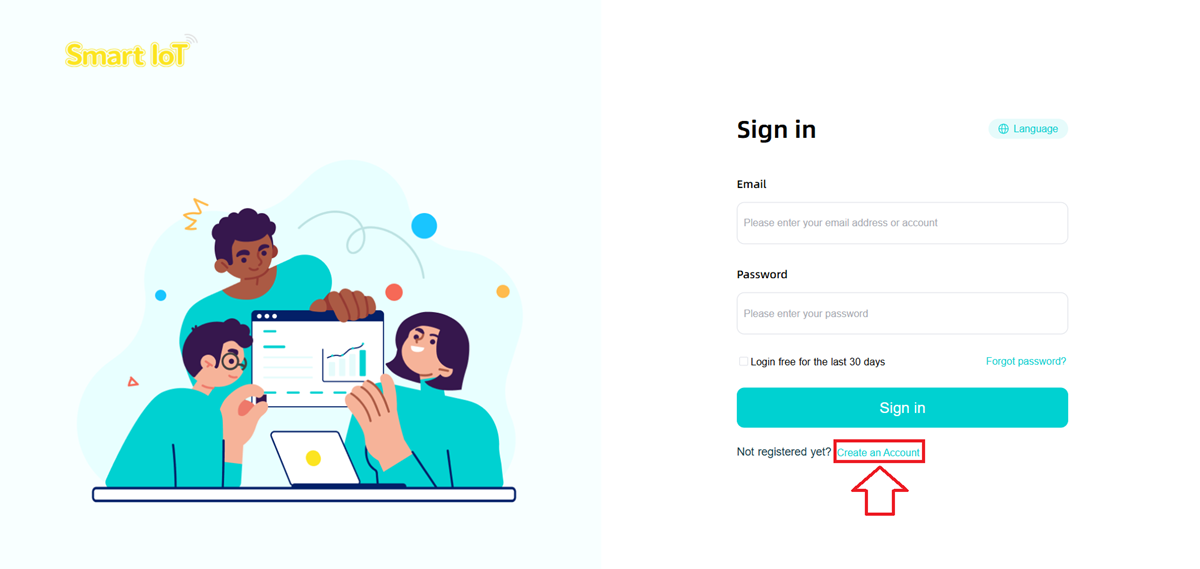
Click Create an Account to enter the page for registering a new account.
Fill in the registration information (email address, username, password) and click Sign Up.
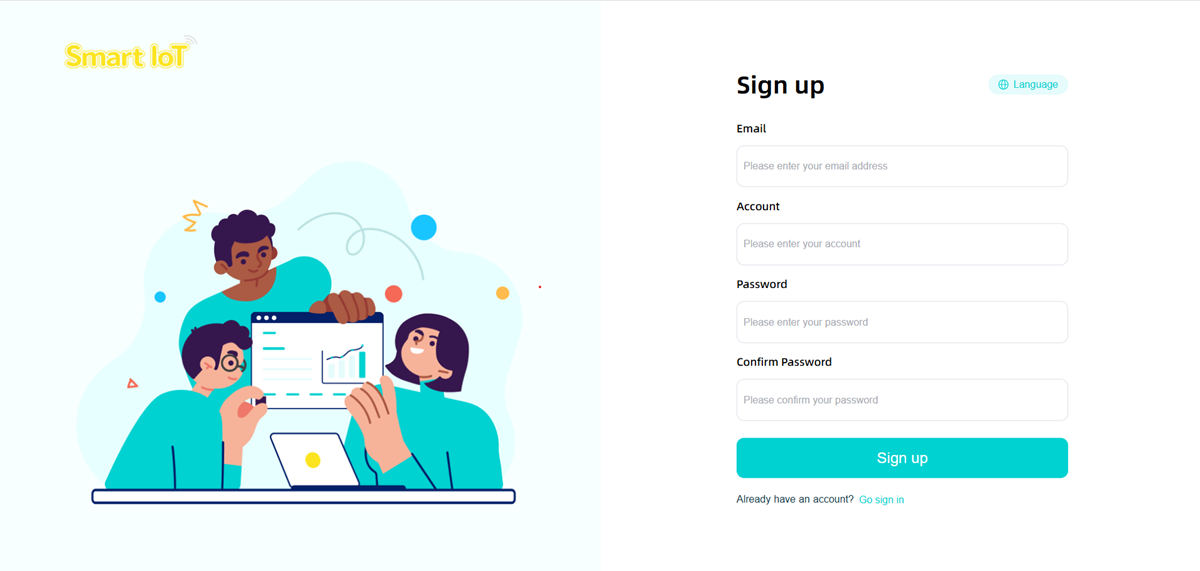
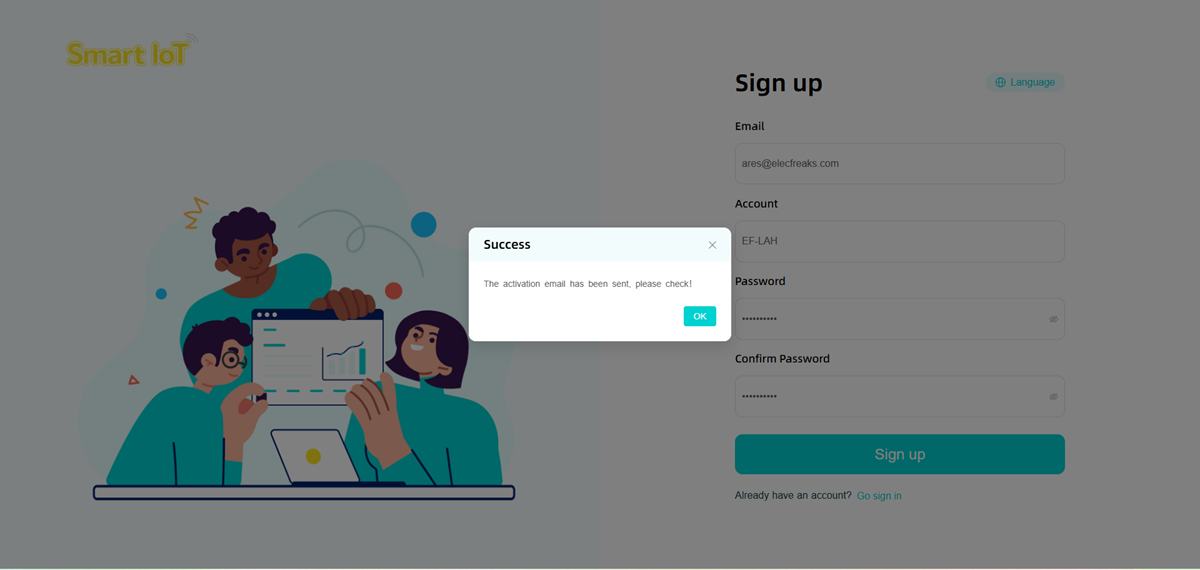
Click Sign Up to register and an email will be sent to the email address of the account you filled in.
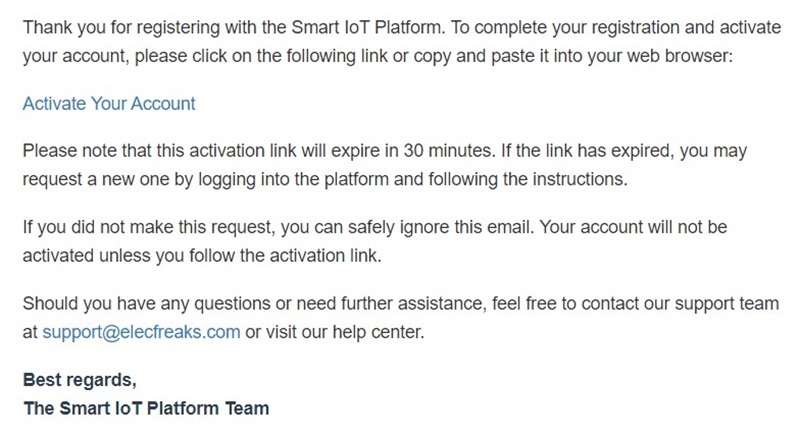
Check your inbox or spam folder (it may be identified as spam) and click the URL in the email to activate your account.
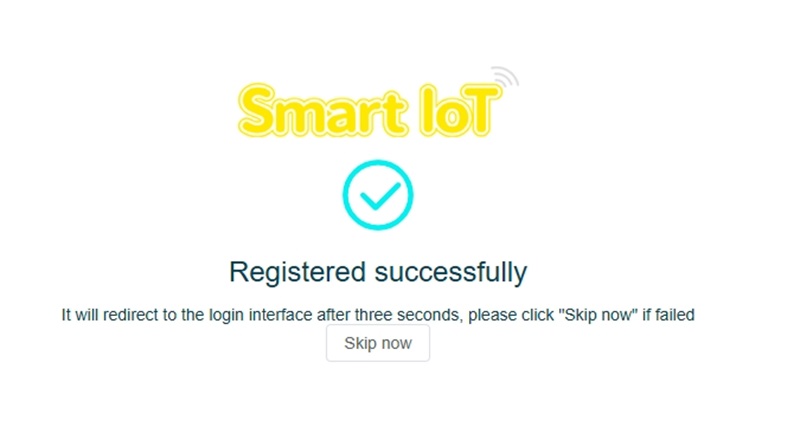
Registered Successfully!
Log In SmartIot
Enter your account and password under Log in and select Log in.
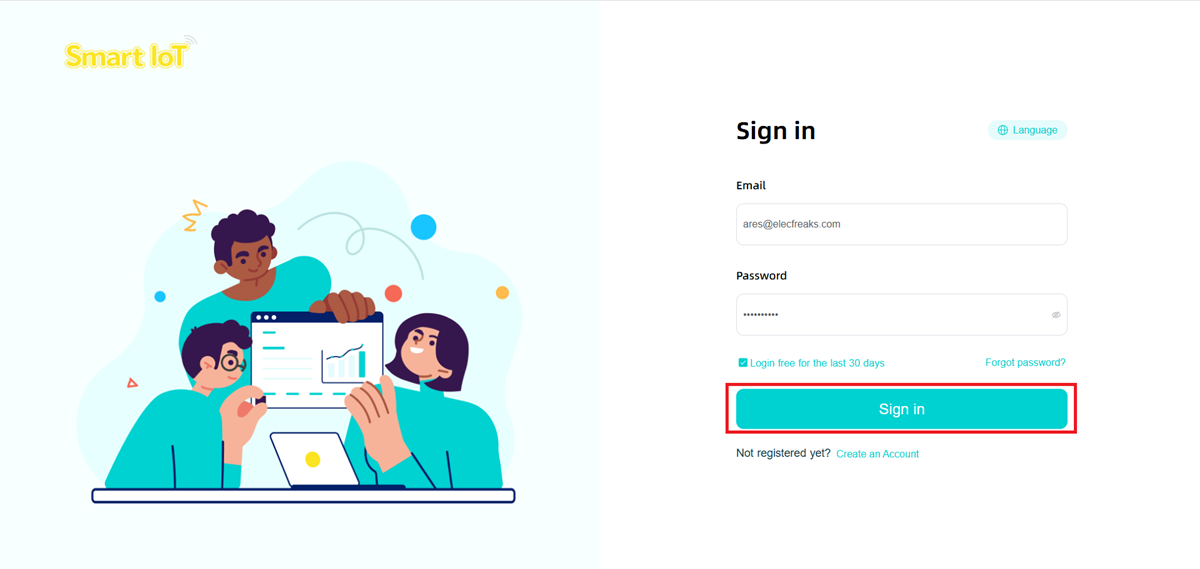
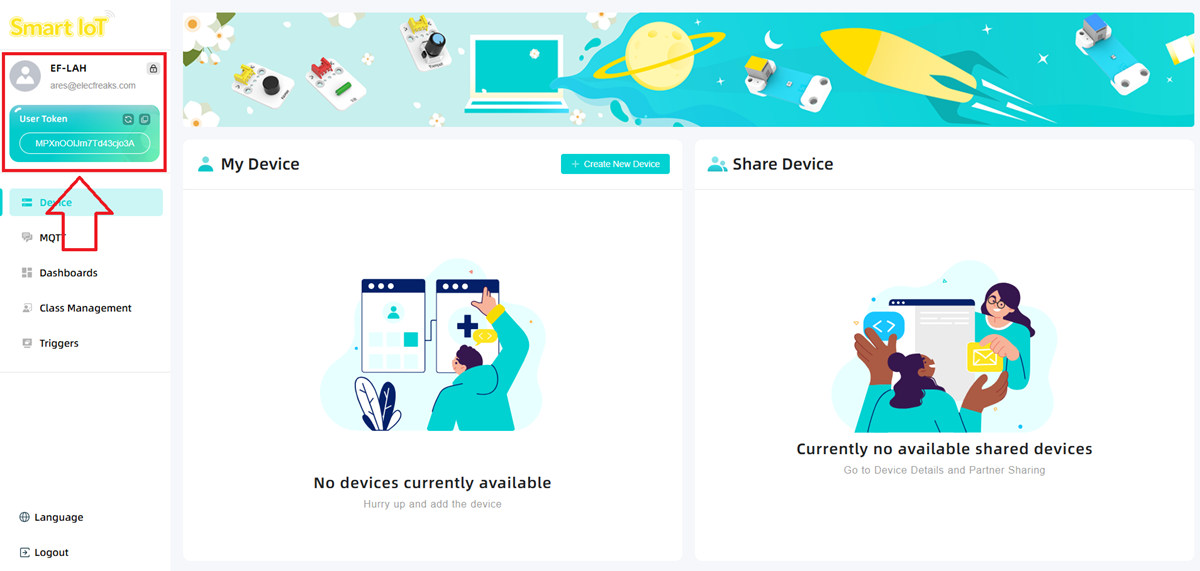
SmartIot Platform Device Management
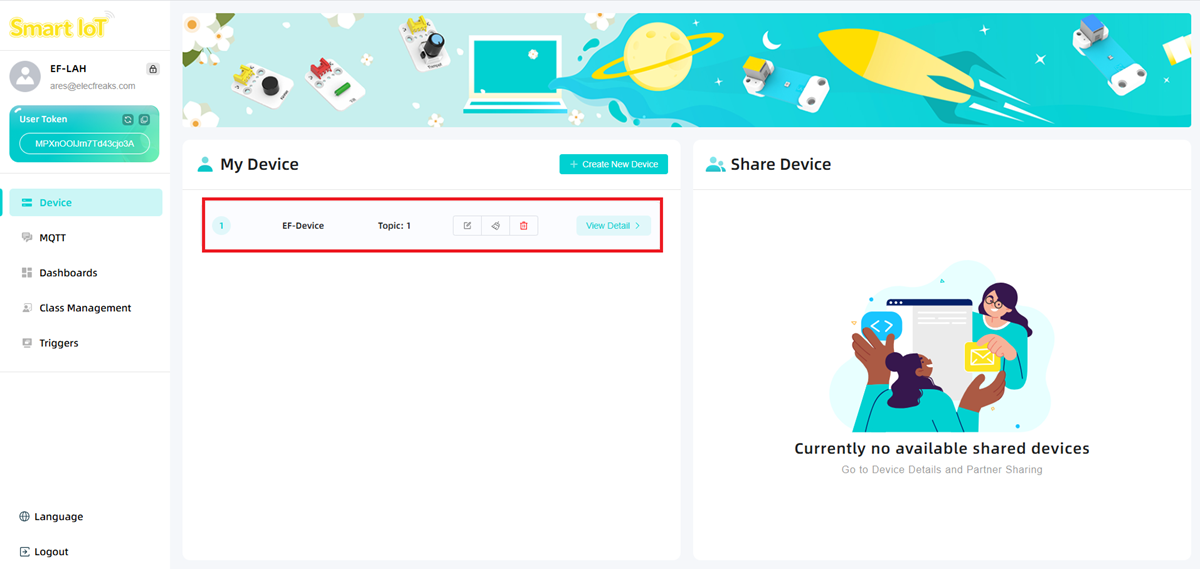
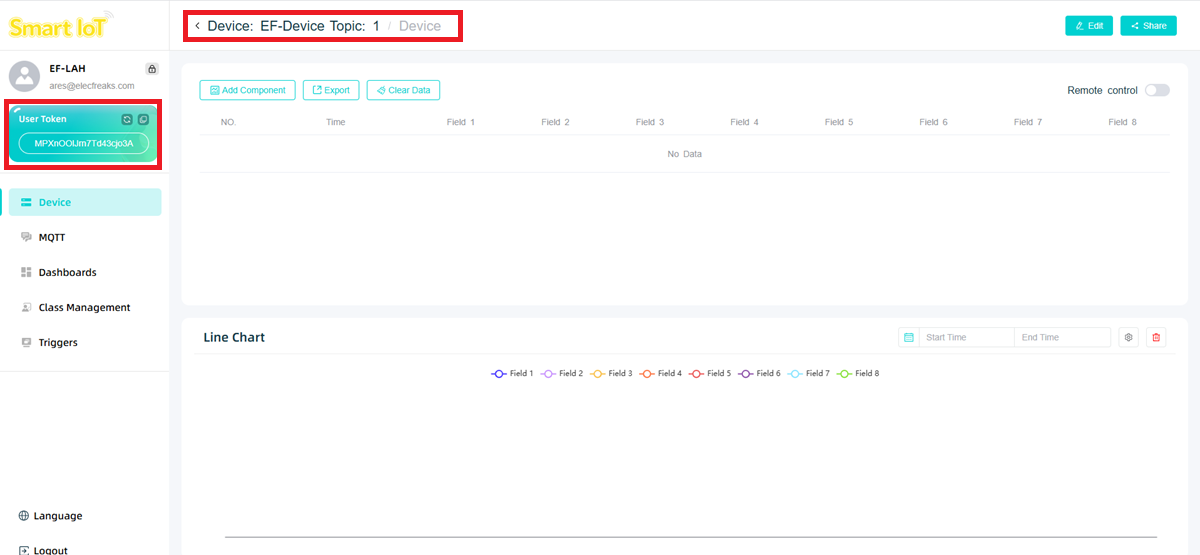
Click Log in to enter the device management page. In the upper left corner are your username and email address. Your User Token is the platform's unique identification code, corresponding to your account. It is unique across the entire network and will not be repeated.
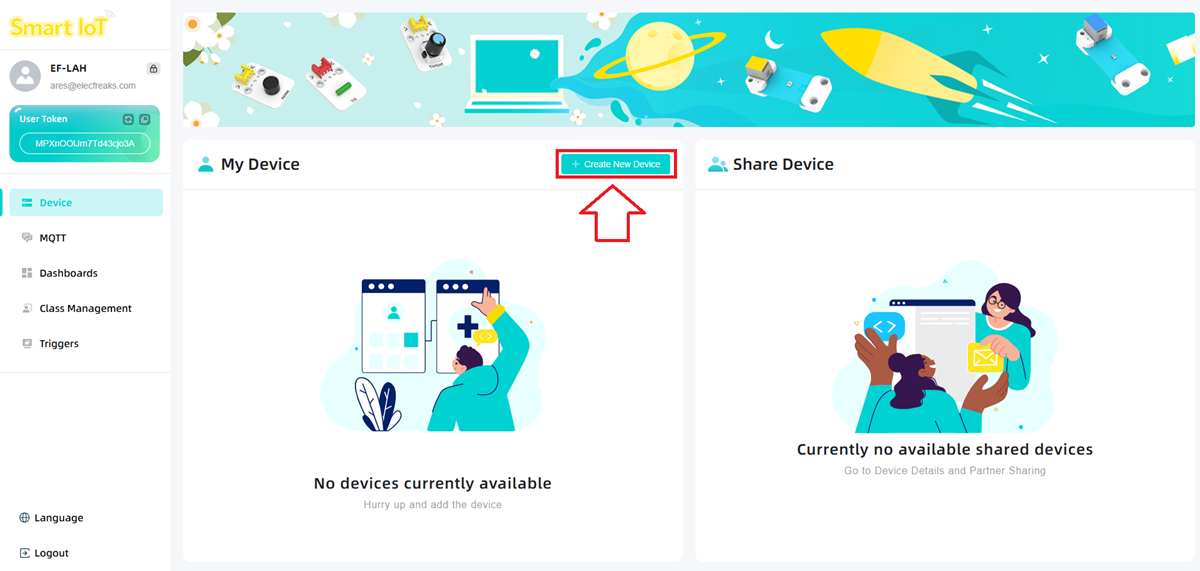
Add a new device (Create new device), Topic is your device identification number (the only device in the account).
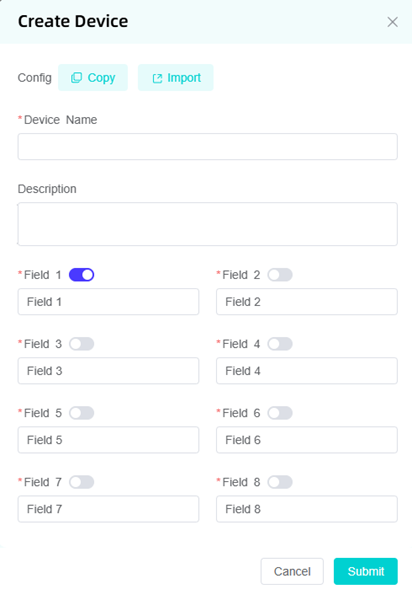
You can modify the device name and configure the device (you can only have 10 devices).
Click the icon to rename, clear data, and delete the device; click View Details to enter the device to view information.
SmartIot Platform Data Upload and Sample Code
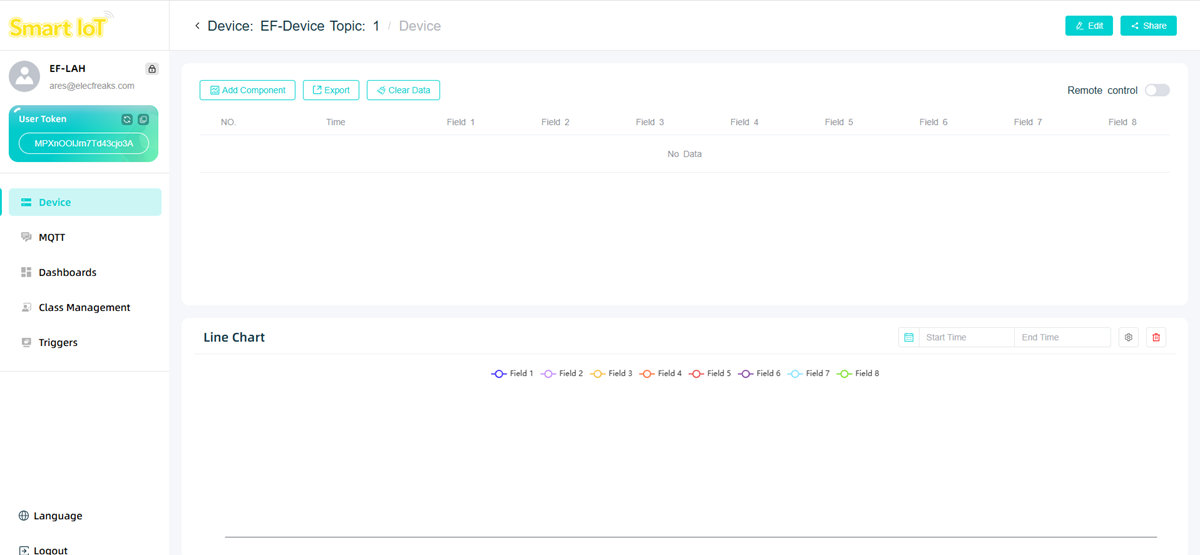
The SmartIot platform supports up to eight data uploads.
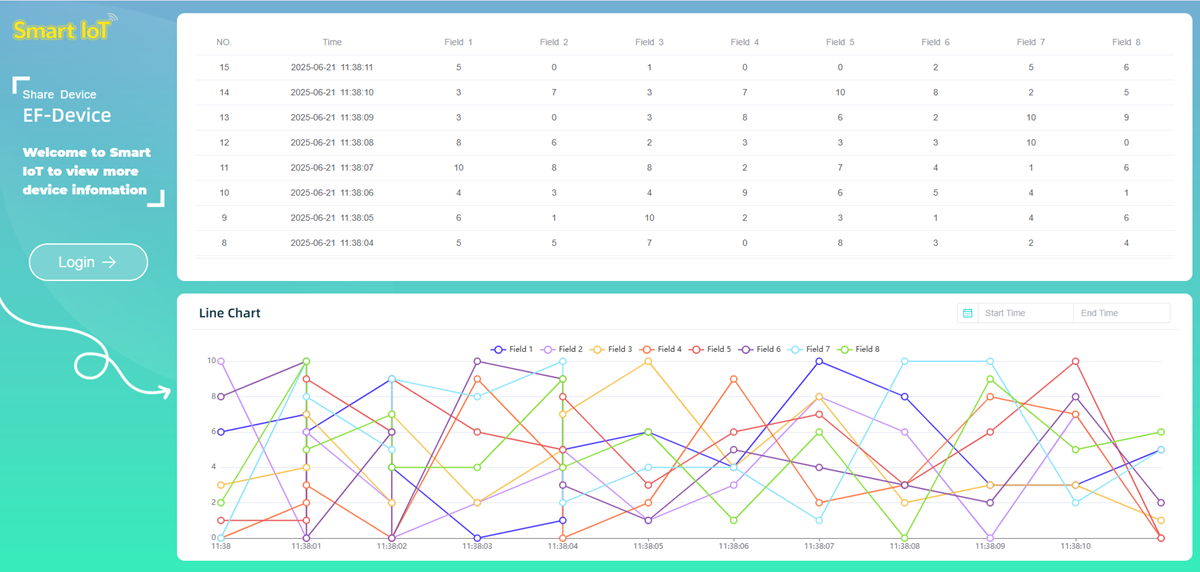
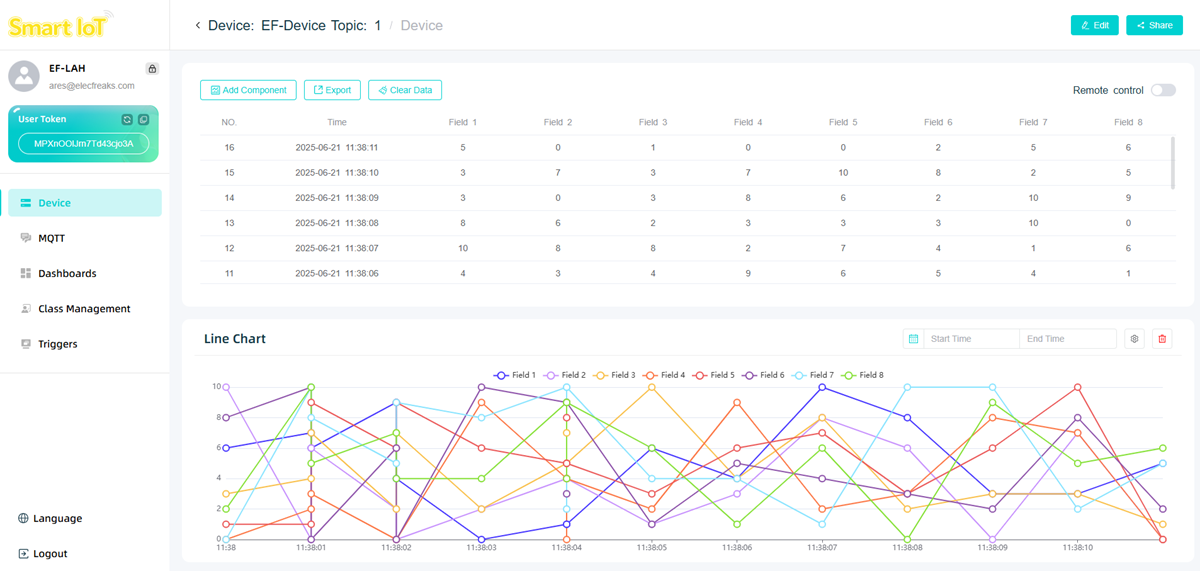
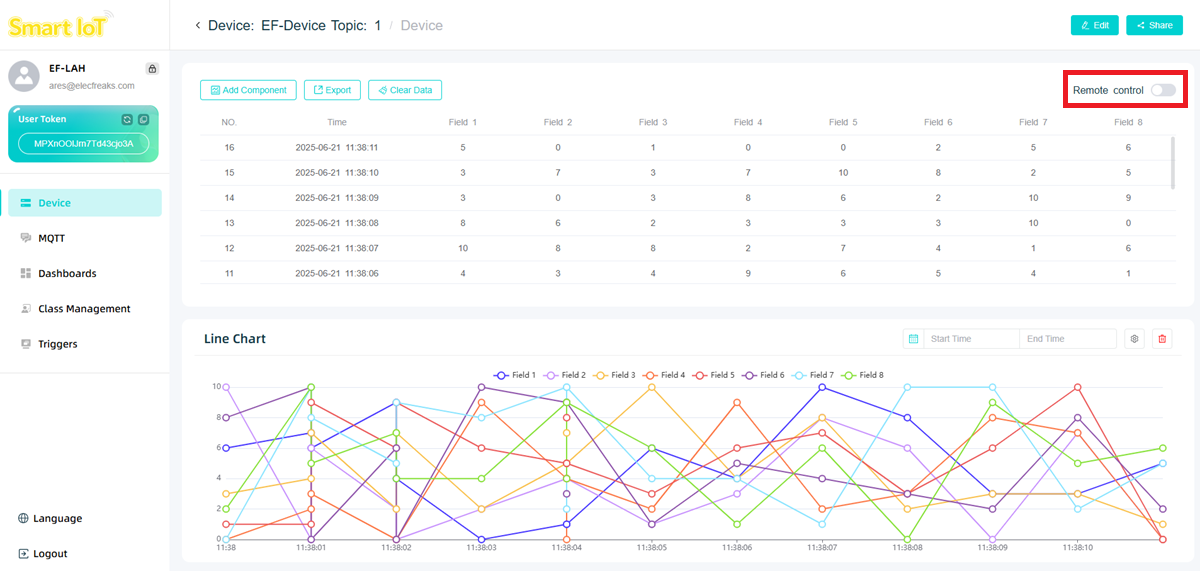
The table at the top of the device interface displays the uploaded data, while the two-dimensional line graph below shows the data and time.
Coding
Programming
Go to "makecode.microbit.org", click to "Create New Project".

Click "Create" in the pop up window.

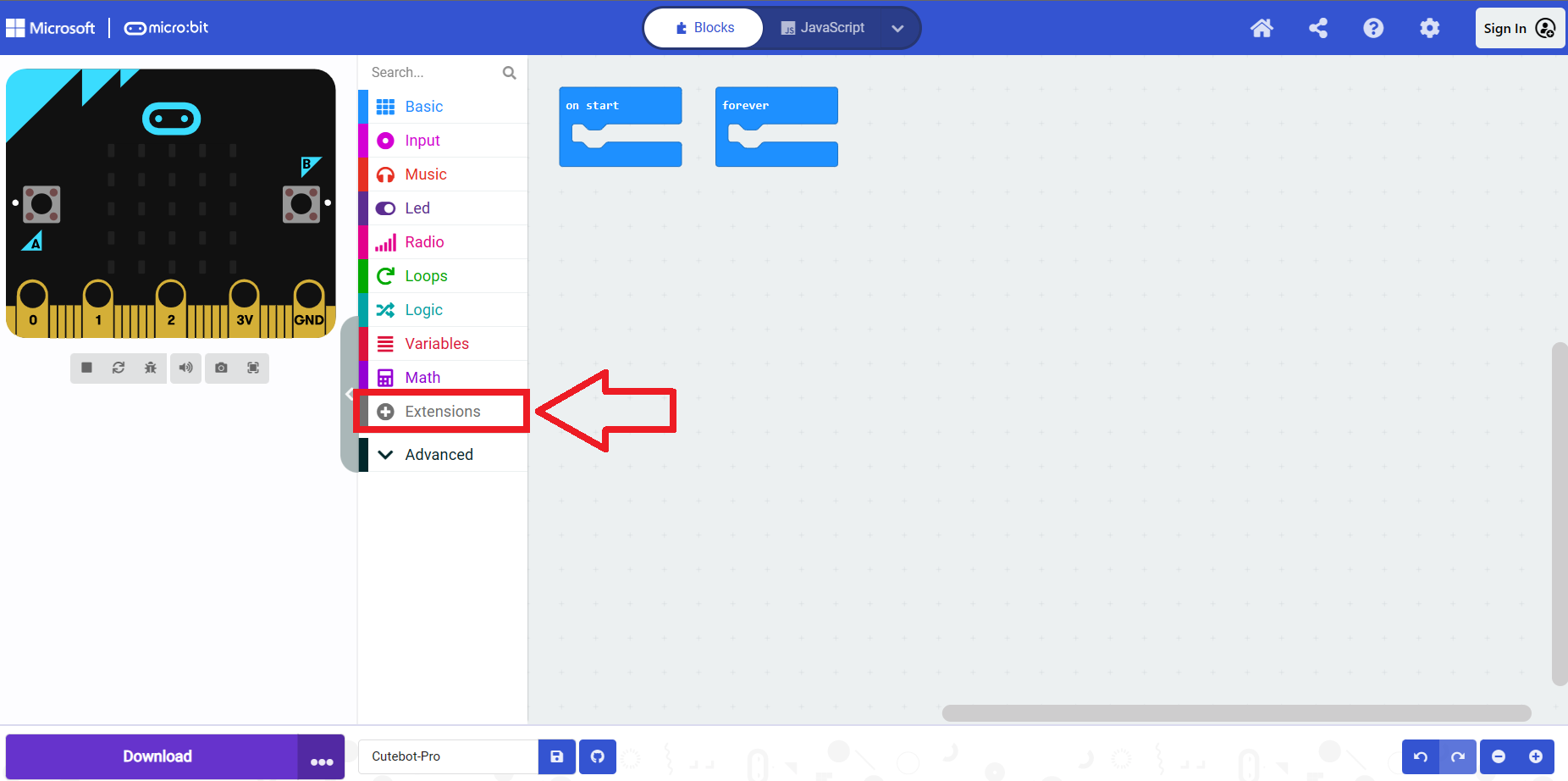
Click "Extensions" in the Makecode drawer.
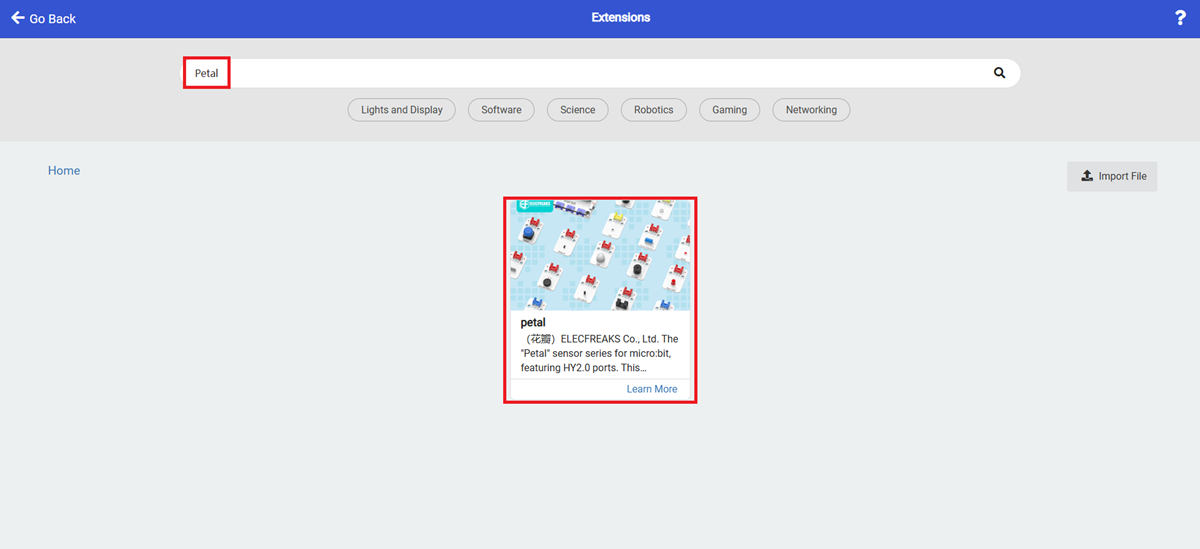
Search with "Petal" and add Petal extensions.
If your device is an iot:bit, add the iot-environment-kit repository.
If your device is a Planet series Wi-Fi module, add the PlanetX repository.
Note: If you get a message saying that some libraries will be removed due to incompatibility, you can continue as prompted or create a new project in the Project menu.
Code Explanation
Connect to the SmartIot platform. User Token is a unique account identifier that is bound to the account and cannot be modified. TOPIC is a unique device identifier. You must specify the upload device when connecting. Device numbers (Topic) are listed sequentially.

Get these two data on the SmartIot platform.
Determine whether the platform connection status is successful, success (True), failure (False).

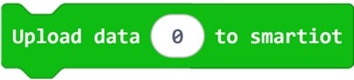
Click the + button below the block to add uploaded data. Up to 8 data can be uploaded at the same time.
Test Results
Remotely control the building blocks to run the specified program when the switch on the platform is triggered.
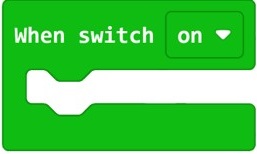
When the platform is connected successfully, you can click this switch to execute these two building blocks.
Reference Program
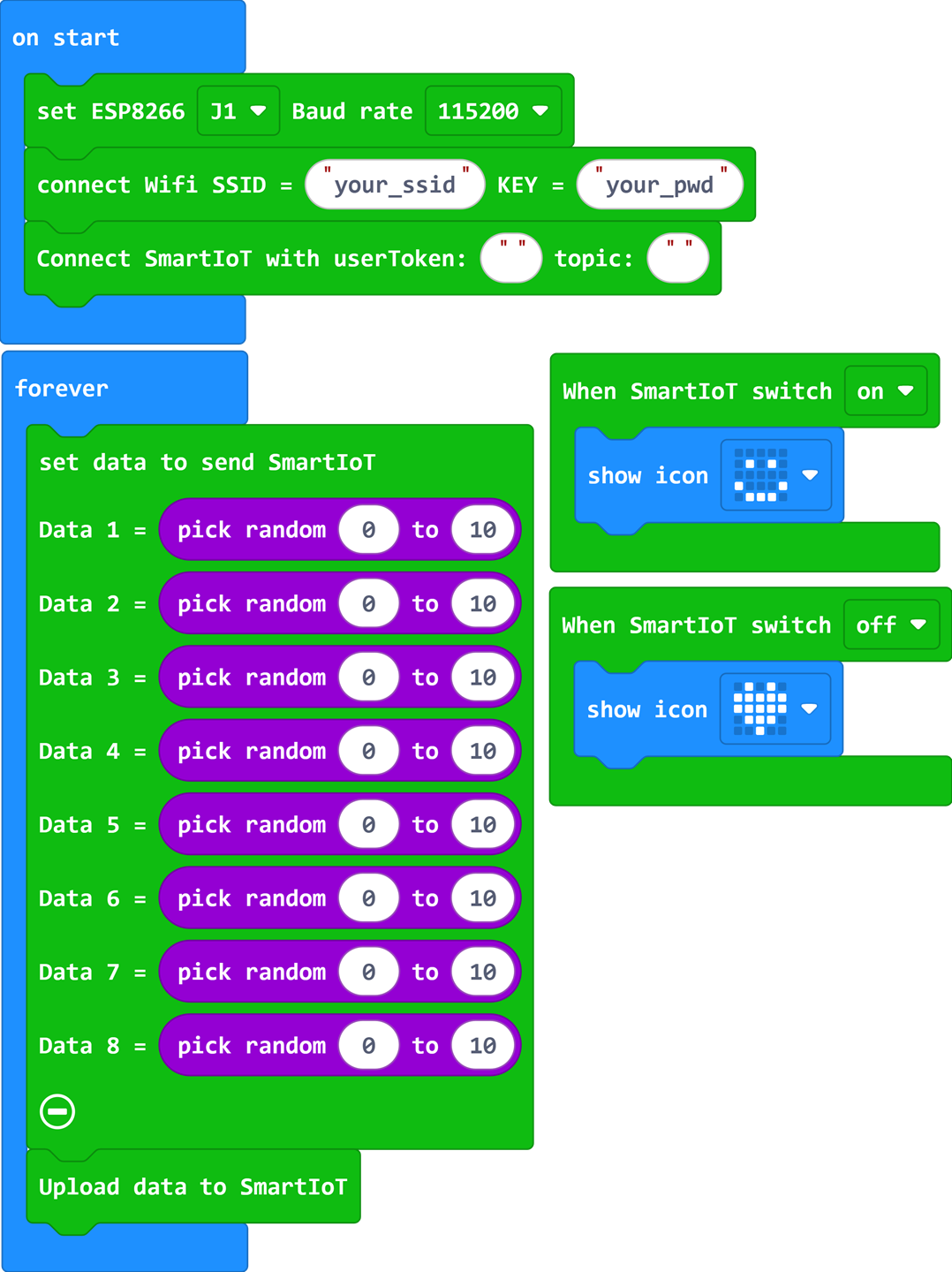
Note: Please fill in the wifi information, user token and topic by yourself
Link: https://makecode.microbit.org/_8230fd1aL6Y0
You may also download it directly:
Result
When the device is turned on, it automatically connects to Wi-Fi and SmartIoT, and randomly uploads integers from 0 to 10 to SmartIoT.
Device Page Component Management
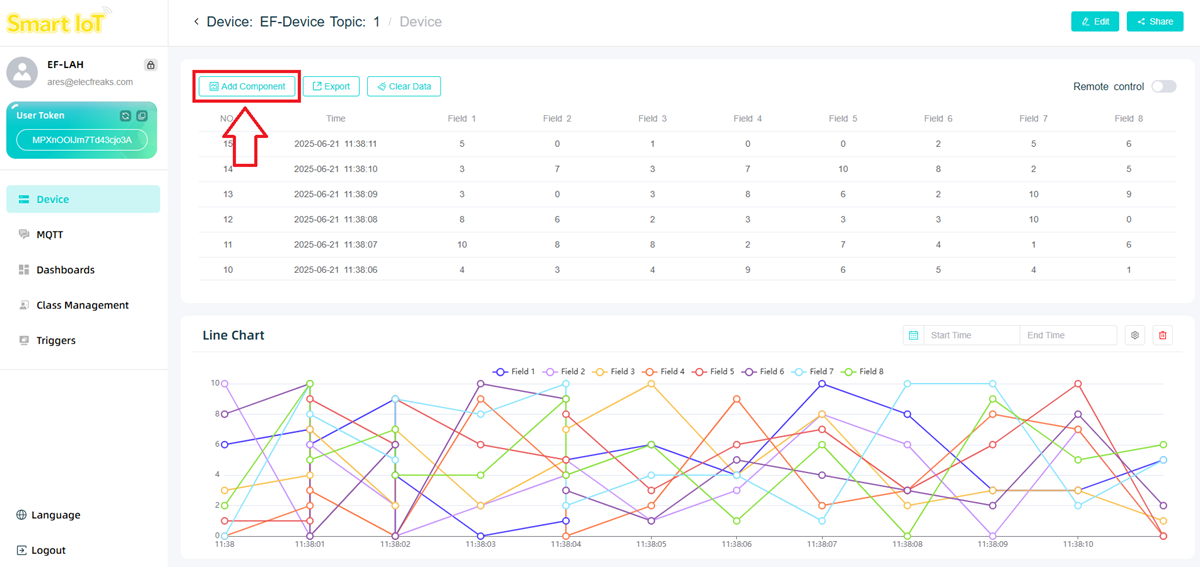
Click "Add Component" on the left upper corner.
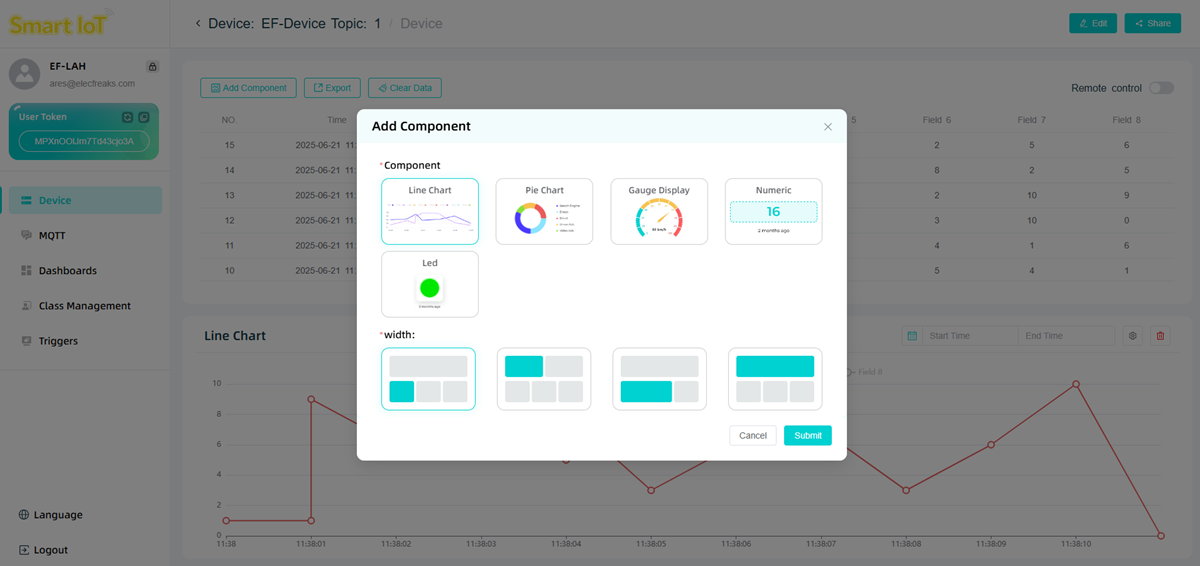
Select the component and size in the pop-up window.
Line Chart
Up to eight data sets can be displayed, suitable for demonstrating data trends.
The chart's displayed data range can be set using the Start Time and End Time fields.
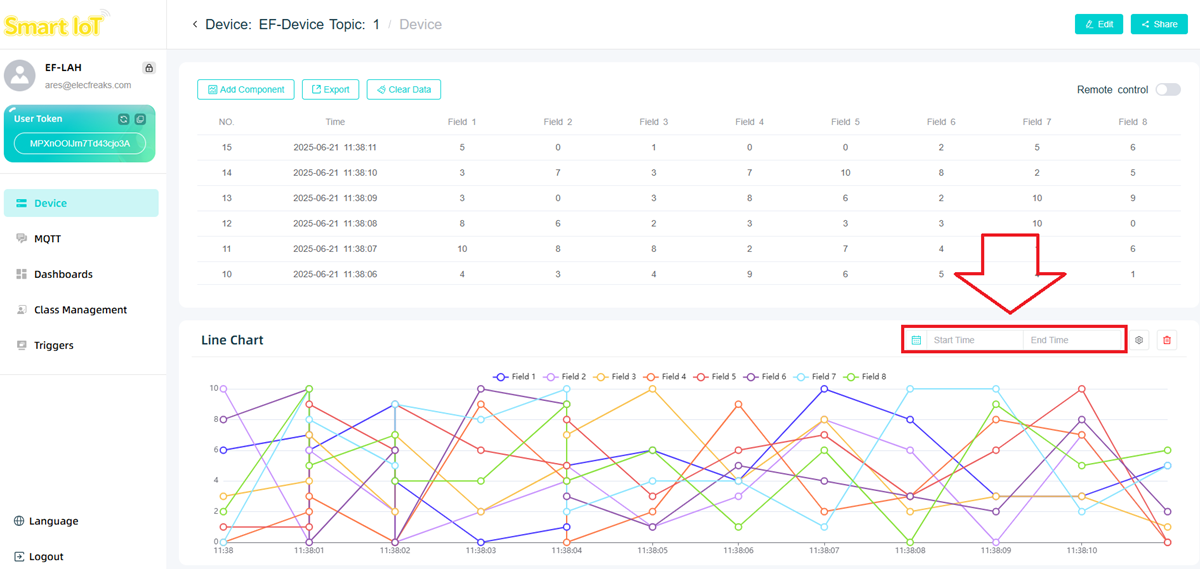
Or select the displayed data of the chart through the data label.
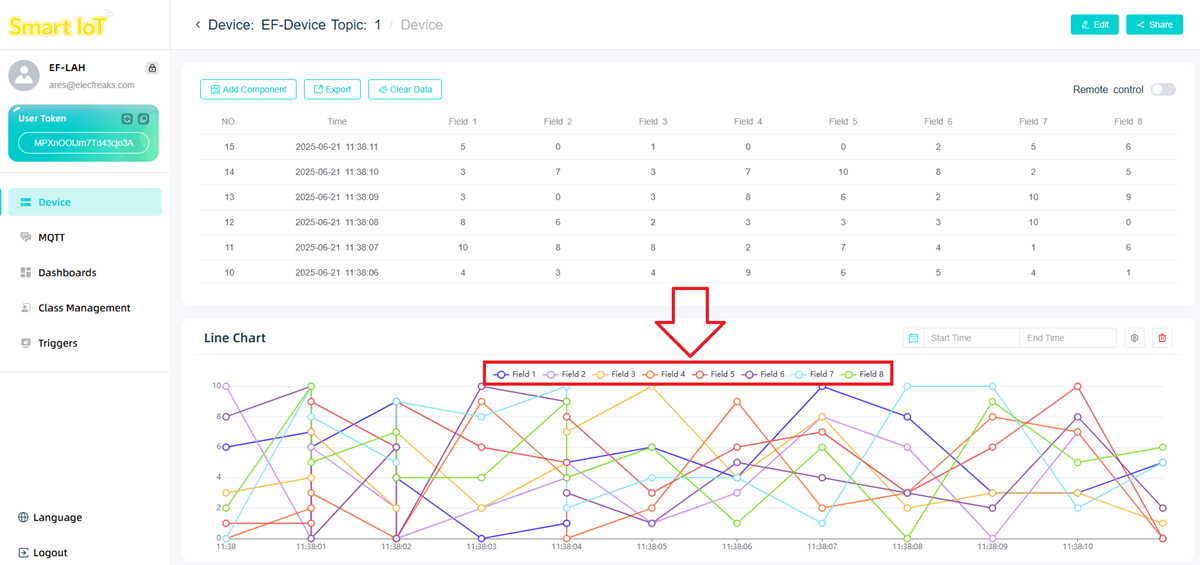
Or click Edit to enter the settings interface.
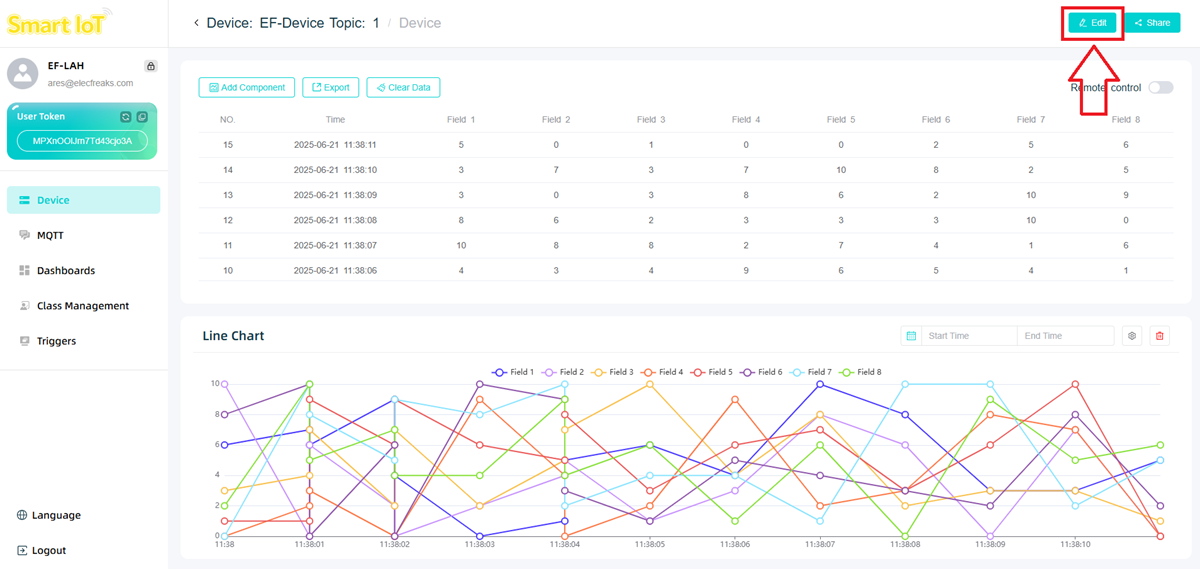
Select the data information to be displayed by checking the tabs.
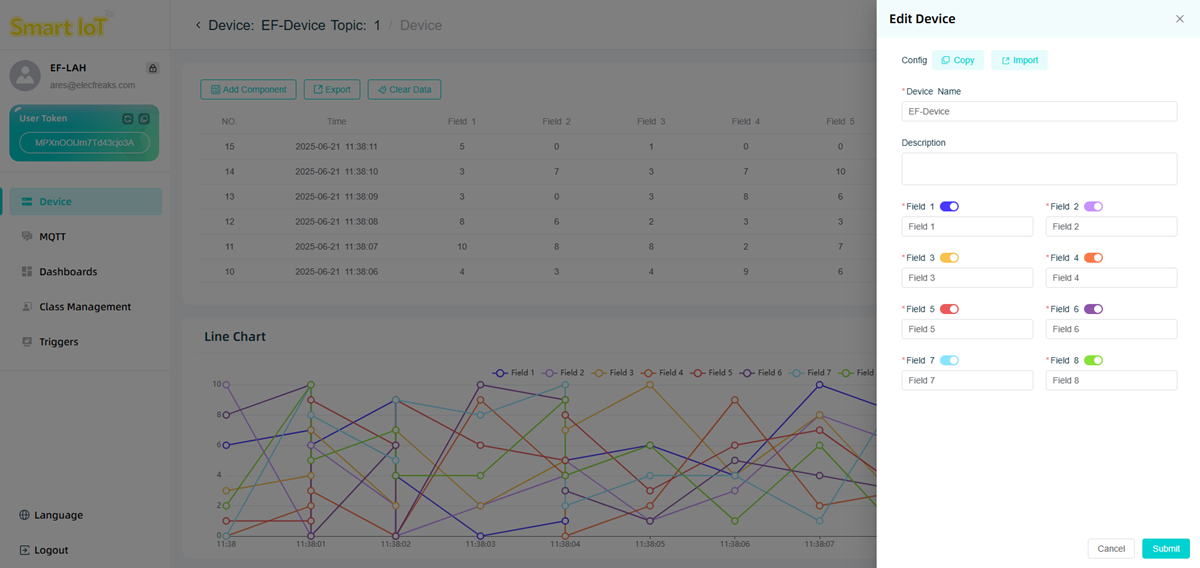
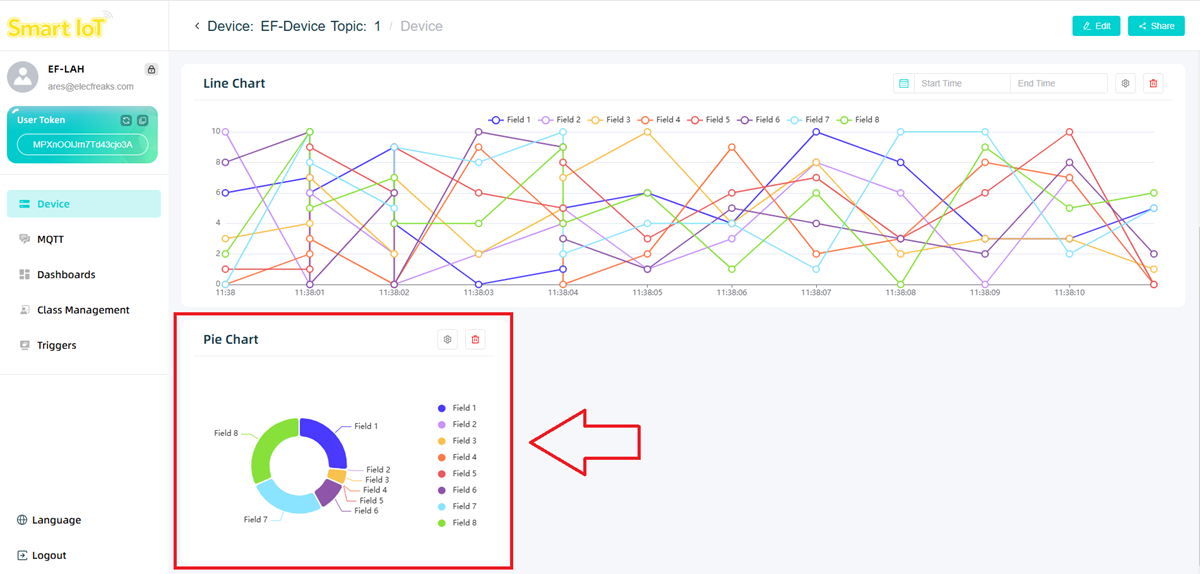
Pie Chart
Up to 8 sets of data can be displayed to facilitate the presentation of data proportions.
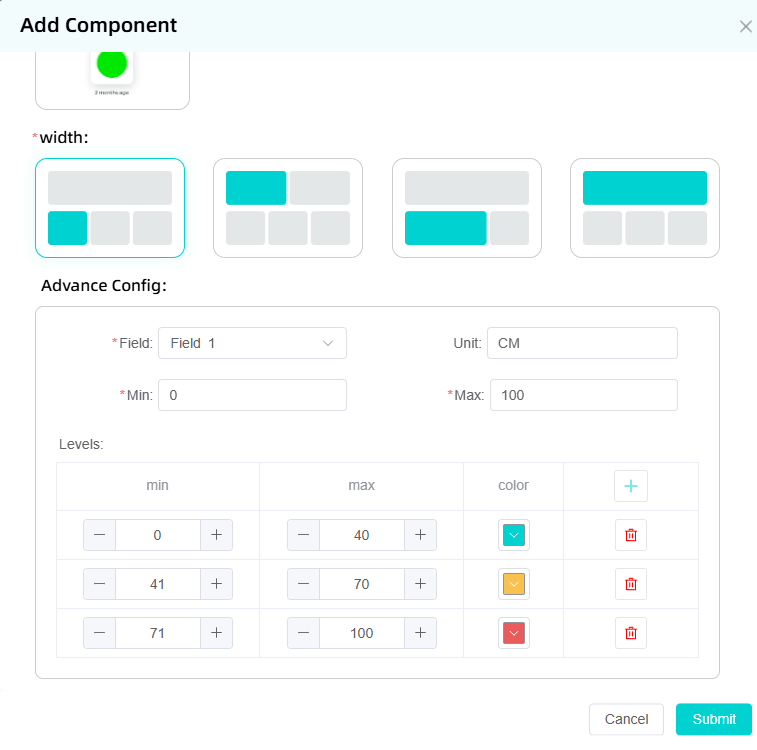
Dashboard
1 set of data can be displayed and intuitively key indicators can be suggested.
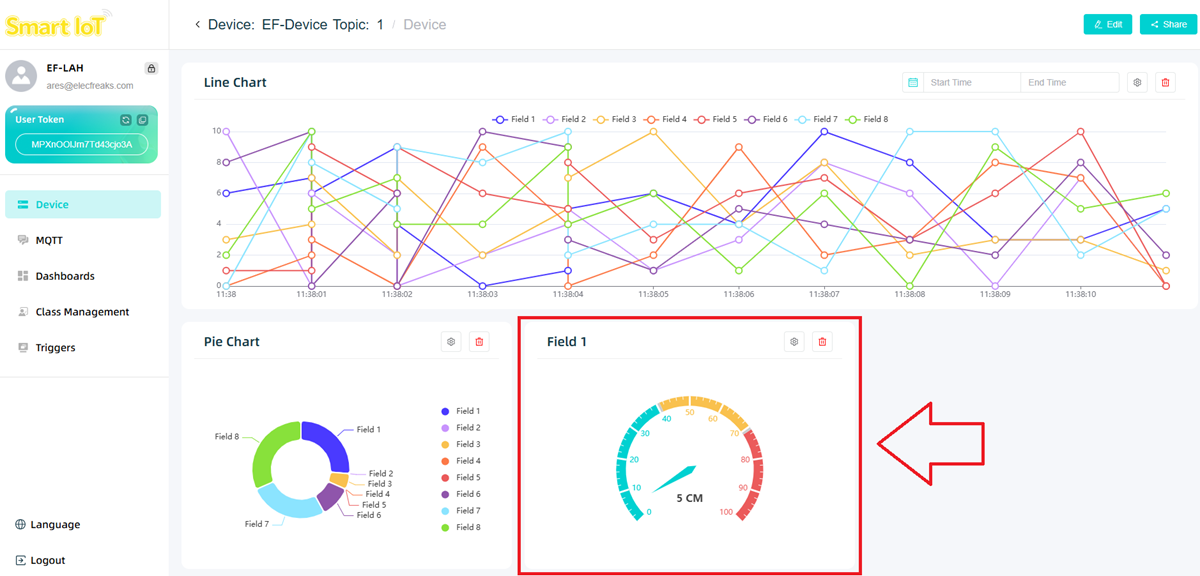
The dial color can be set for different threshold ranges.
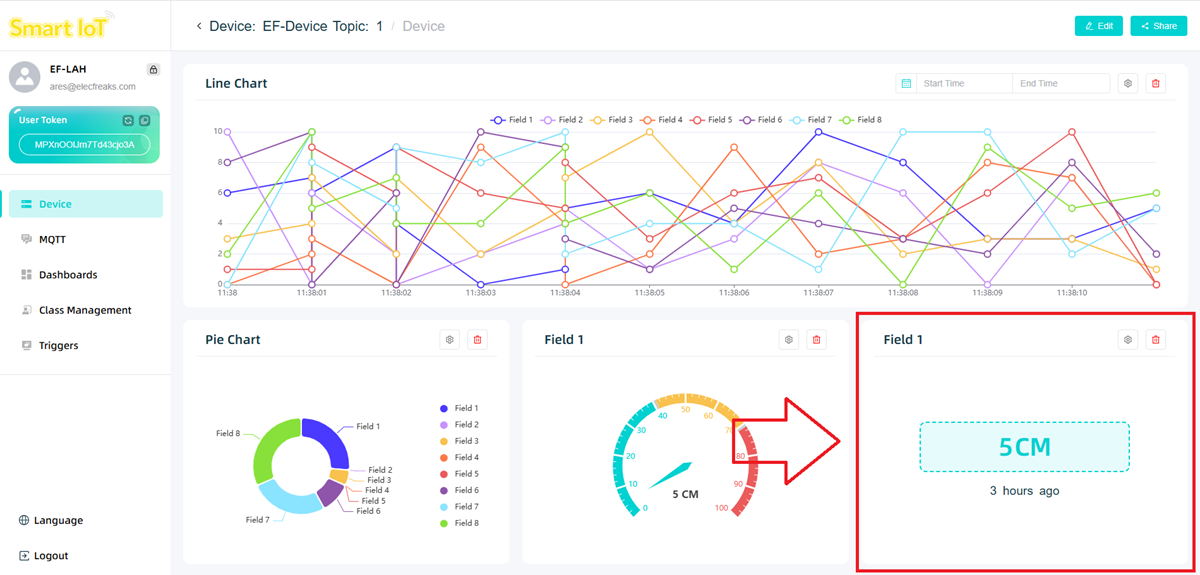
Data Display
1 set of data can be displayed and accurately present specific data values can be suggested.
Status Indicator
1 set of data can be displayed to achieve data visualization and early warning.
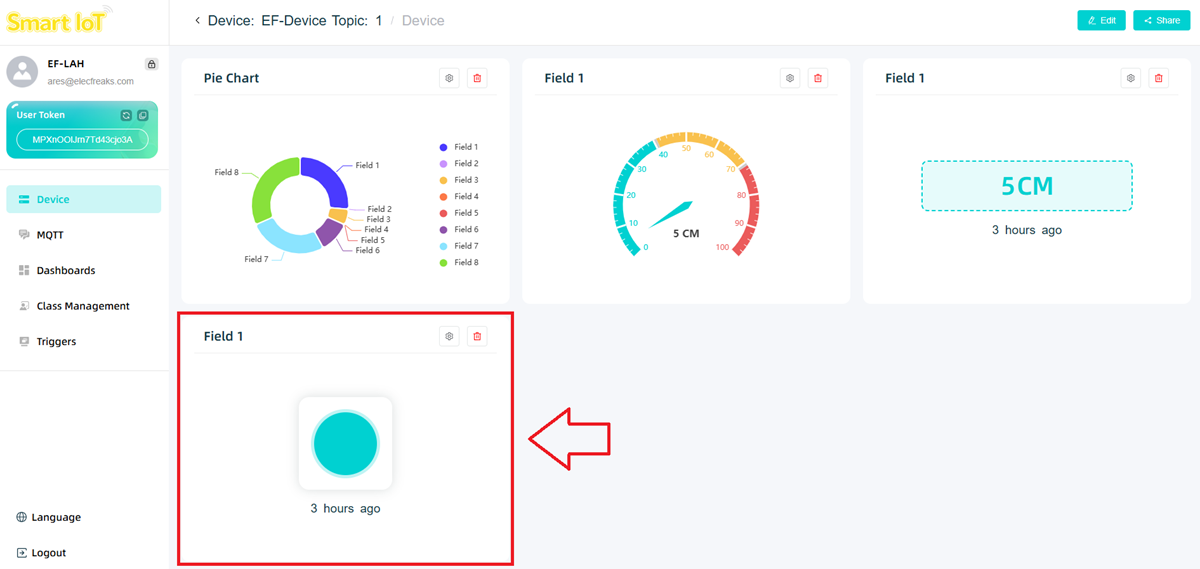
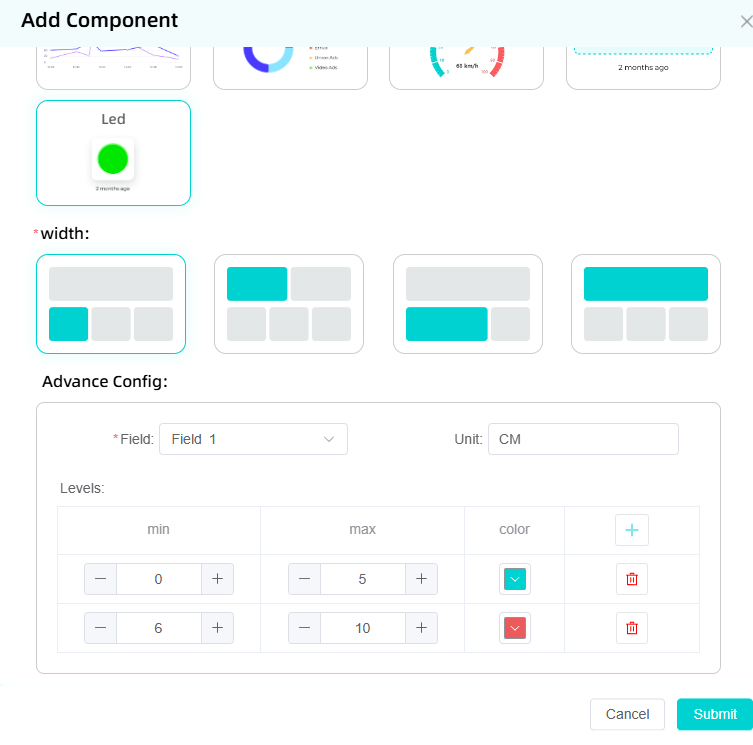
The color of the LED light can be set at different threshold ranges.
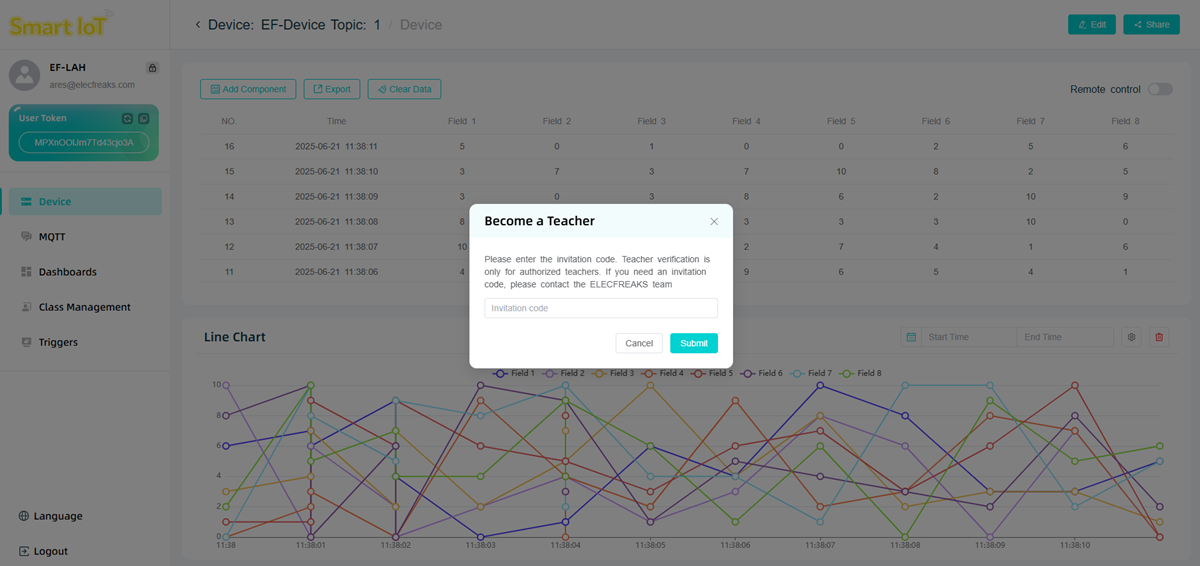
SmartIot Platform Classrooms Management
Click the class management option to enter the class management page. If you find that you need a teacher account activation code, please contact ELECFREAKS official personnel at email address support@elecfreaks.com.
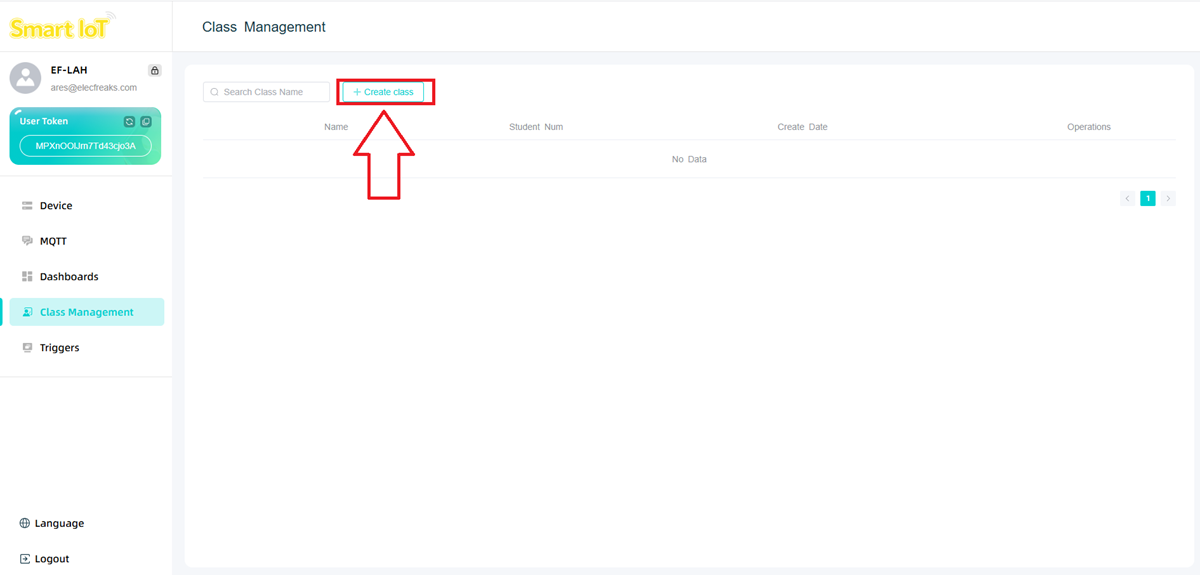
Click "Create Class".
Enter the class name and student names on the pop-up page.
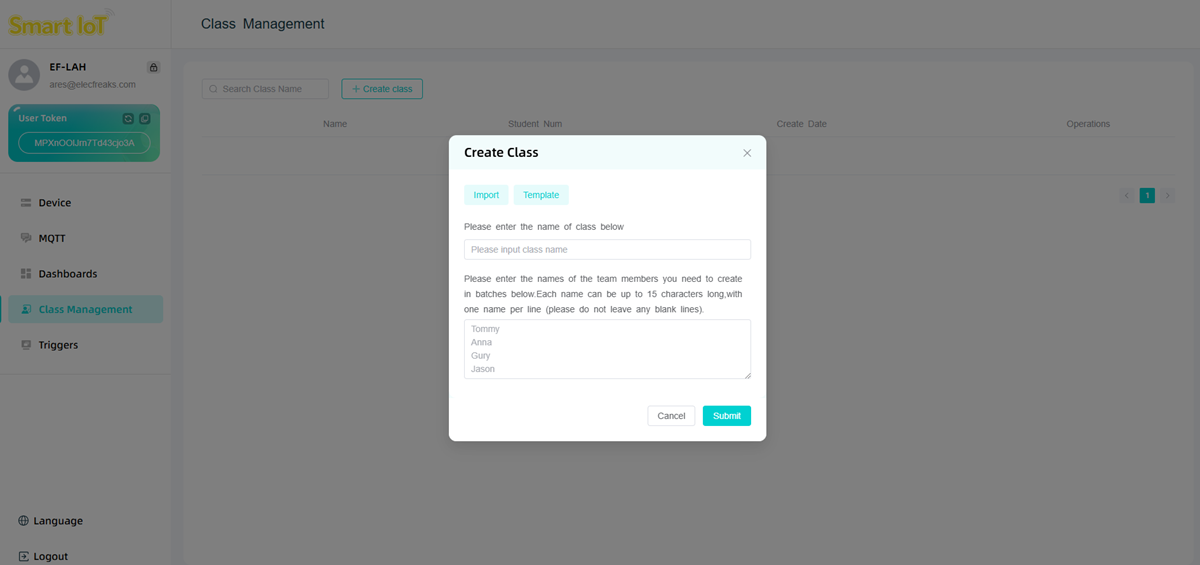
Note: Each name can contain up to 15 characters, one name per line (please do not leave any blank lines).
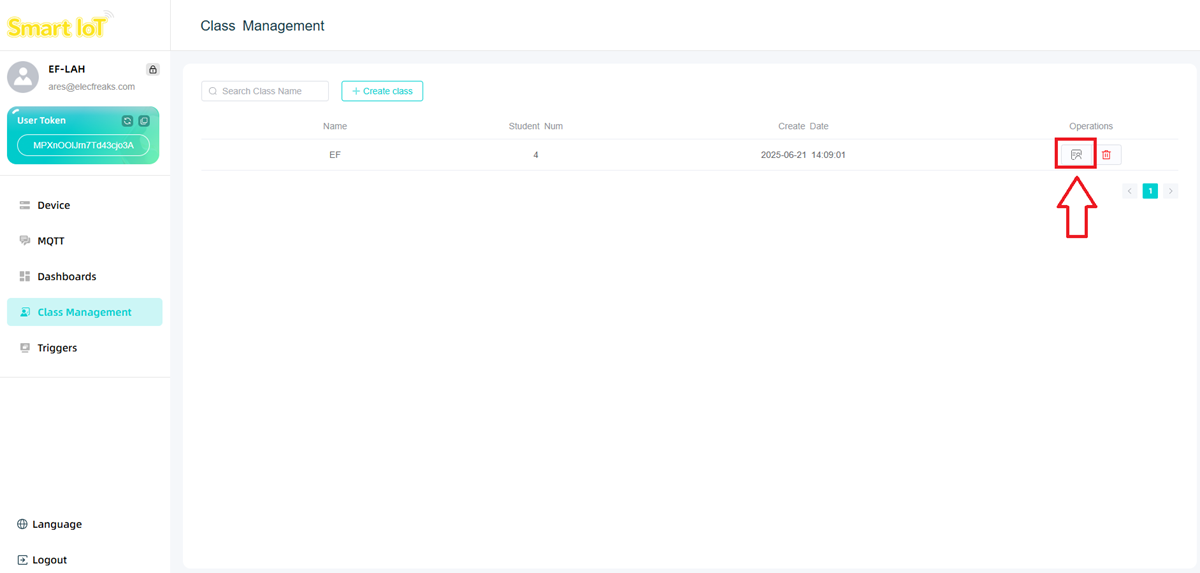
After creating the class, click the icon to enter the student information management interface.
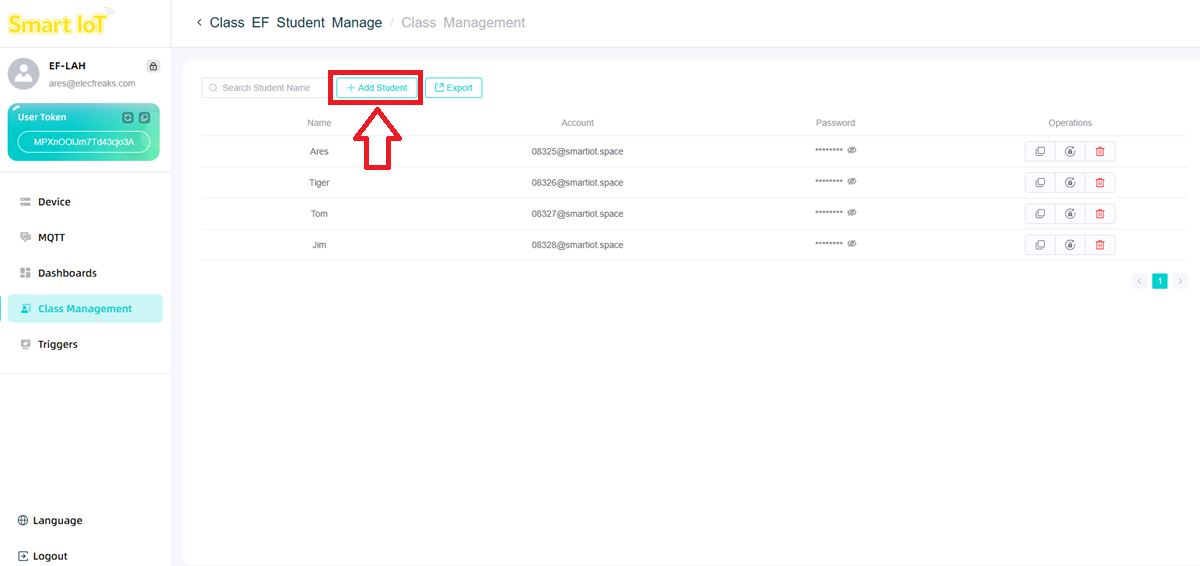
Click Add Student to fill in student information.
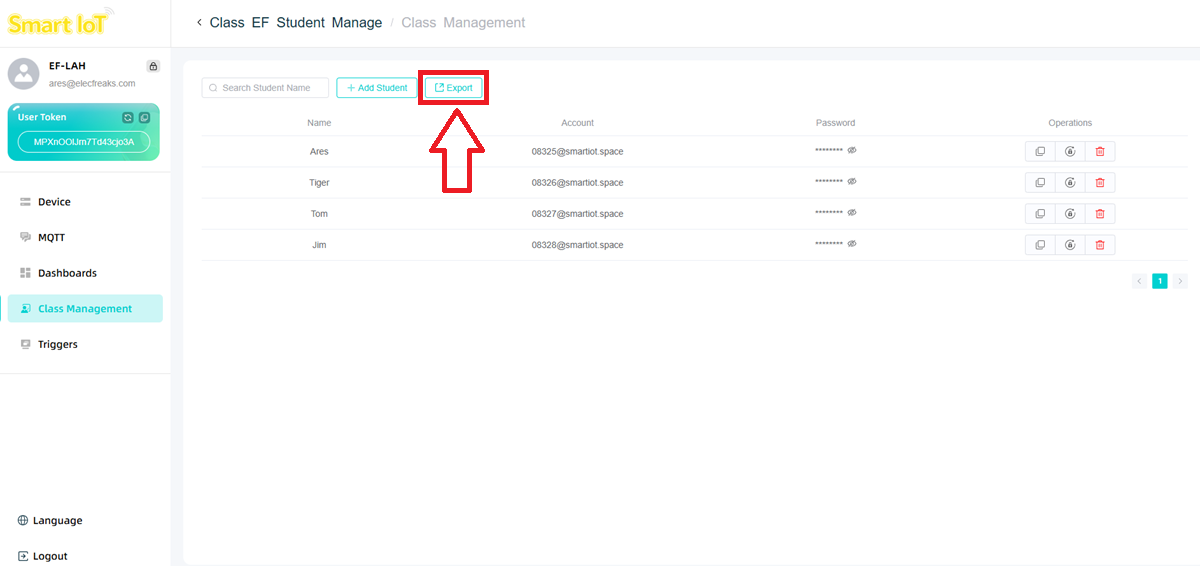
Click Export to export all student data.
Click the copy icon to copy individual student data.
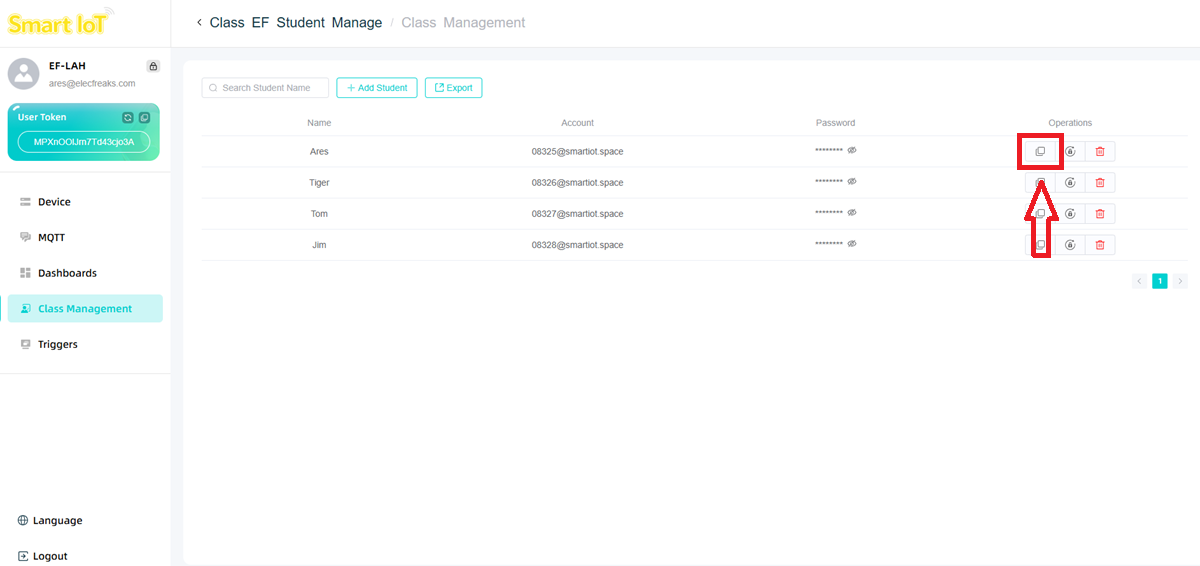
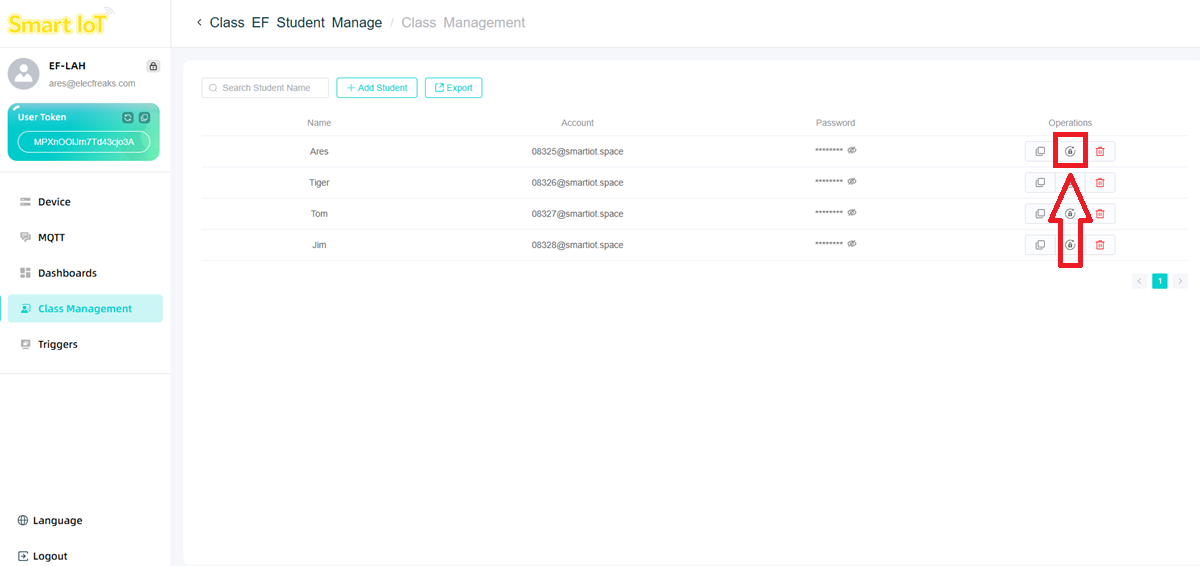
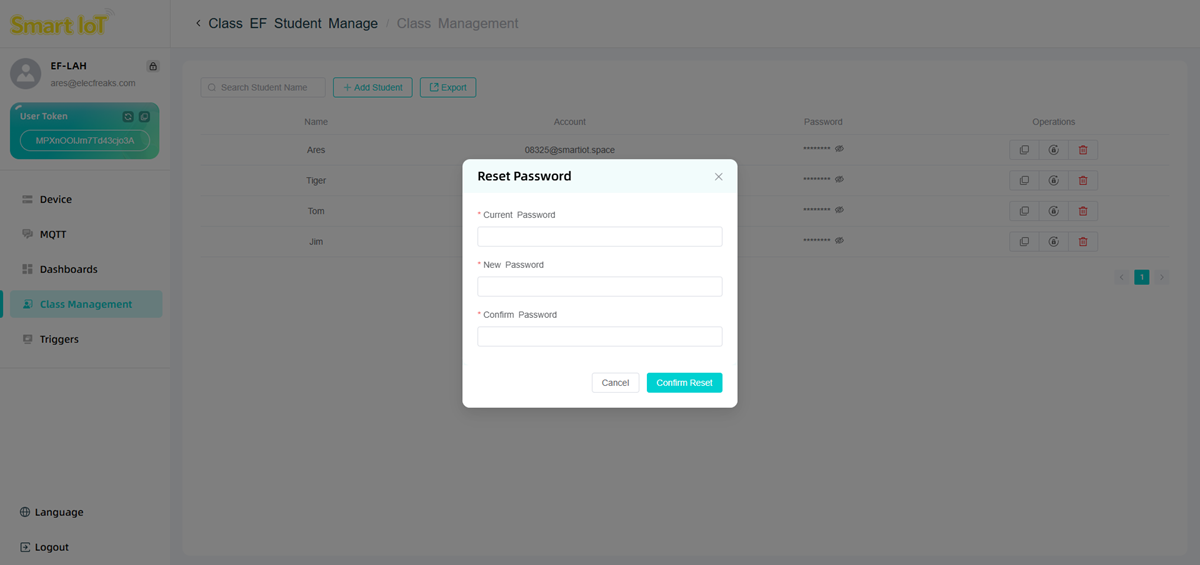
Click Reset Password to reset the student account password in case the student forgets the password.
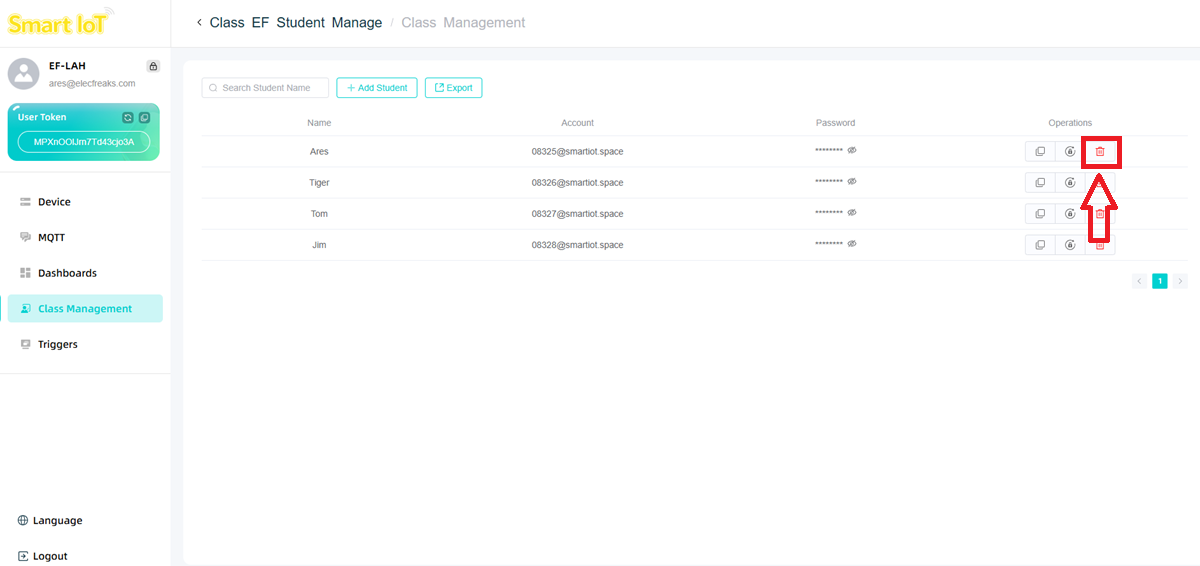
Click Delete to delete student information.
SmartIot Platform Password Reset
Click the icon in the picture below to enter the password reset page.
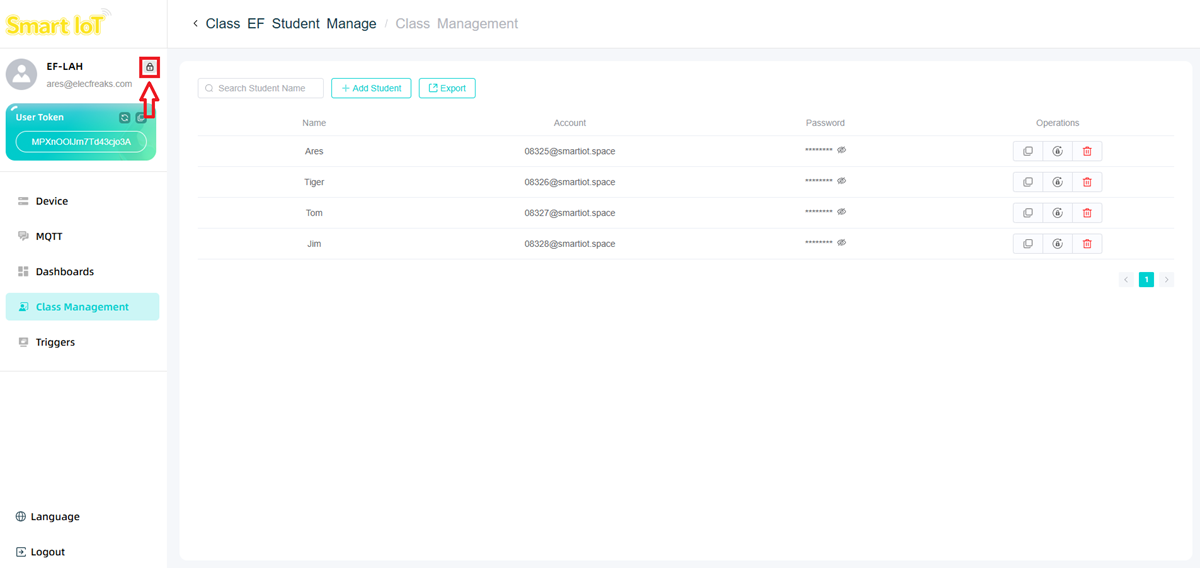
Enter the old and new passwords to change your password.
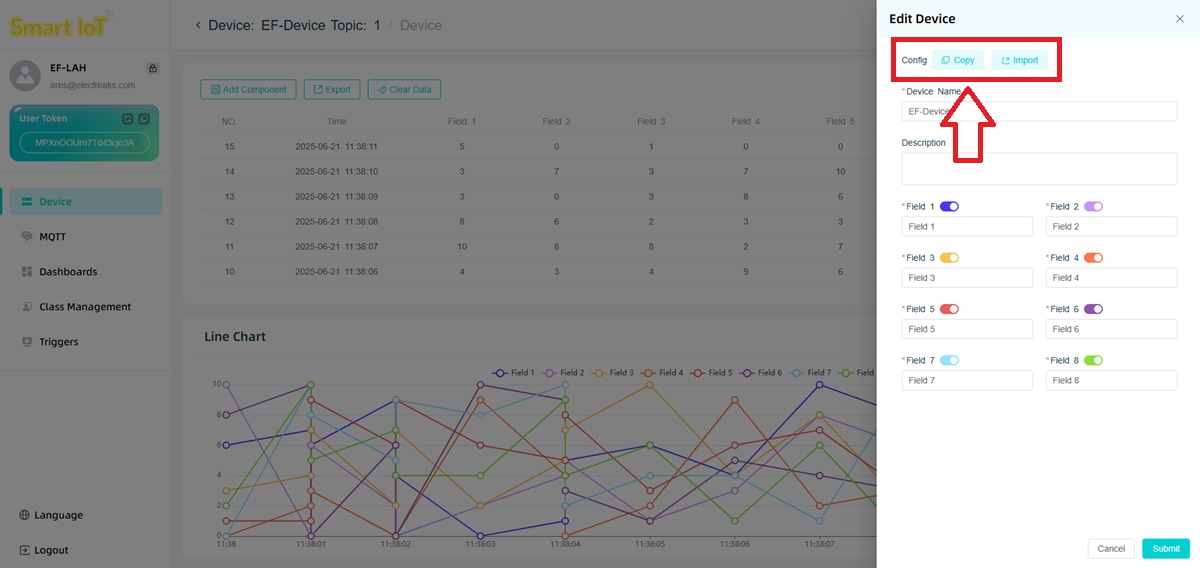
SmartIot Configuration Sharing
Click Copy or Import to export or import device configuration.
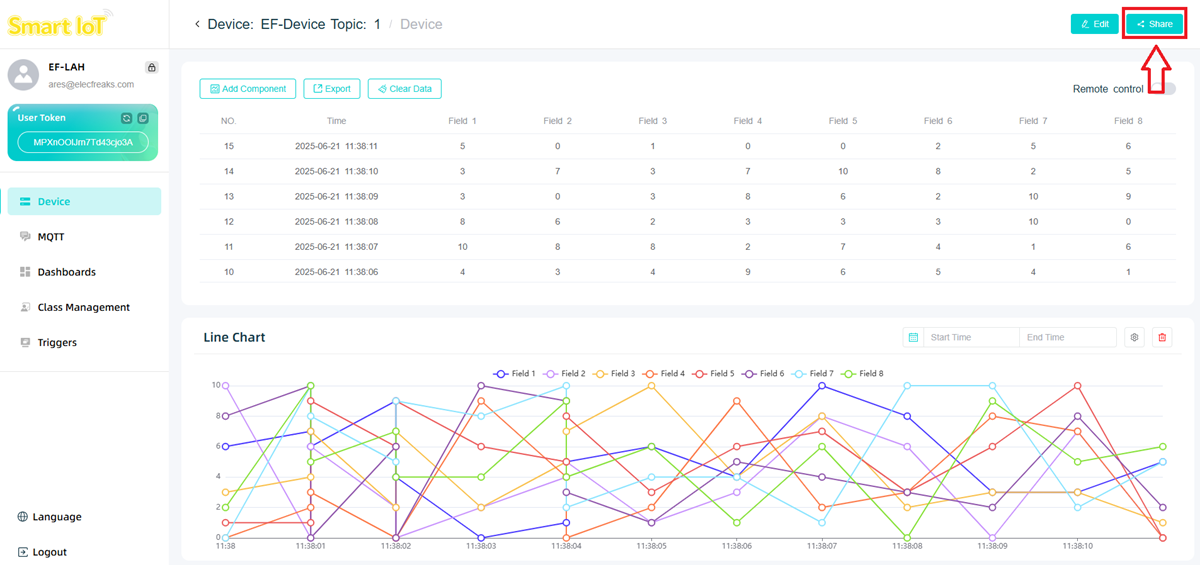
SmartIot Device Sharing
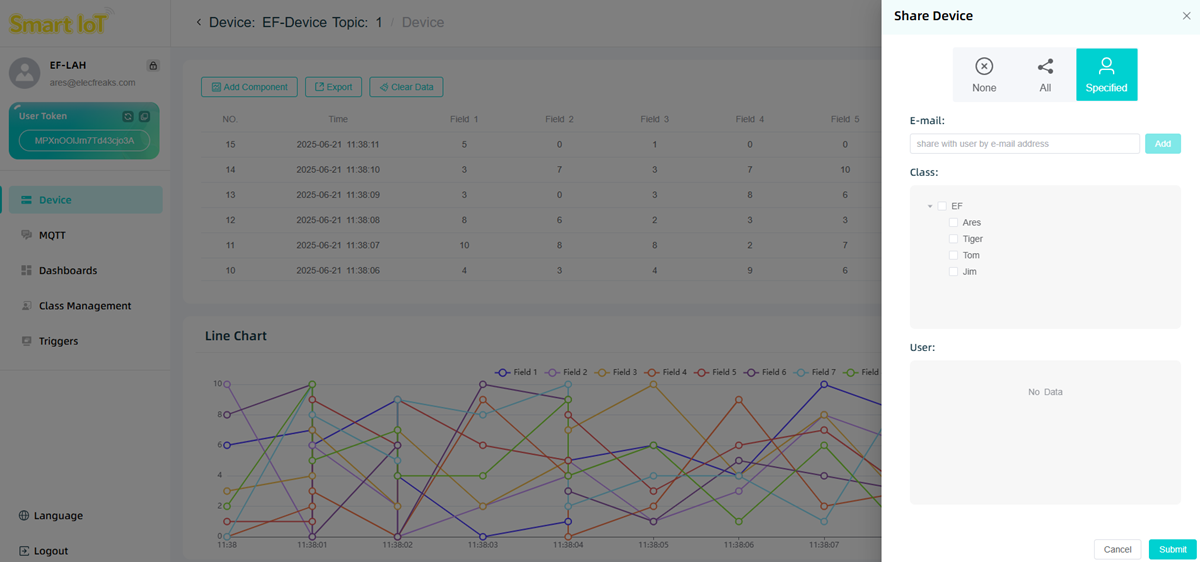
Click Share to enter the device sharing page.
Click ALL to set the device as a publicly shared device. Anyone with the device's shared link can access the device and view data.
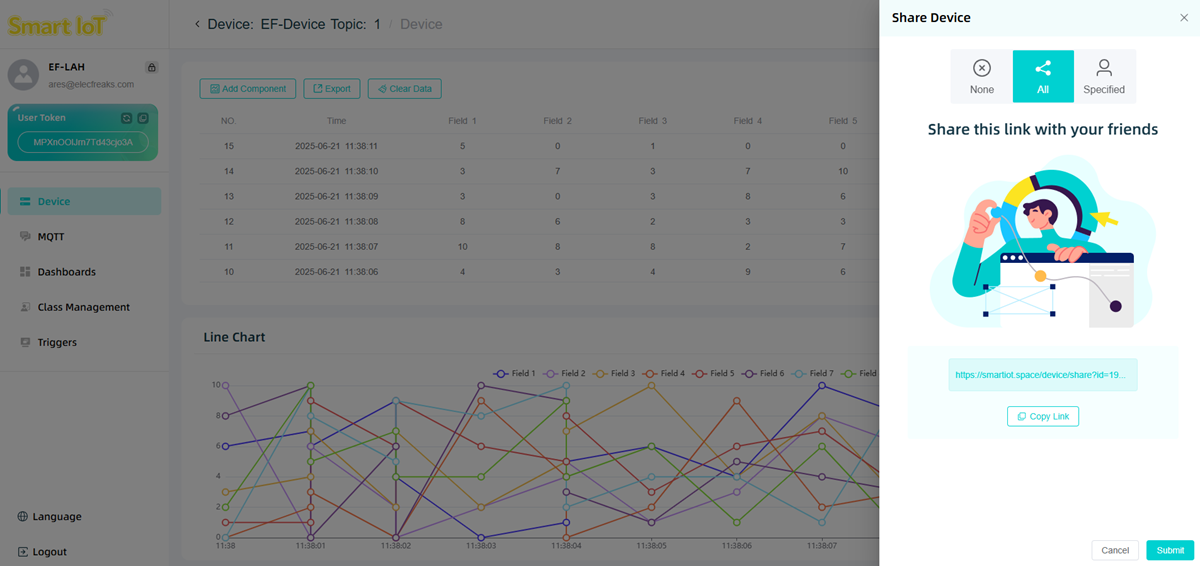
Click Specified to set the device as a private shared device. You can share it with a designated account via email. If it is a teacher account, you can also quickly share the device with class members using the options below.
Shared devices will be displayed in Share Device.
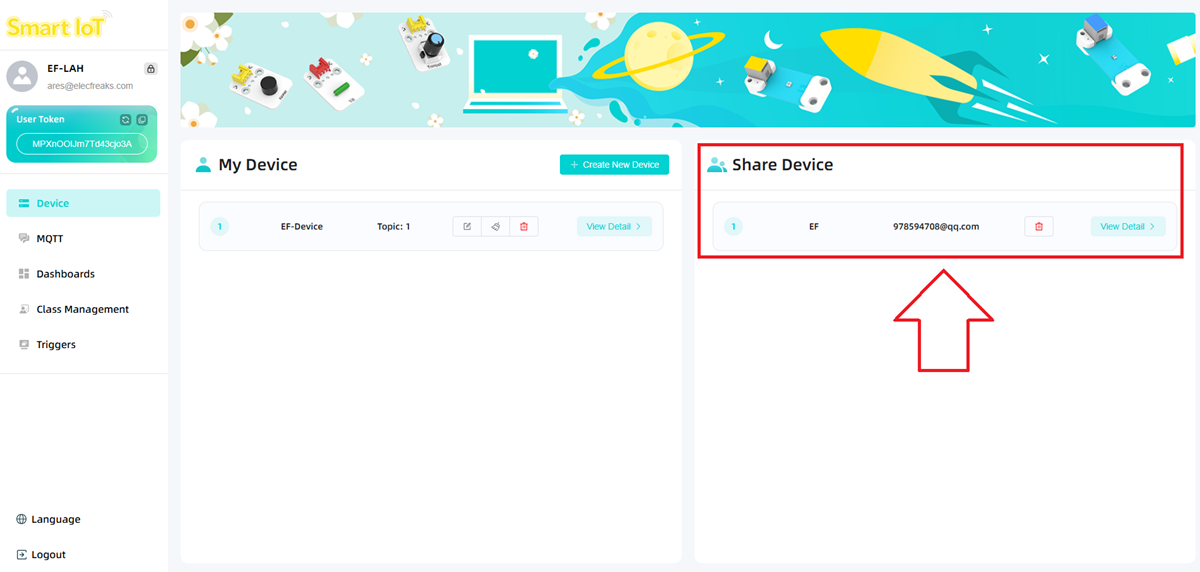
The person being shared only has reading permission and cannot modify the data or chart content.