Petal Series Basic Expansion Board
Introduction
The Petal Series Basic Expansion Board offers extensive connectivity options for your electronic innovation projects. It comes equipped with two analog interfaces, two digital interfaces, and four IIC interfaces, fully meeting the connection requirements of various sensors and modules. The interfaces feature a thoughtful anti-misplug design to prevent device damage from incorrect insertion, ensuring safe and worry-free use.
Notably, this expansion board is perfectly compatible with the color recognition system. The terminal colors on the expansion board, the terminals on the sensors, and the software programming blocks all correspond, creating an intuitive and unified color logic from hardware connection to software programming. This significantly reduces the operational difficulty for users, especially beginners, making the realization of creative ideas smoother and more efficient.
In terms of structural design, the spacing of the fixing holes on the expansion board precisely matches the building block spacing, allowing flexible integration with various building block structures. Whether you're building simple models or complex mechanical devices, the seamless compatibility fully expands your creative possibilities.
Product Parameters
| Item | Parameter |
|---|---|
| Product Name | Petal Series Basic Expansion Board (Petal:bit) |
| SKU | EF17021 |
| Product Dimensions | 73mm x 73mm x 13mm |
| Gross Weight | 41.2g (with acrylic and screws) |
| Rated Operating Voltage | 5V |
| Minimum Operating Voltage | 3.3V |
| Sensor Interface Output Voltage | 3.3V |
| Maximum Sensor Interface Output Current | 1A |
| Sensor Interfaces | 8 |
Quick Start
Hardware Connection
Connect the Petal Series Button Module to the J1 interface of the Petal Basic Expansion Board.

Software Programming
Create a New Project and Add Extensions
Go to "makecode.microbit.org" and click New Project.
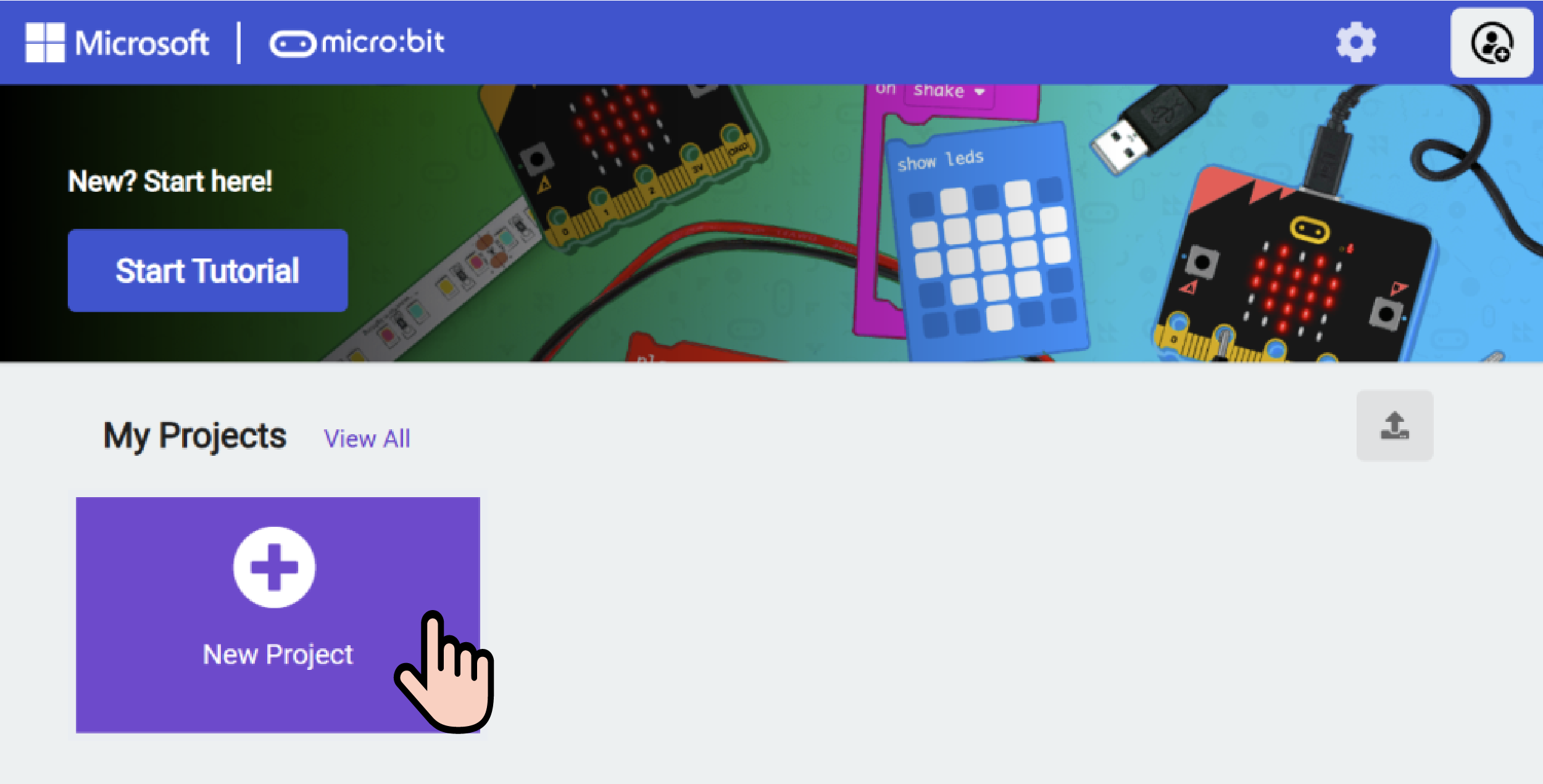
Enter a project name in the pop-up window and click Create.

Click Extensions in the code drawer.

Type petal in the search bar and click the search icon. Click on the petal software library when it appears.

Example Program
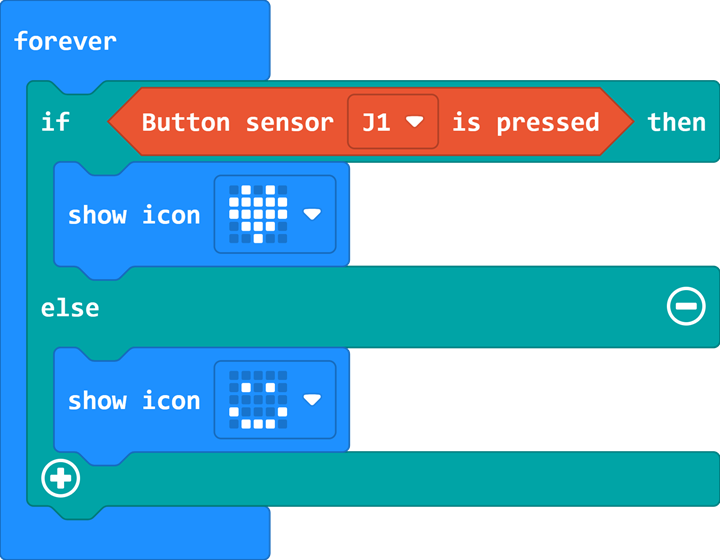
Program Link: https://makecode.microbit.org/_YohMzRg2y0p7
You can also download the program directly via the following webpage.
Download the Program
Connect the PC and micro:bit V2 using a USB cable.

After successful connection, a drive named MICROBIT will be recognized on the computer.

Click the icon at the bottom left:  and select Connect Device.

Click: 

Click: 

In the pop-up window, select BBC micro:bit CMSIS-DAP and then click Connect. At this point, your micro:bit is successfully connected.

Click Download Program

Case Demonstration
When the button is pressed, the LED matrix displays a heart icon. When the button is released, the LED matrix displays a smiling face icon.
